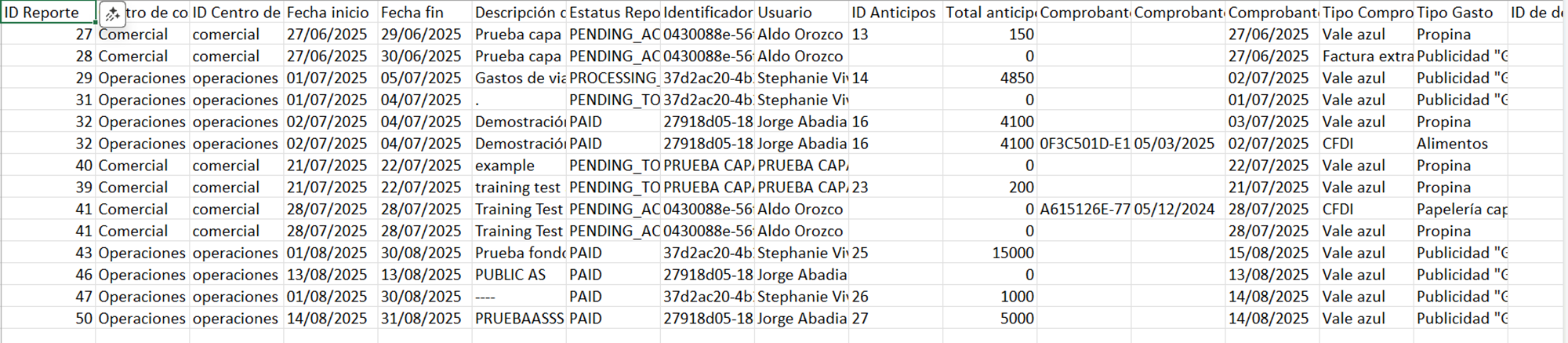
After you start using the Focaltec Control de gastos portal, you may need to generate some type of report or general statement with company information.
To generate a report or statement, you need to do the following:
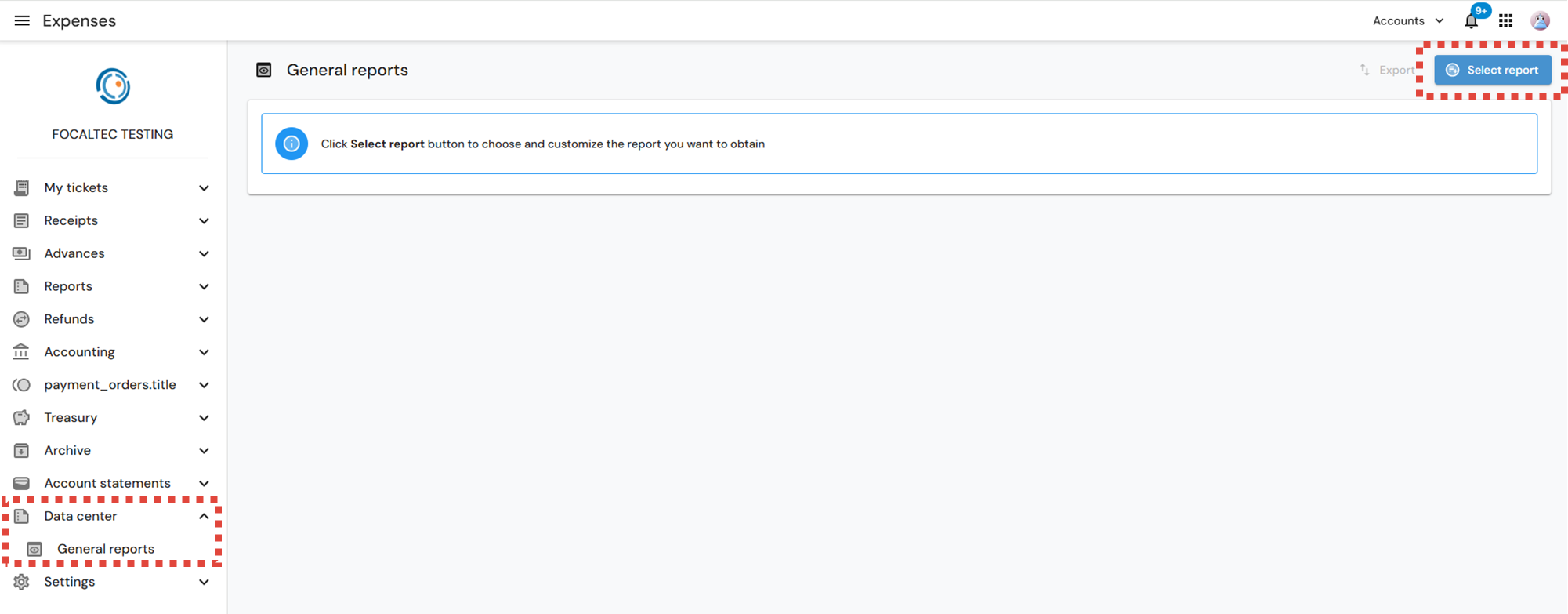
Access the Focaltec Control de gastos portal under the option “Data Center > General Reports” and click on “Select Report”.
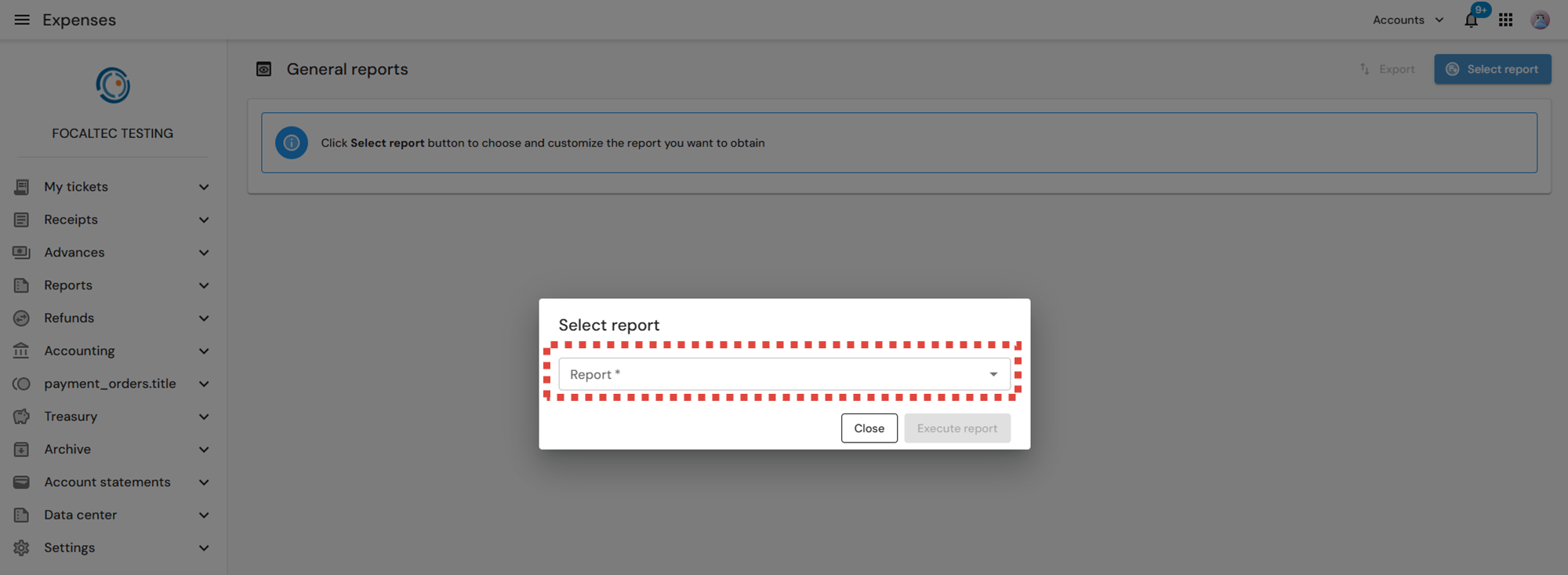
Select the report to generate. The types of reports that can be generated are listed and described below.
Receipts in expense reports. Displays all receipts (of any type) that are already in an expense report filtered according to the specified criteria.
User expenses by payment method. Report showing user expenses grouped by payment method and company. Only shows payment methods for receipts that have already been used in at least one expense report.
Breakdown of expenses paid with taxes. List of expenses (reports) incurred and already paid by the company, with their payment dates.
Breakdown of expenses by cost center. Amounts spent by cost centers should be considered when receipts are prorated. It will take any status from the expense report and only receipts that already belong to an expense report. Advances will not be considered in this report.
Breakdown of expenses by type of expense. Total spent by type of expense in each of the tenant 's companies, including the expense reporting stage.
Expense reports. List of expense reports including advances, totals, and extended fields.
DIOT Assistant (by issue date). The DIOT report is a supplier report that groups the amounts paid by RFC, recipient company, and month of the year. The data shown is based on the issue date of the receipt.
DIOT Assistant (by payment date). The DIOT report is a supplier report that groups the amounts paid by RFC, recipient company, and month of the year. The data shown is based on the payment date of the receipt.
Advance payroll stamping assistant. Auxiliary report for payroll stamping that shows the amounts the user received as advances, taking the “payment date” as the reference date. Only advances that have already been paid should be considered.
Auxiliary payroll stamping report. Auxiliary report for payroll stamping that shows the amounts the user received for reimbursements and advances, taking the “payment date” as the reference date. Only reports and advances that have already been paid should be considered.
Types of expenses per person. Shows the totals spent and authorized per user, type of expense, and company. You must include all receipts (of any type) that are already in an expense report.
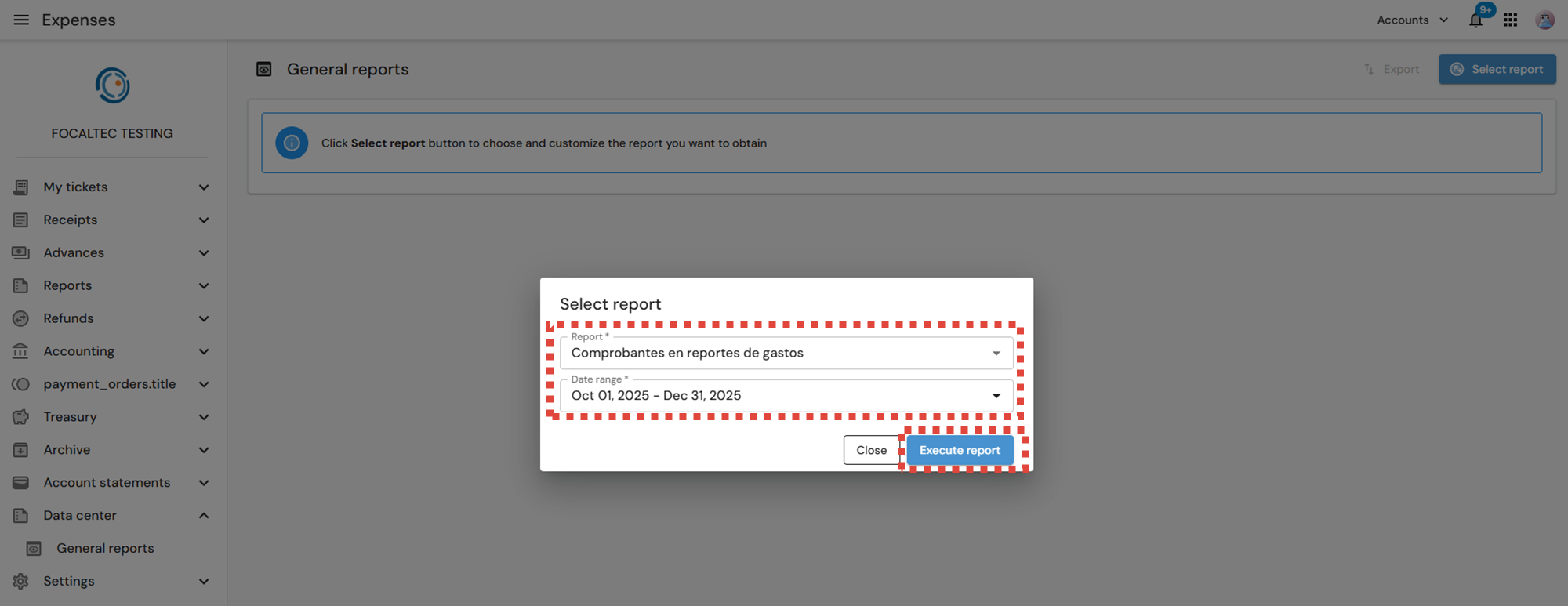
After selecting the report to generate, you must specify the date range for which you want to obtain the information in the report, then click on “Run report”.
NOTE: Please note that if you select the “Specify” option, the maximum period for generating the report between the start and end dates is three months.
The portal displays the information in the selected report. If required, you can export the report by clicking on “Export”.
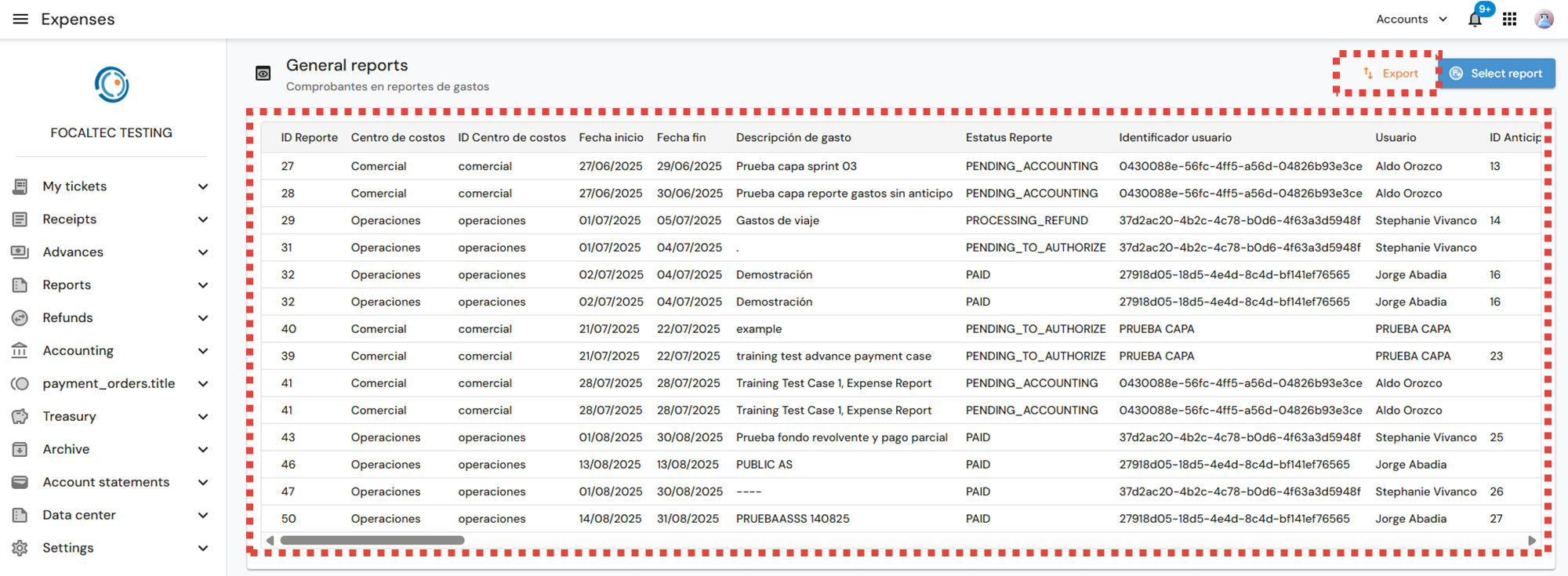
Now, from your computer, under the “Downloads” option, you will be able to see the generated file. If you wish, you can open it.

Finally, you can validate the report generated through the downloaded file.