Context.
A carbon footprint is an environmental indicator that reflects the total greenhouse gases (GHG) emitted directly or indirectly by an individual, organization, event, or product. The carbon footprint is measured in CO2 equivalent mass.
An annual sustainability report is a document that a company publishes to communicate its performance and commitment to sustainability to its stakeholders, including environmental, social, and governance (ESG) aspects.
If the Carbon Footprint Module needs to be enabled, you will need to request that support perform the configuration within the Focaltec Control de gastos portal.
Steps to enable the Carbon Footprint Module in the Focaltec Control de gastos portal.
You must request support to perform a configuration by submitting a ticket or sending an email to soporte@focaltec.com or ayuda@focaltec.com, with the subject line “Enable Carbon Footprint Module”.
Support will need to verify that the option “Enable Carbon Footprint Module” is enabled and configured.
Once it has been confirmed that the configuration is available within the Focaltec Control de gastos portal, the company and users will have access to the “Carbon Footprint Module (CO2 Variables)” configuration.
Once the “Carbon Footprint Module” has been enabled, the Administrator must register a series of “Catalog” items that are necessary to start using this module.
The catalogs to be created will be:
Broadcast formula.
Emission factors.
How do I add a new broadcast formula?
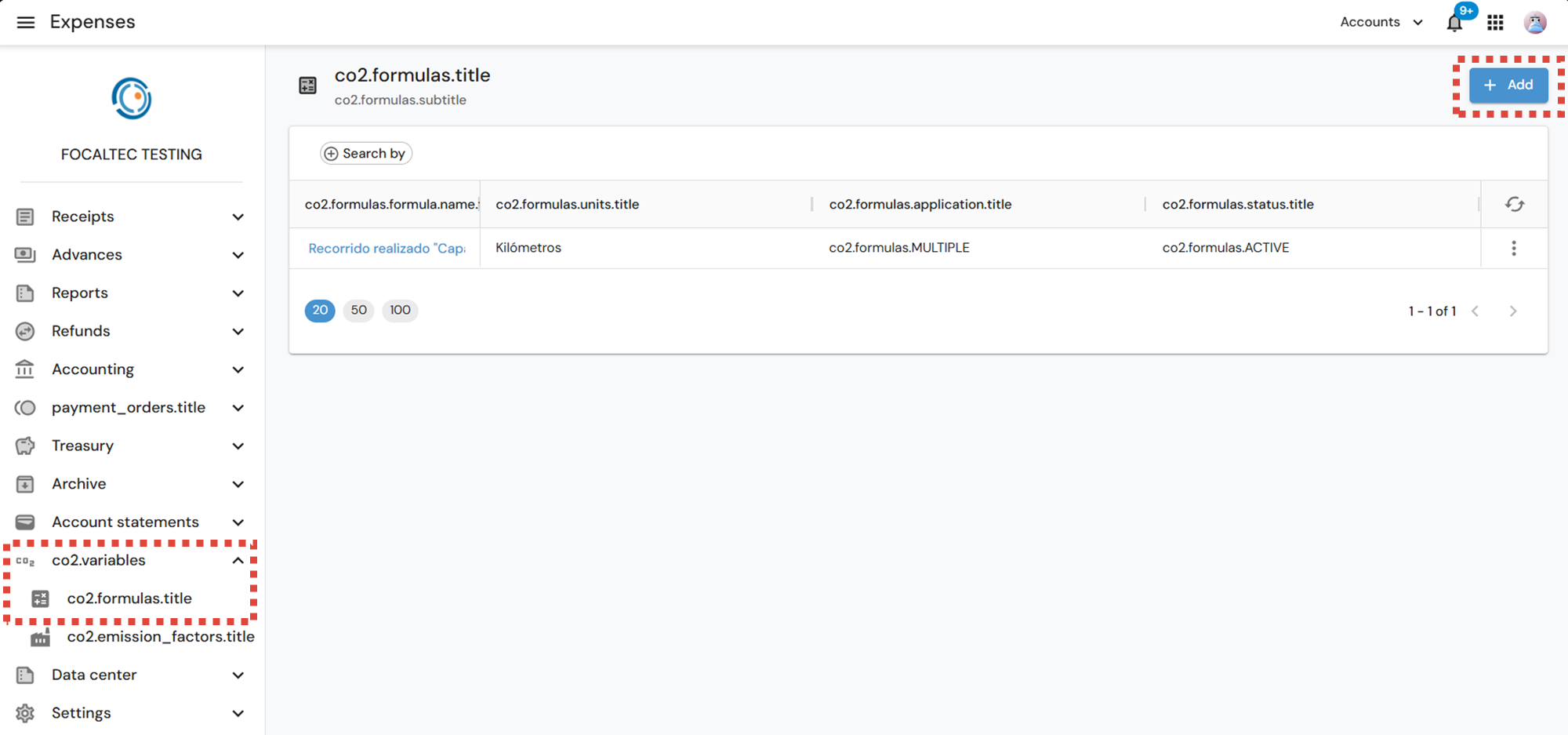
Log in to the Focaltec Control de gastos portal and, in the “CO2 Variables > CO2 formulas” menu, click on “+Add”.
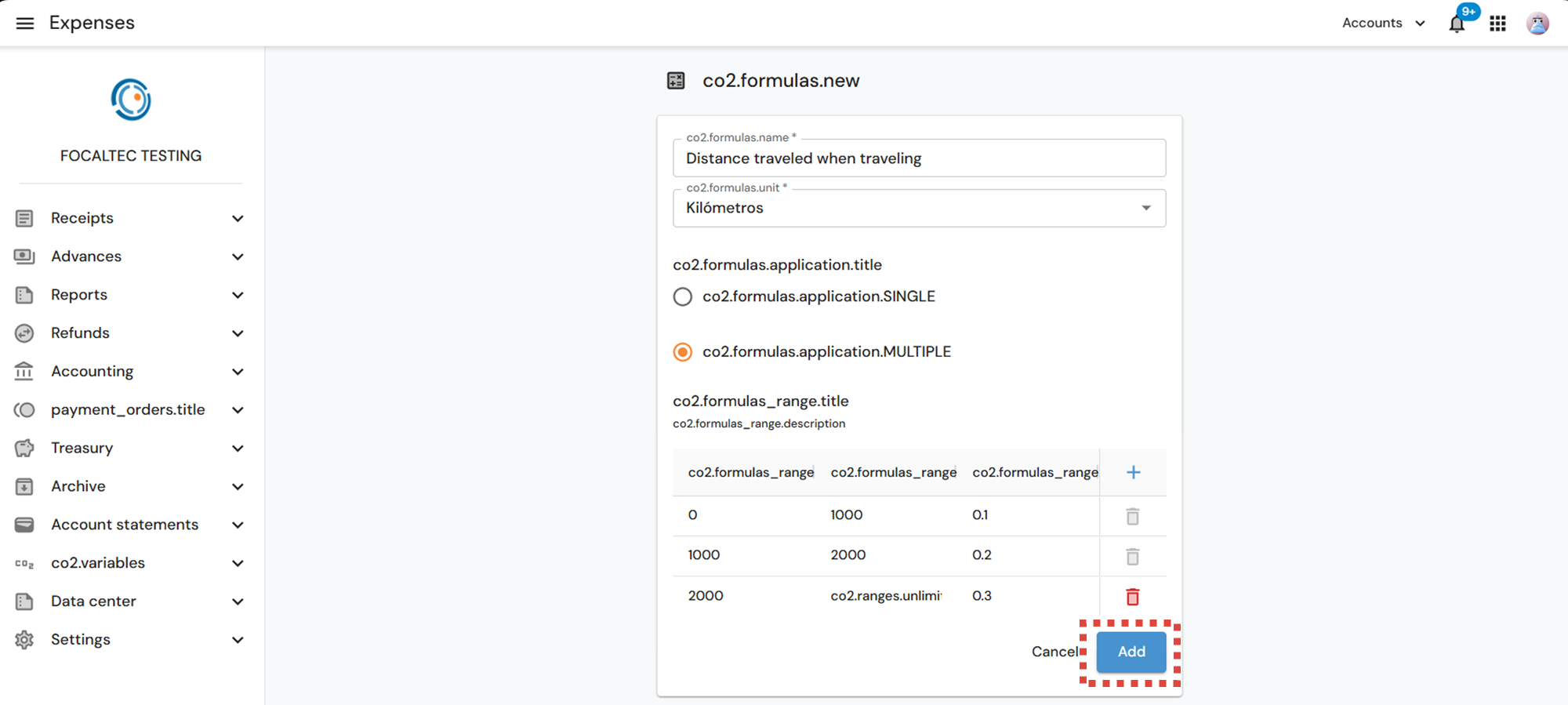
In the next window, you must enter and specify the following information. Once you have finished entering the information, click on “Add”:
CO2 formulas name. Enter a clear and descriptive name that allows you to easily identify it.
CO2 formulas unit. Select the appropriate unit from the drop-down menu.
CO 2 formulas application. Select one of the following options:
Single. The formula will be applied generally, recorded in decimal form, and will be the value used to calculate emissions in expenses.
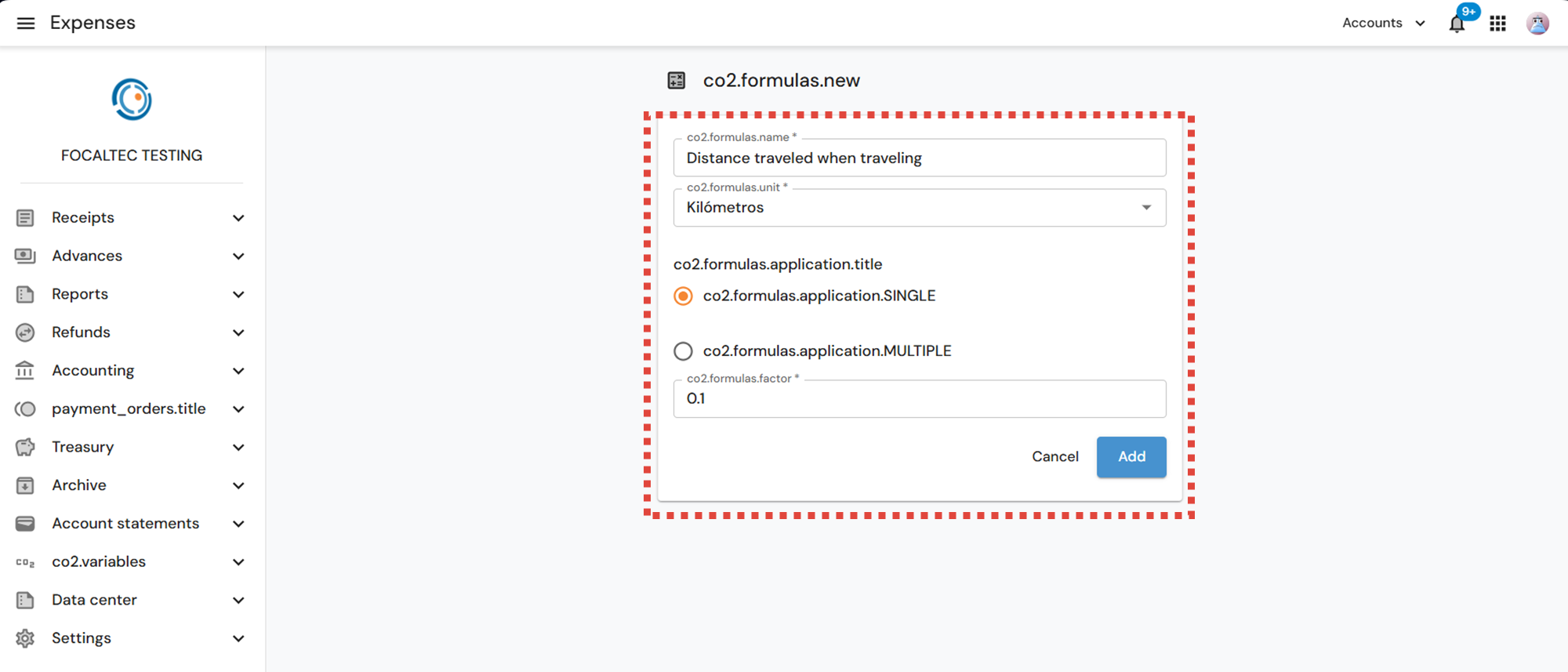
Multiple. The formula will be applied according to defined ranks, of which there may be several, depending on the activity.
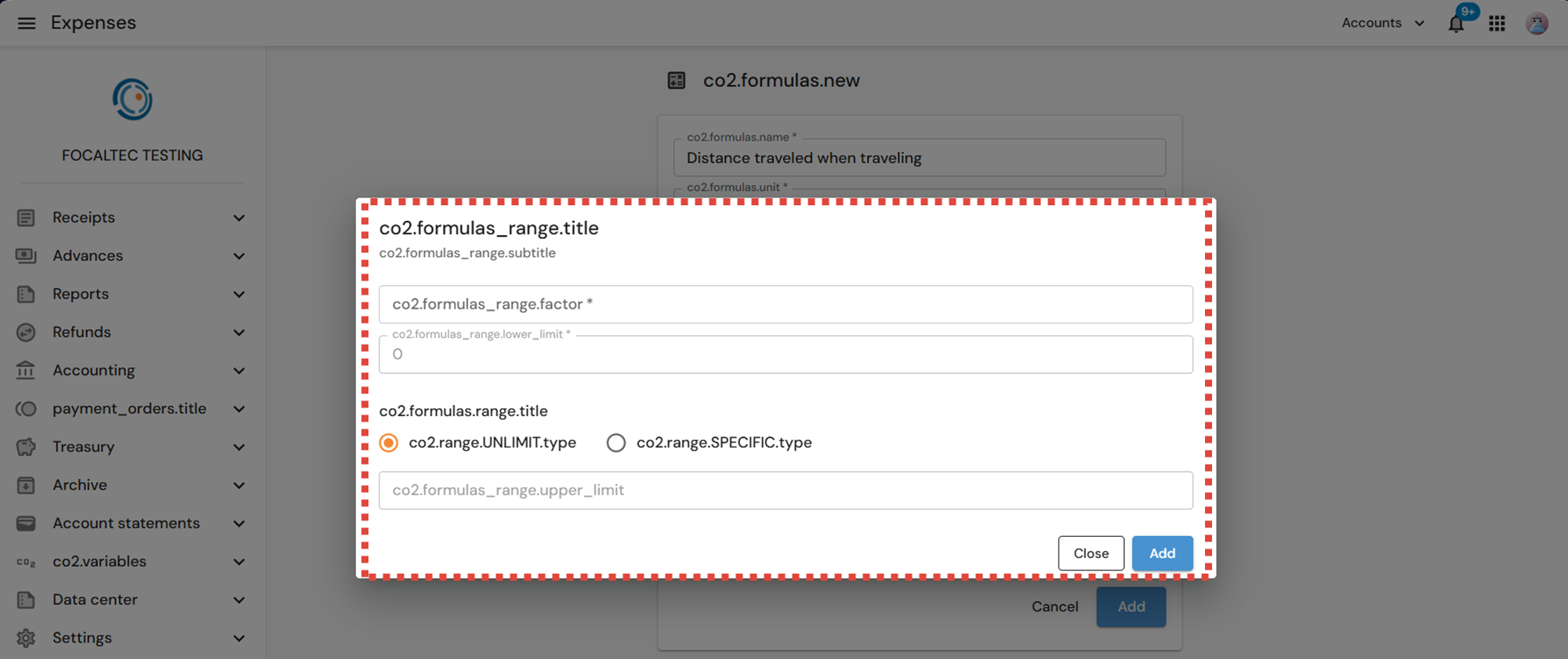
When selecting by ranges, you will see the option “New factor range”, click on add +.
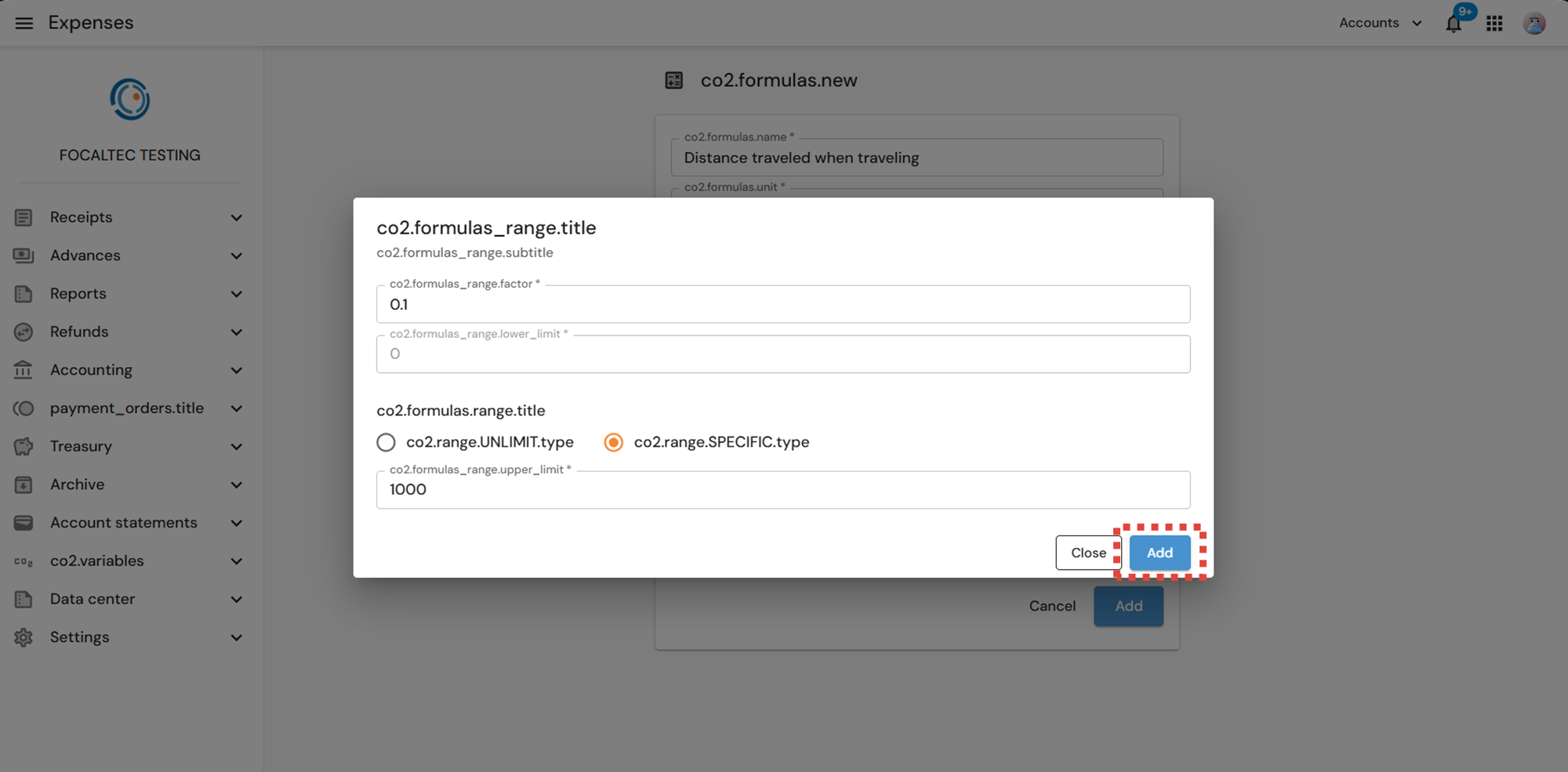
In the next window, you will need to enter the following information:
CO2 formulas range factor. Capture the numerical value that will be applied within the defined range. It will be recorded as a decimal and will be the value used to calculate emissions in expenses.
Upper limit. Select one of the following options:
Unlimit. The factor will be applied to all values greater than or equal to the lower limit.
Specific. Enable the field to enter a maximum value in “Upper limit (Less than),” then click “Add”.
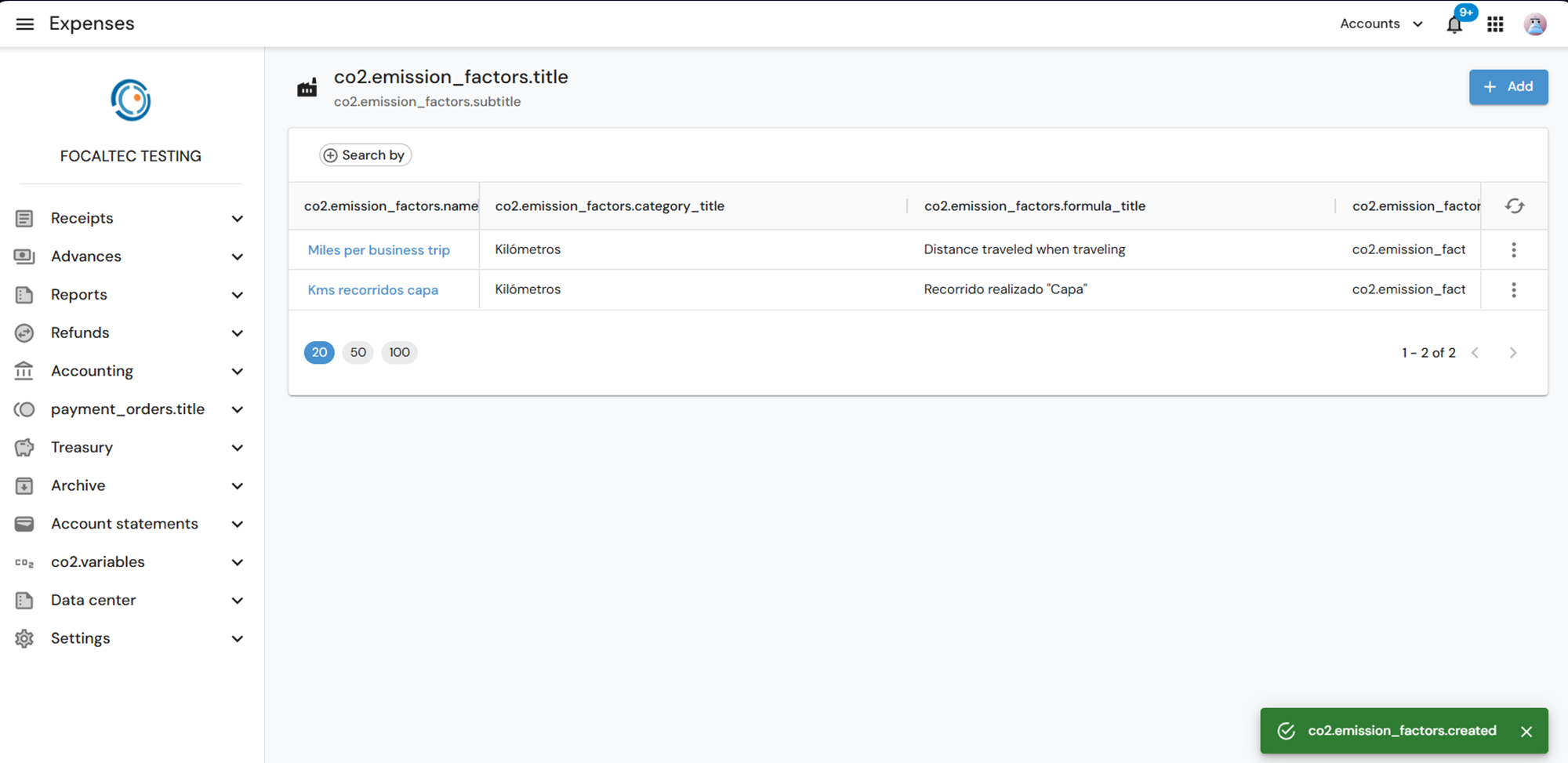
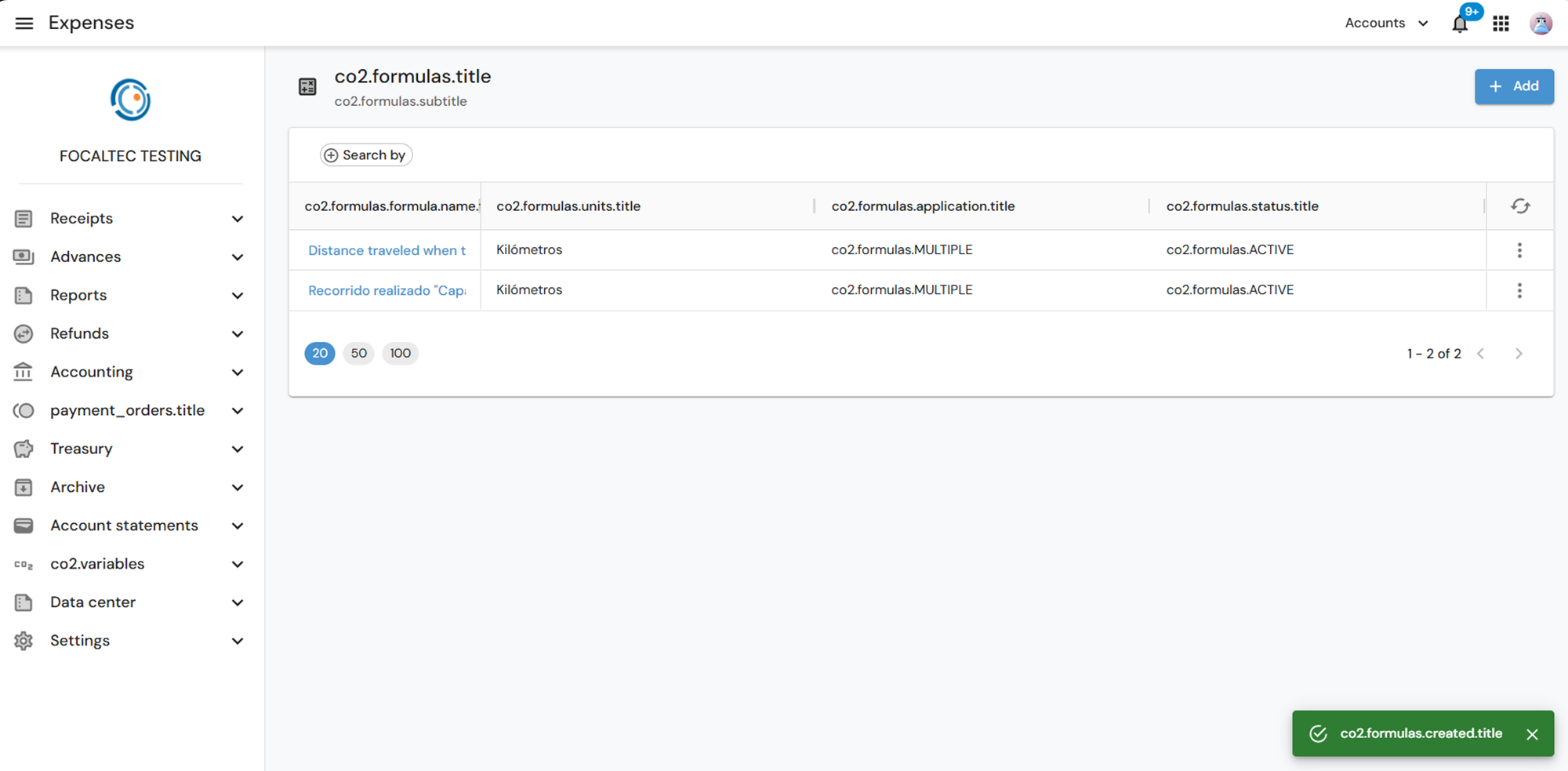
Finally, when you click “Add”, you will see a confirmation alert stating that the formula has been saved successfully, as well as a list of the formulas being created. All formulas created have the status “Active”.
B. How do I add a new Emission Factor?
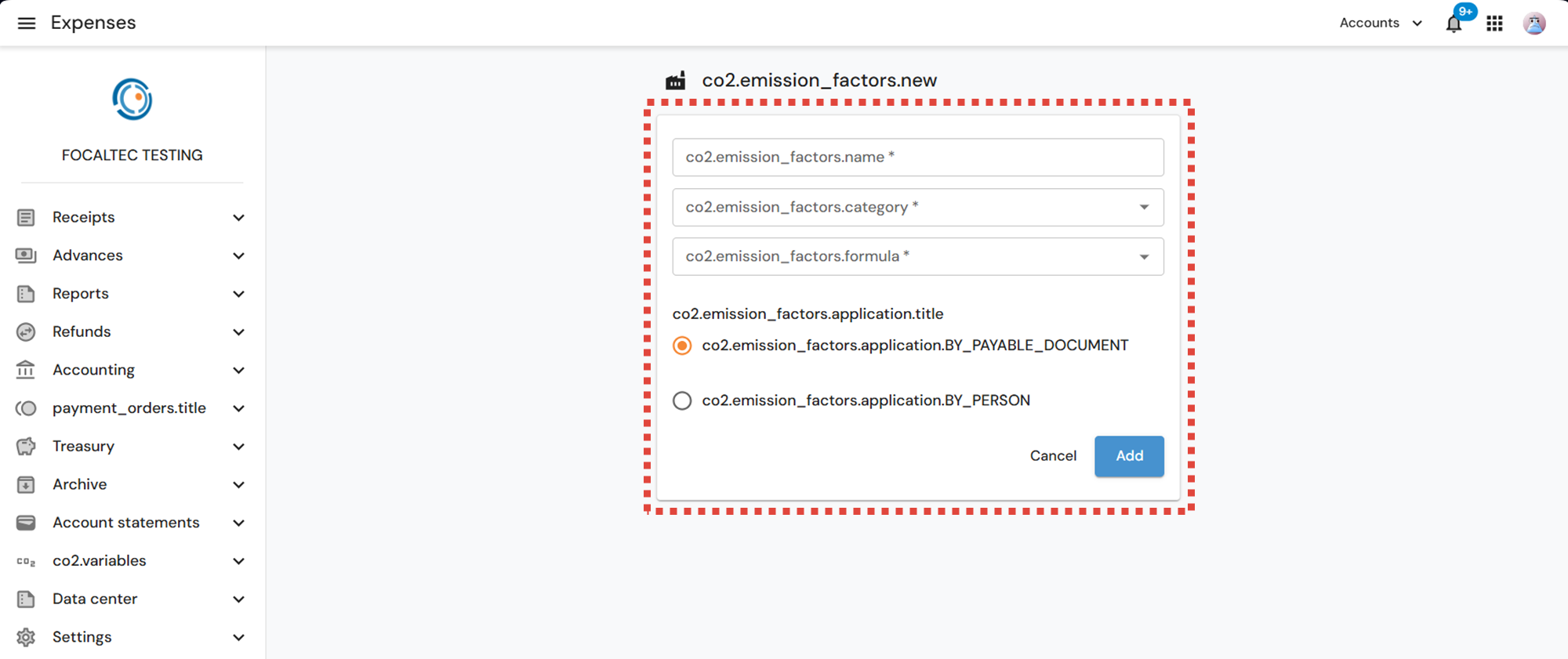
Log into the Focaltec Control de gastos portal and, in the “CO2 Variables > Emission Factors” menu, click on “+Add”.
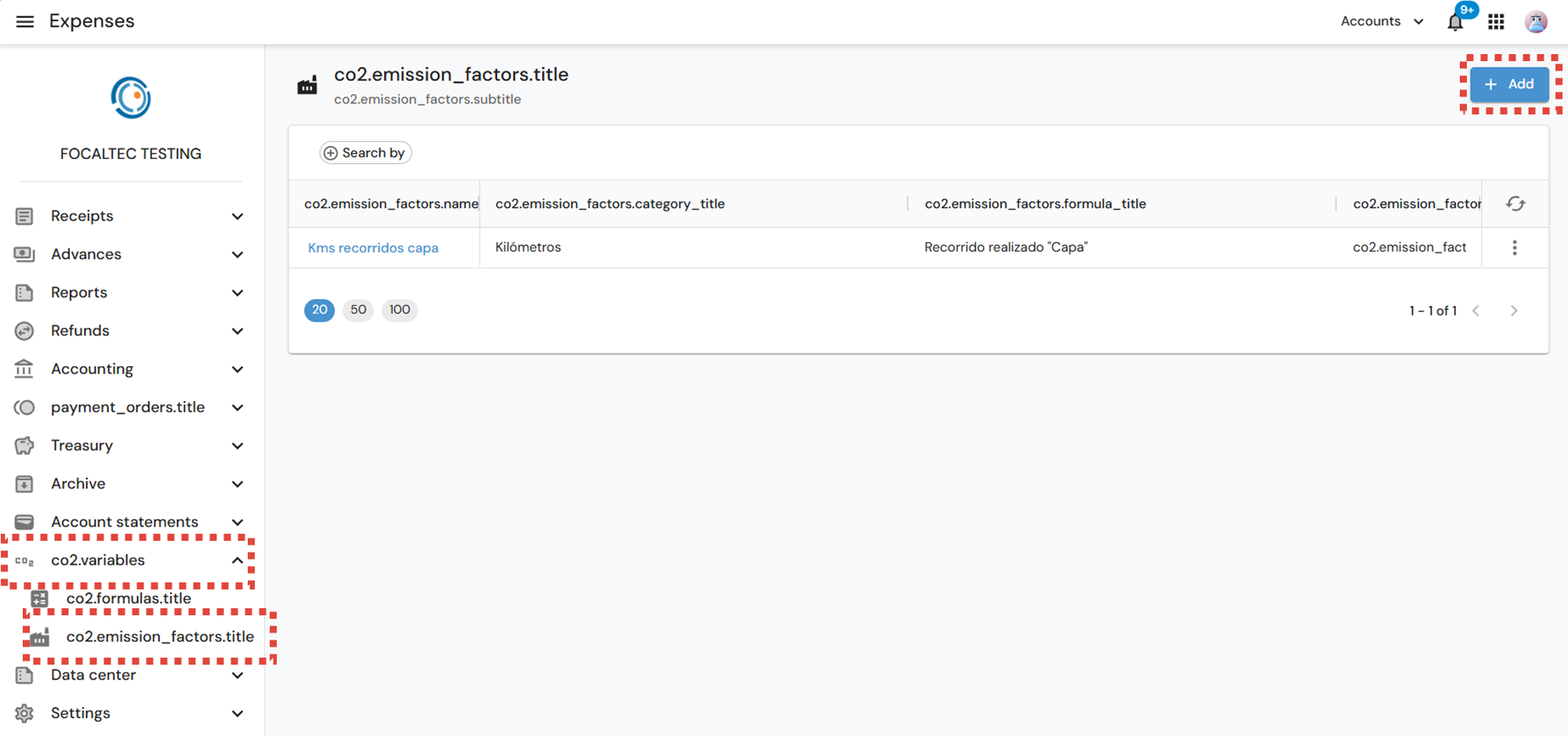
In the next window, you must enter and specify the following information. When you have finished entering the information, click “Add”:
Name of the emission factor. Enter a clear and descriptive name that allows it to be easily identified.
Category. Select the corresponding unit from the drop-down menu.
Emission formula. Select the formula associated with the emission factor from the list.
Application of the formula. Specify where the emission factor will be applied:
By payable document. Determines that the emission factor will be associated with a type of expense.
By person. Indicates that the emission factor will be associated per user.
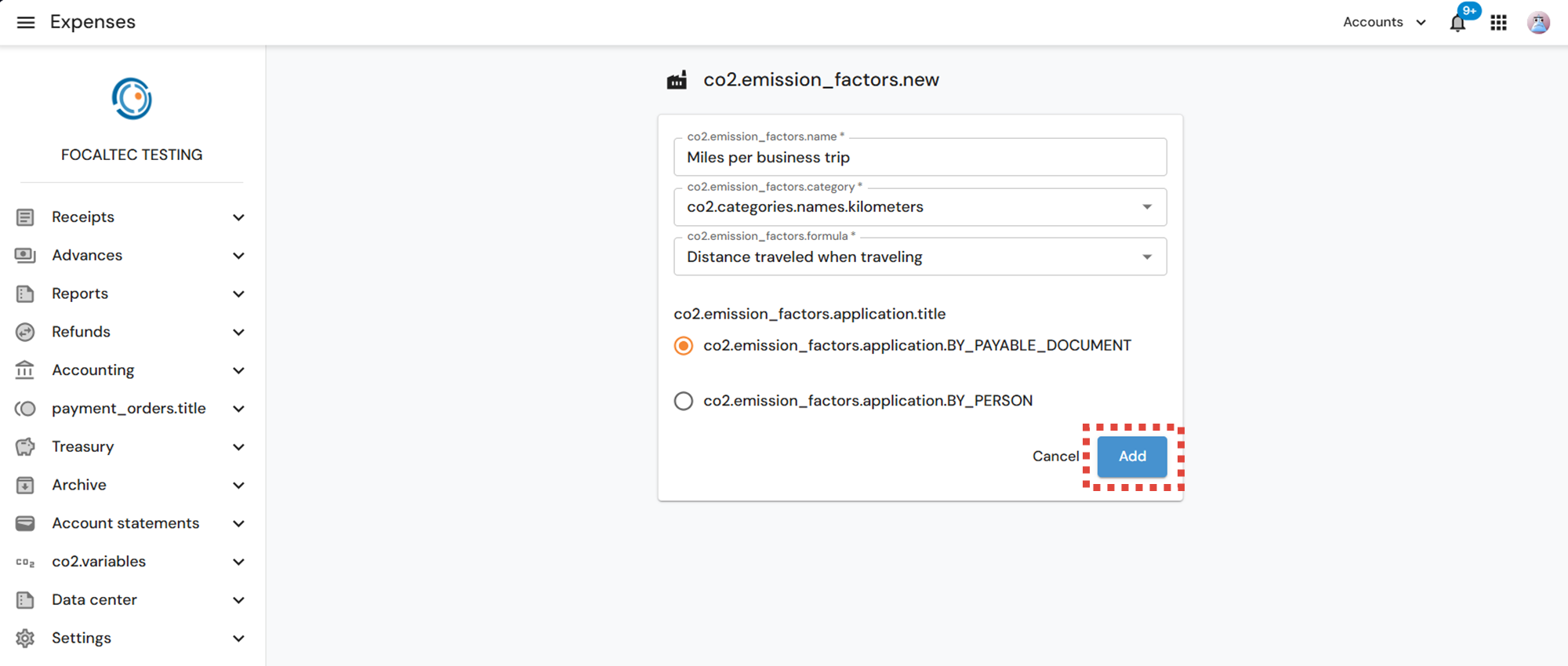
Finally, when you click “Add”, you will see a confirmation alert stating that the formula has been saved successfully, as well as a list of the formulas being created. All formulas created have the status “Active”.