This activity can be performed by:
Administrator
Records manager
File validator
Special file validador
Currently, in Focaltec Portal de Proveedores, you can register a specific expiration date for a supplier's digital file field, where the user (who reviews the file) can manually specify an expiration date without affecting the expiration date established in the fields of other suppliers.
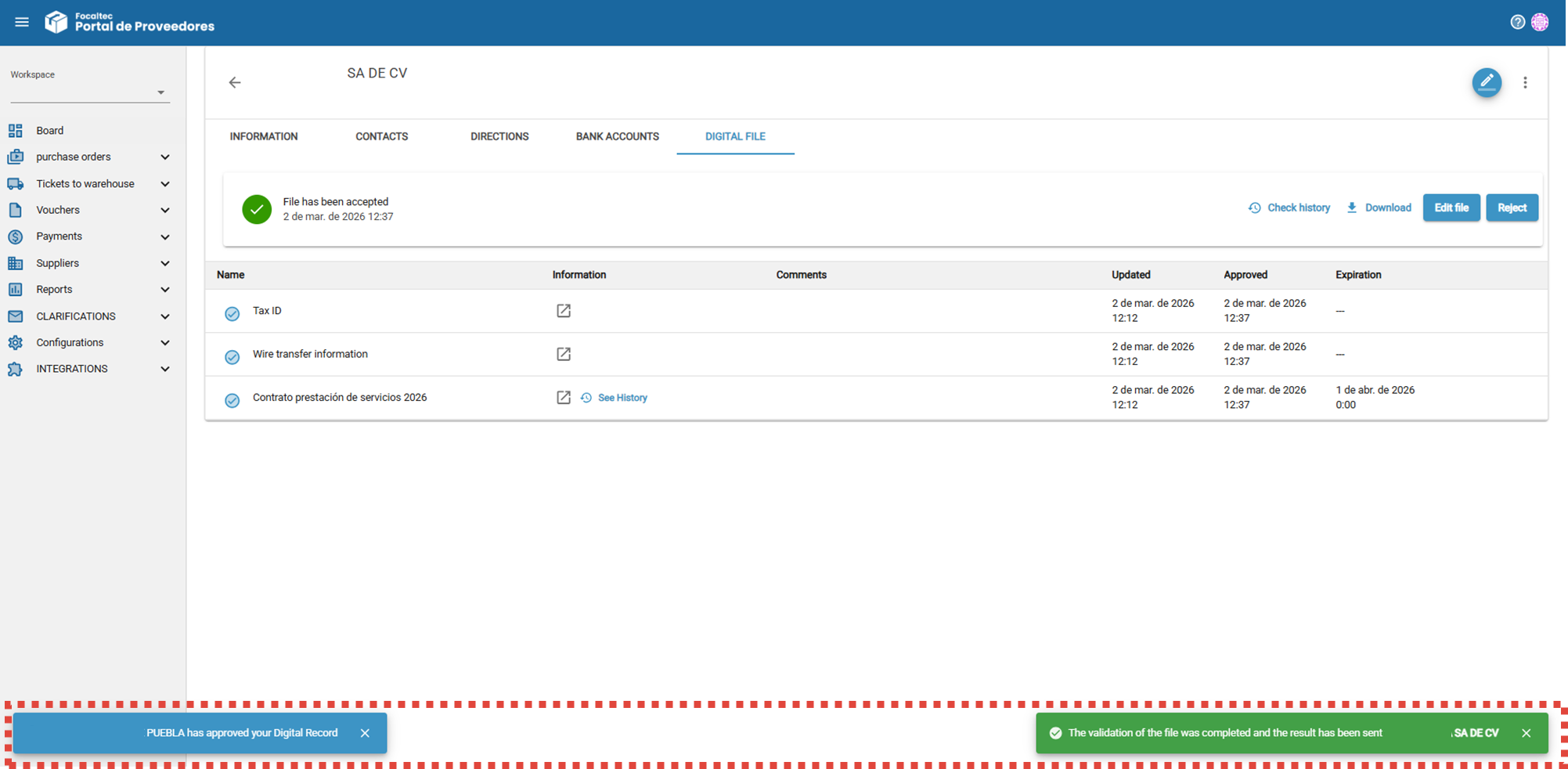
The User (who reviews the file) proceeds from the “Digital File” view to review the data or documents that the Provider shares with them in the digital file (Contacts, Addresses, Bank Accounts, Digital File).
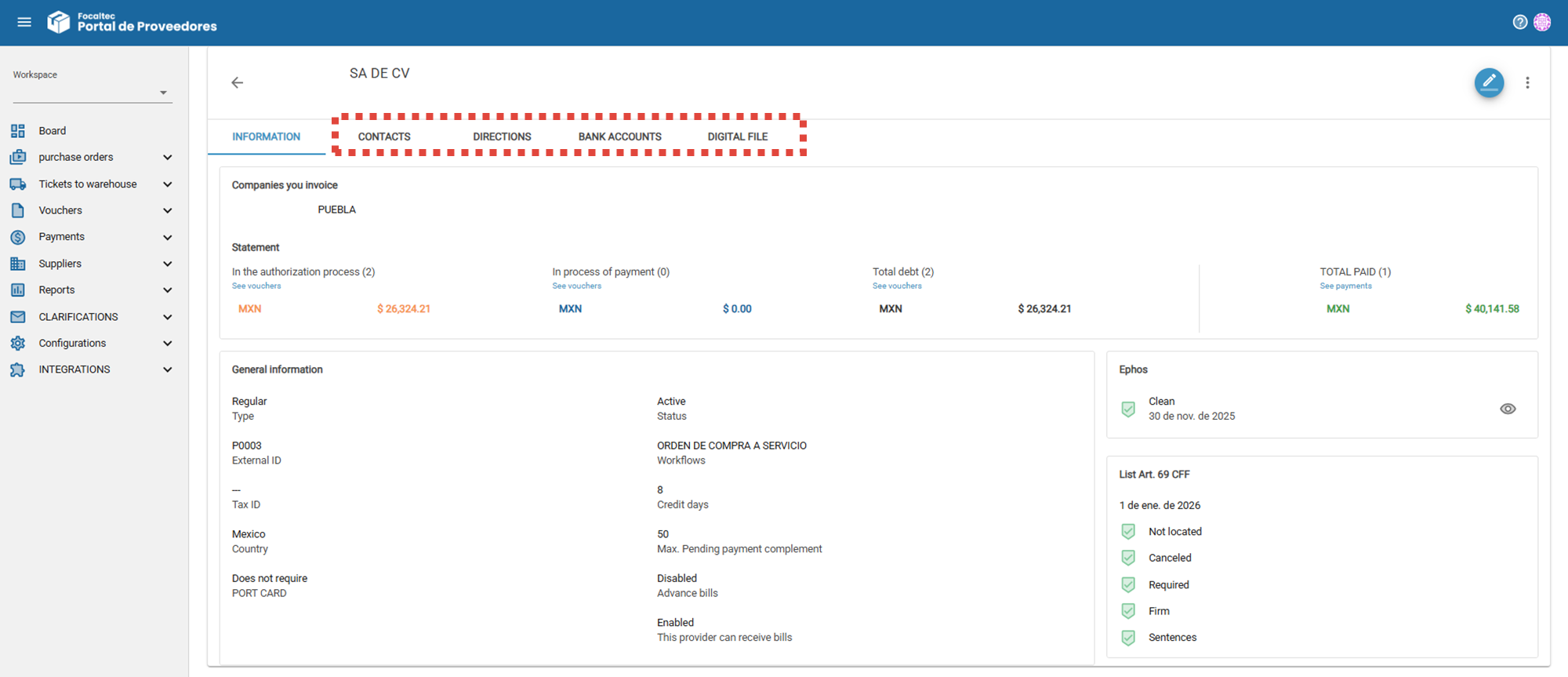
After reviewing the data or documents shared in the digital file, click on “Validate file”.
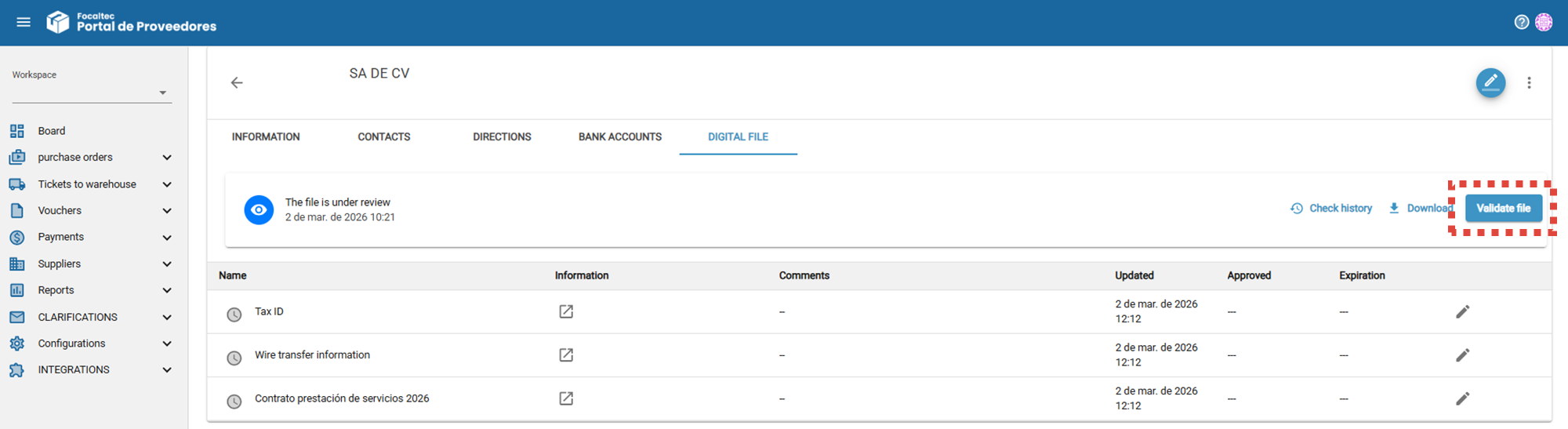
In the next window, based on your observations, you should add the “Status and/or comments”.
For the digital file field that has “Custom expiration”, when you select “Accepted” as the status, you will see that two icons are enabled “---” y .

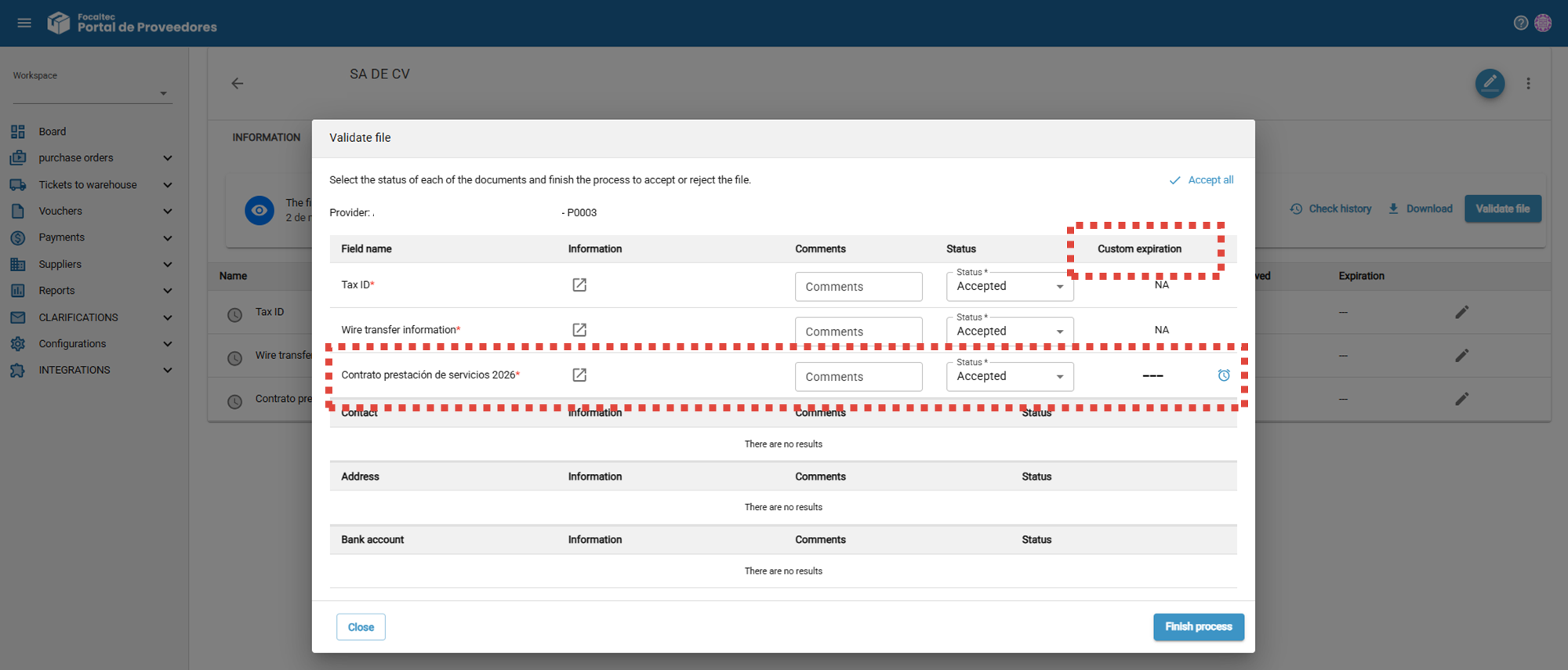
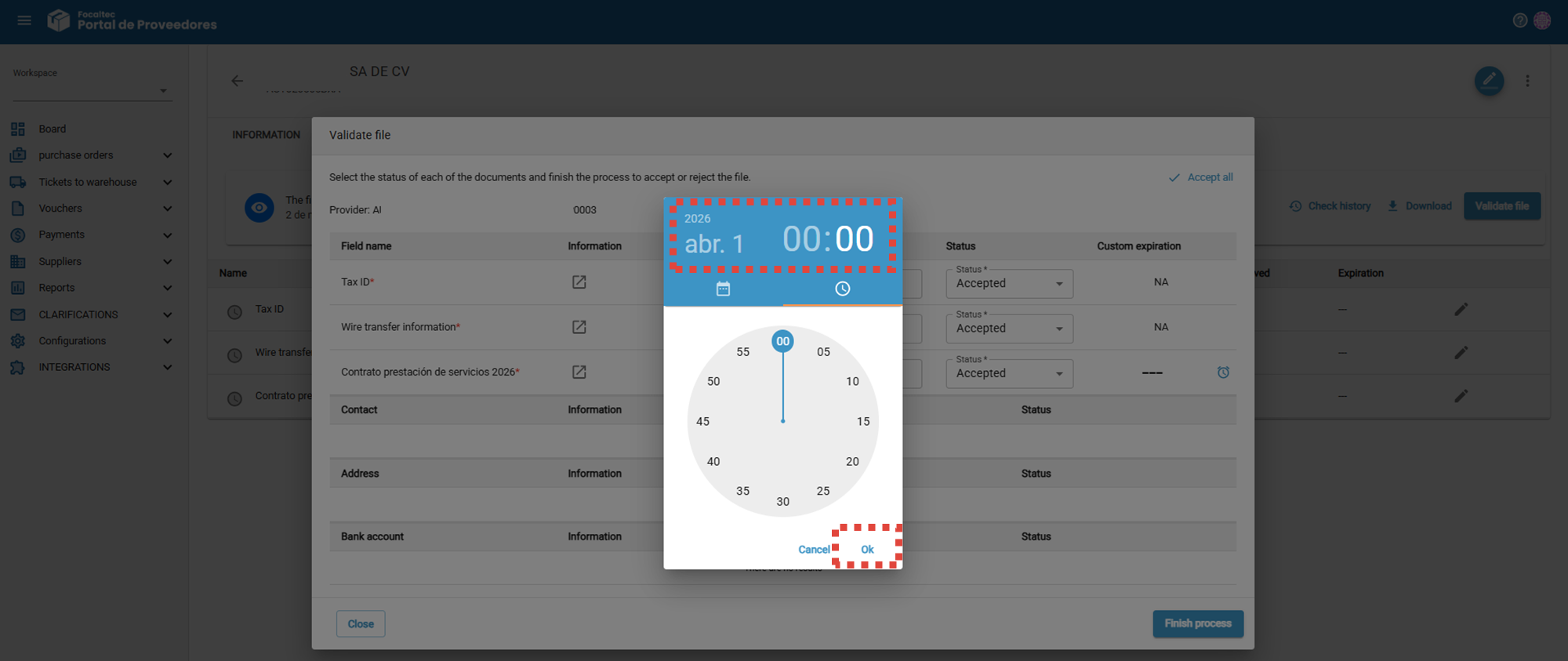
To record the custom expiration date after setting the status to “Accepted”, click on the clock icon, enter dd/mm/yyyy and up to hh:mm for the expiration date, verify that the information is correct, and click “OK” to save the date and time.

Once you have completed the review, status registration, and custom expiration date setting, click on “Finish process”.
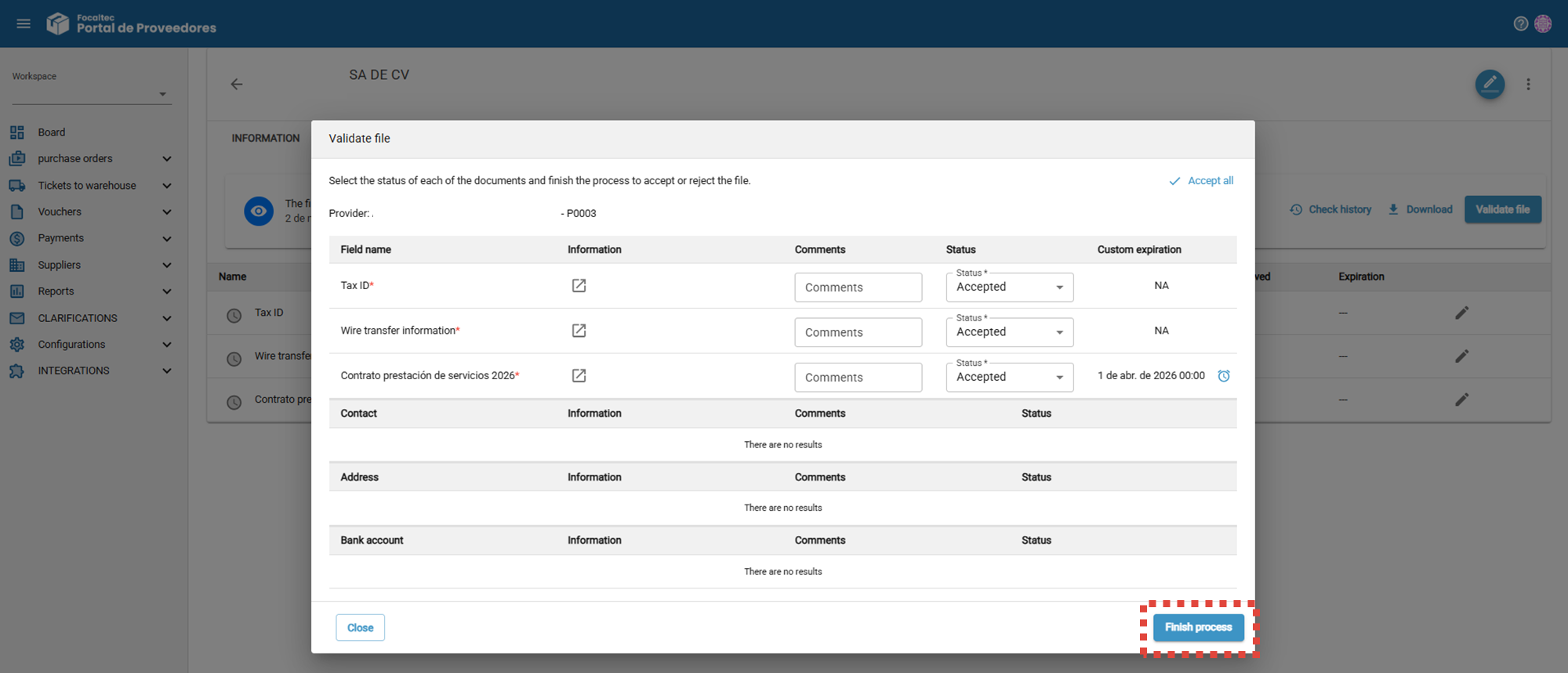
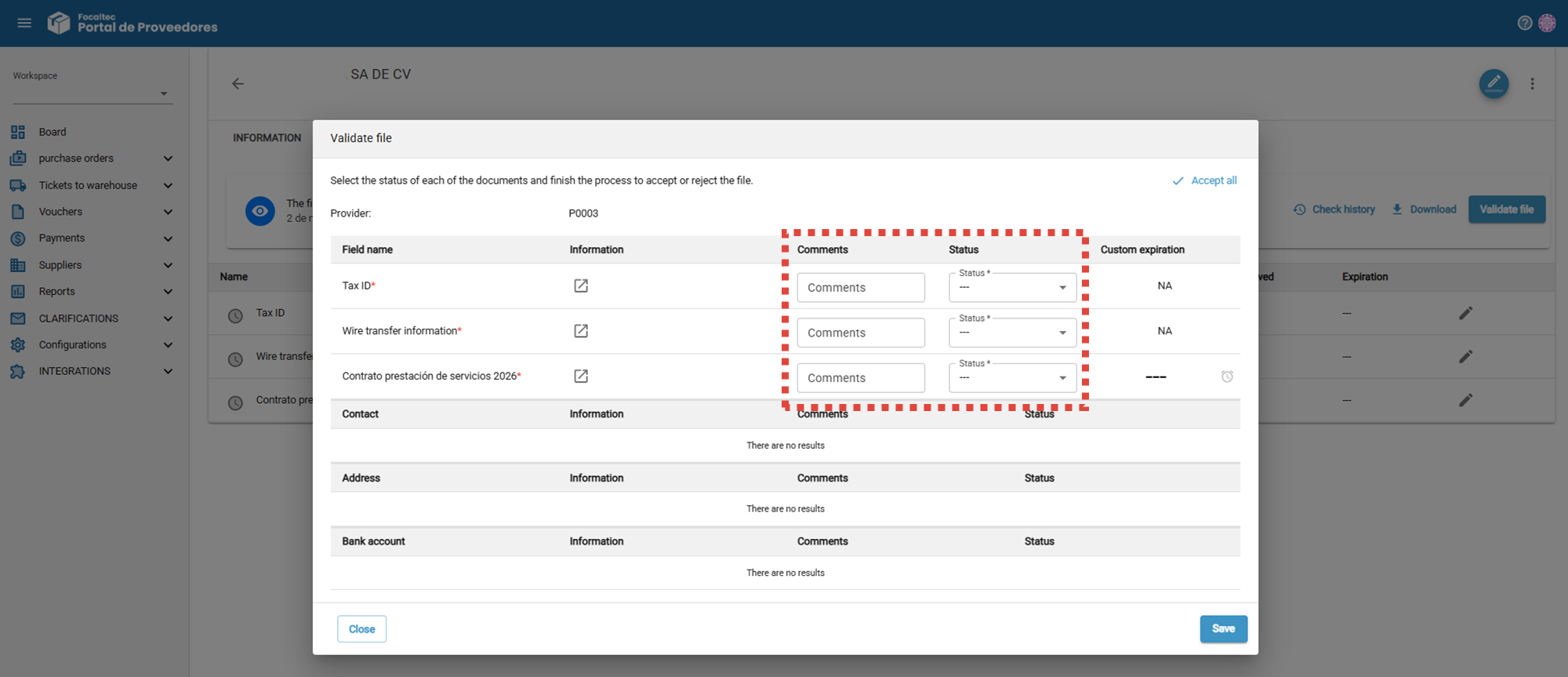
Finally, the portal displays alerts confirming that the data and information in the digital file has been “Accepted”.