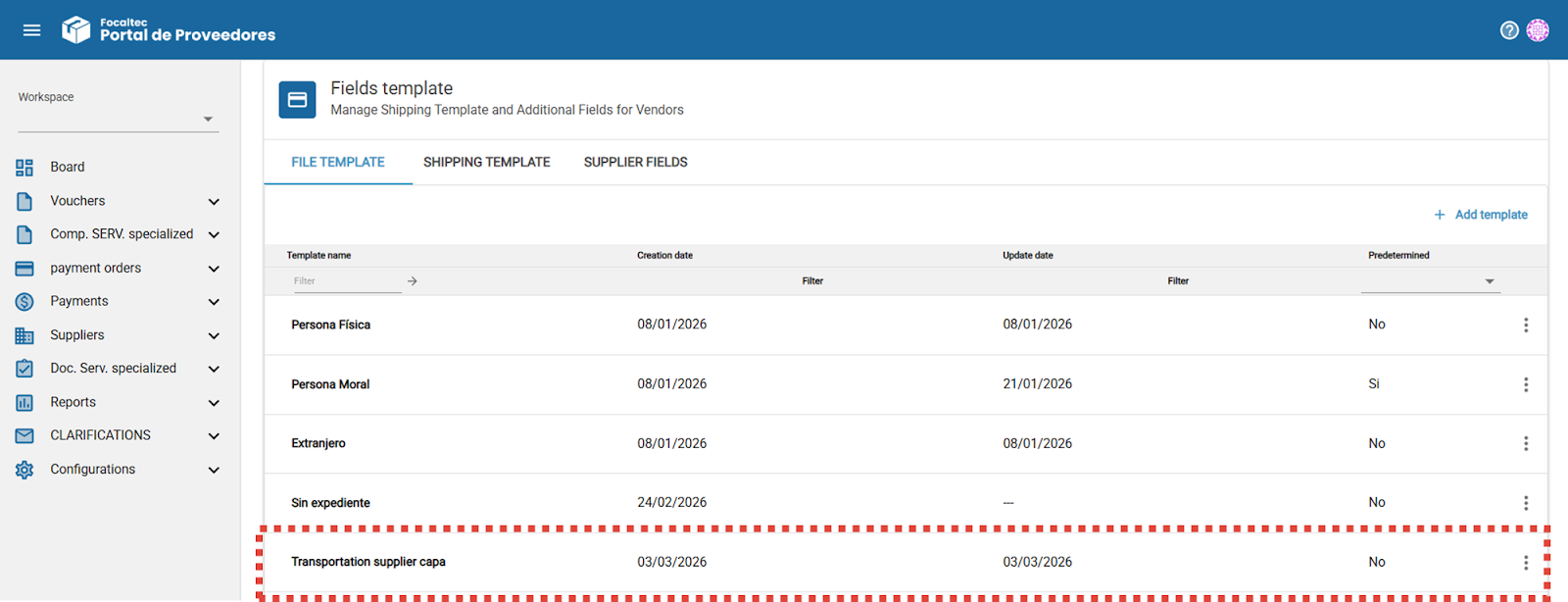
From the “Configurations > Field templates” menu, the Administrator can view the list of File Templates that have been created and can be assigned to the Supplier.
In this list, you can see a template named “No record”, this template is created automatically and can be assigned to a supplier for whom no information is required in order to perform activities within the Focaltec Portal de proveedores.
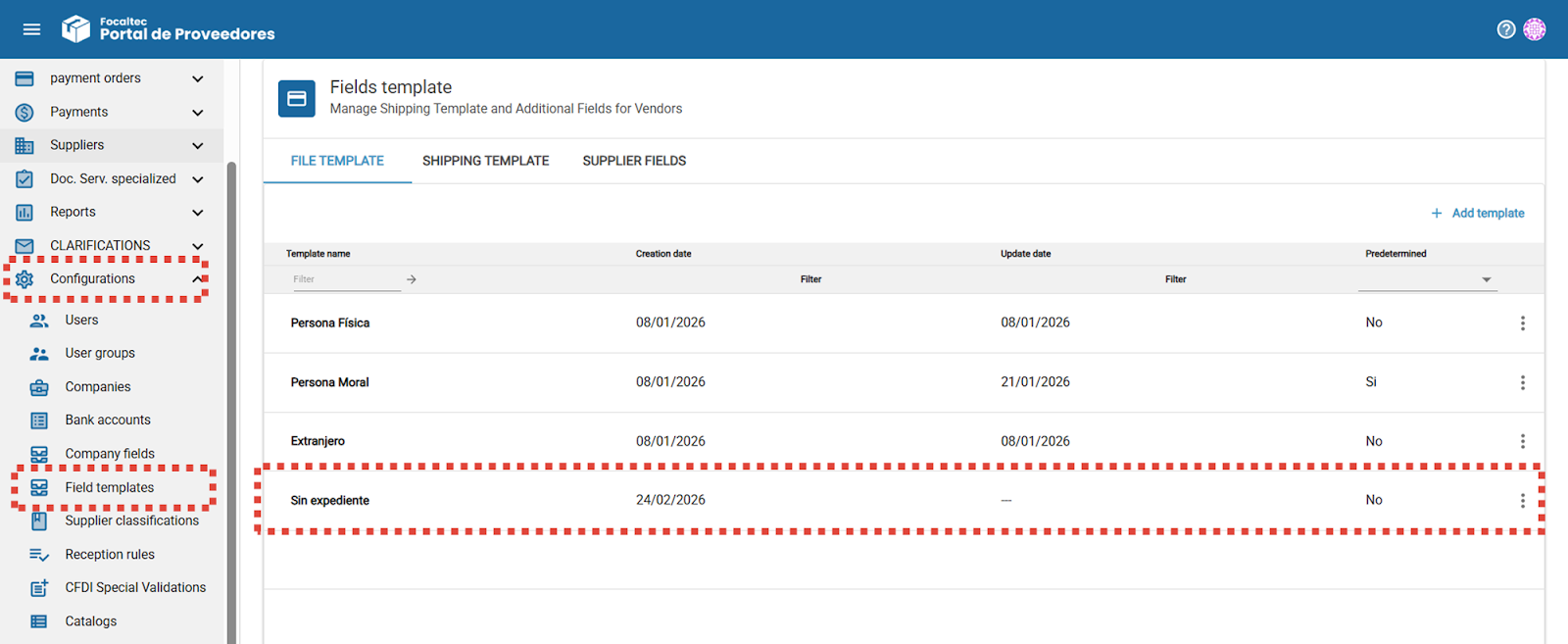
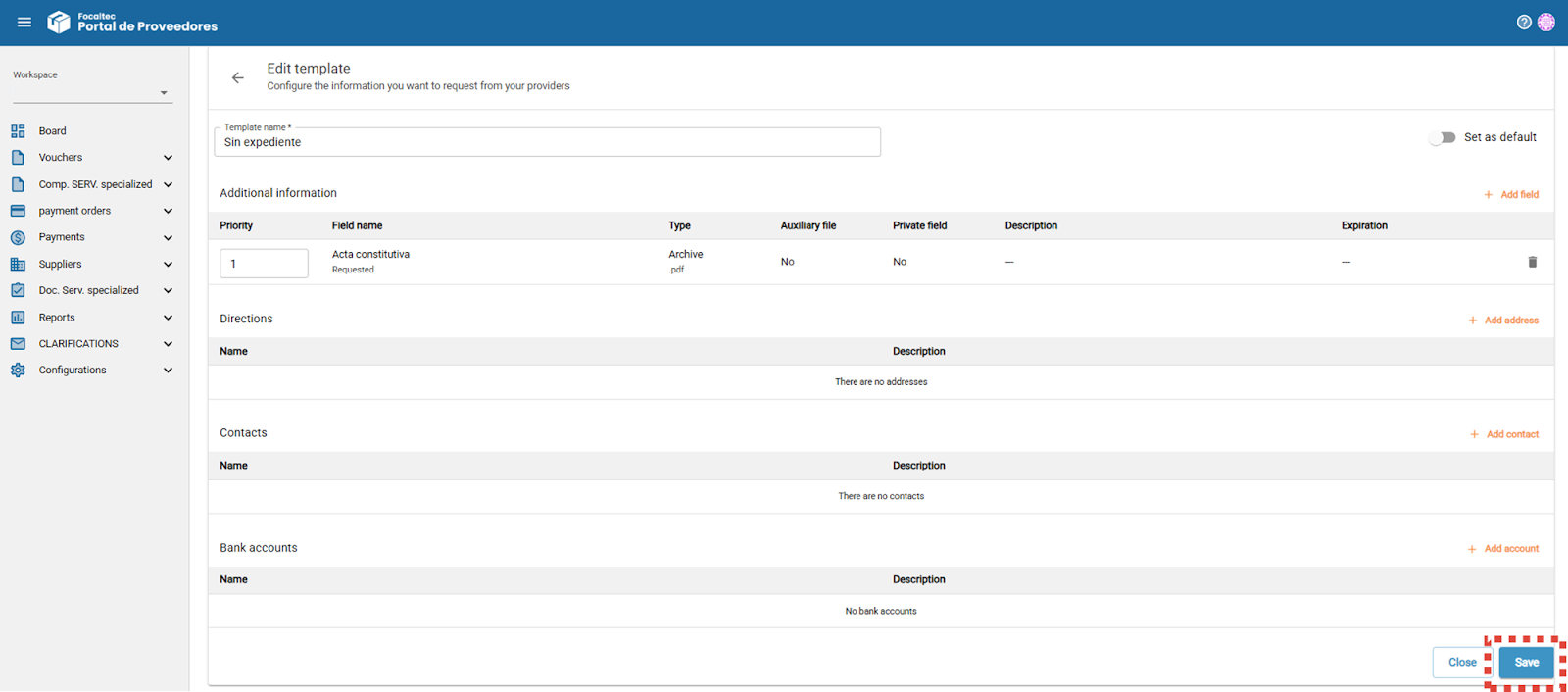
For this template name “No record”, when you enter the details, the different sections that can be edited are displayed, but it is not possible to make any changes.
As an Administrator, when you want to add a field or data to this template, click on the option.
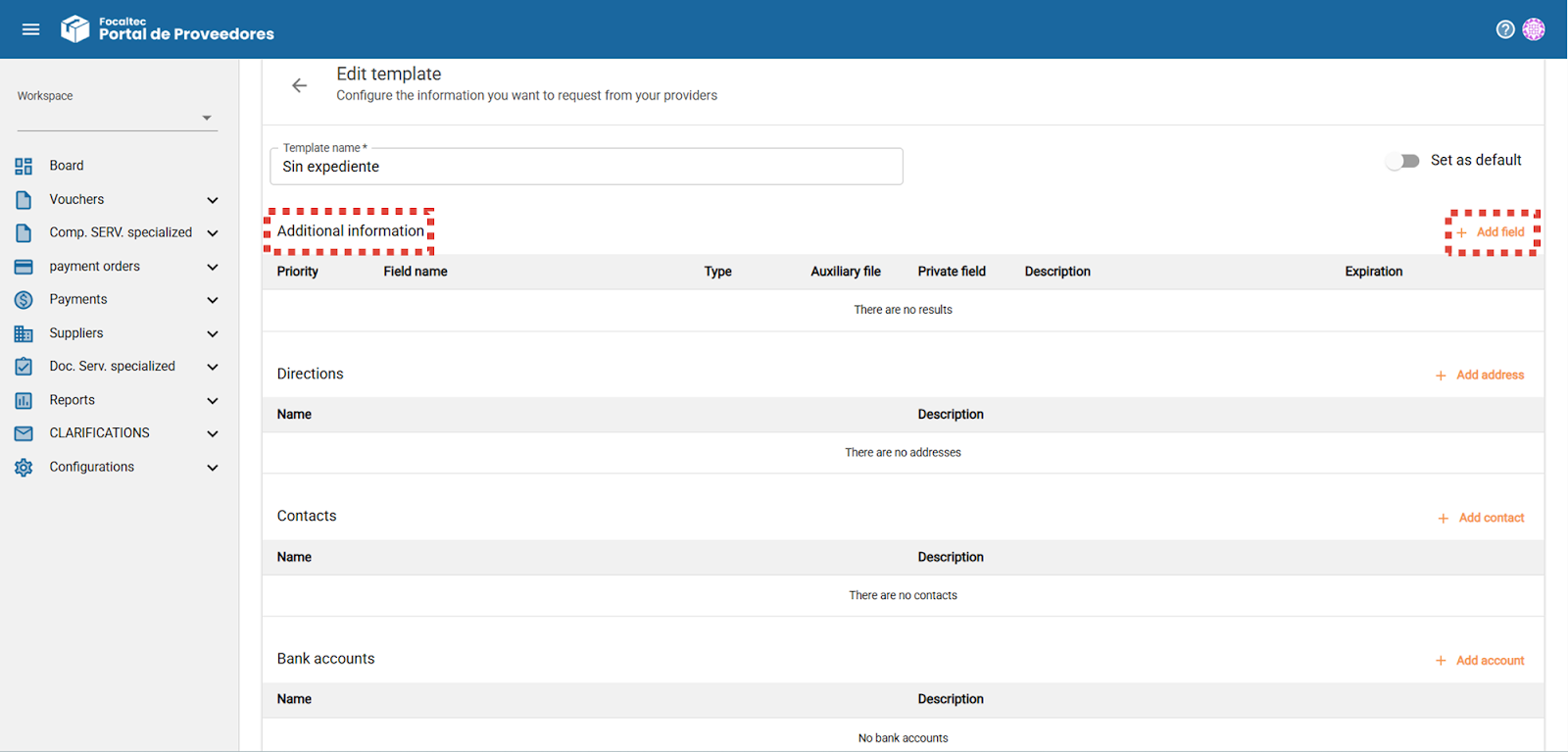
Select the data you want to include, then click “Save”.
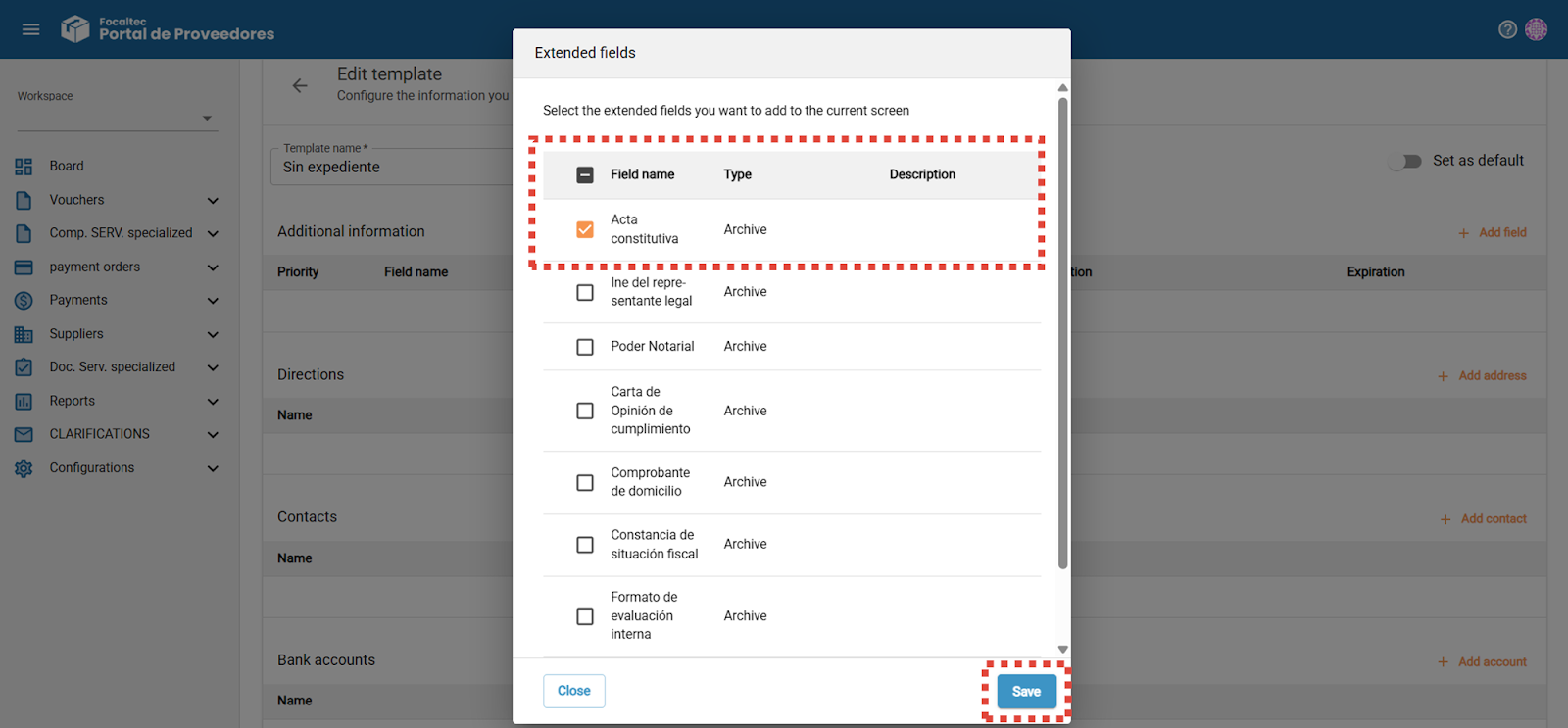
A summary of the data or documents that have been included for this template is displayed, click “Save”.
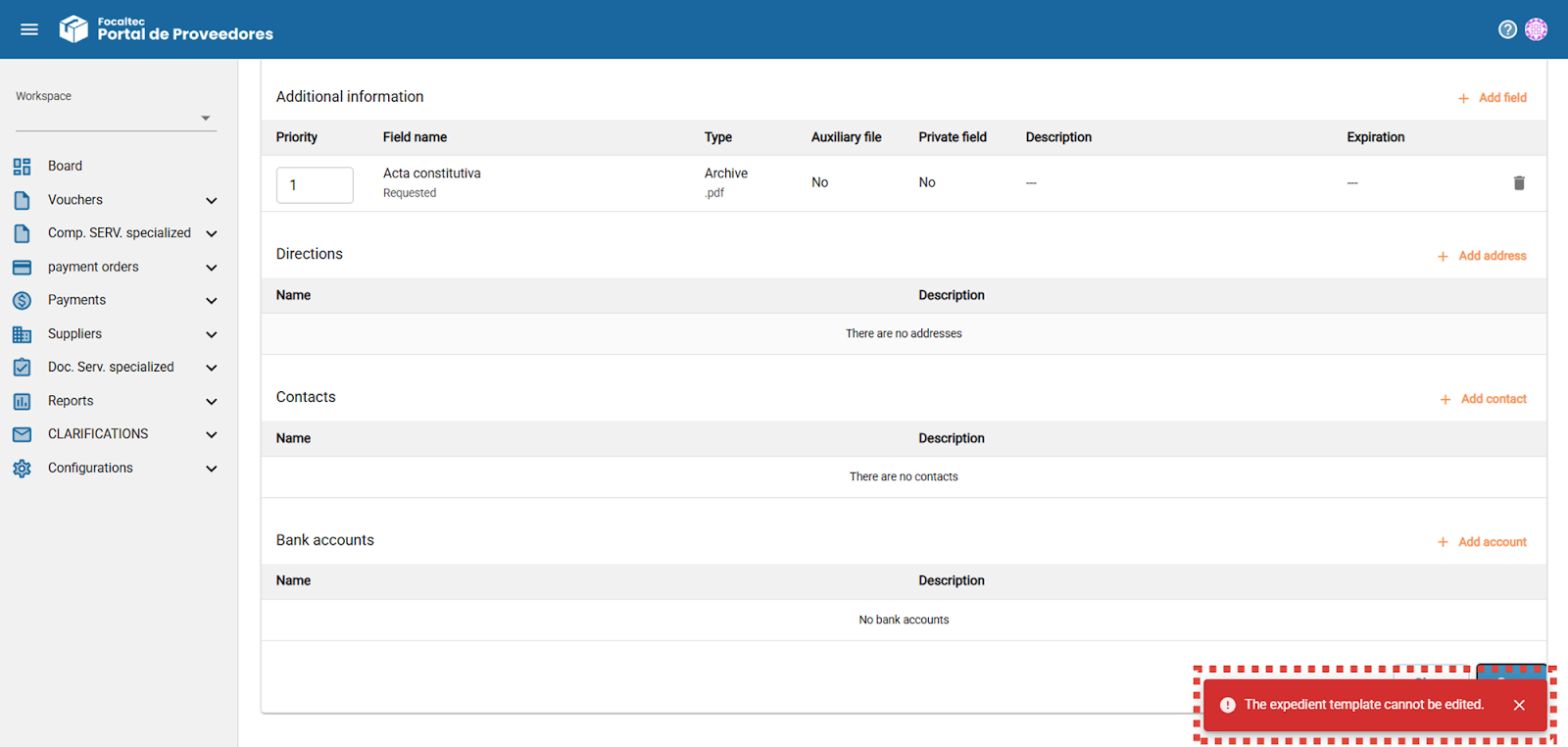
The portal will always display the message “The expedient template cannot be edited”.
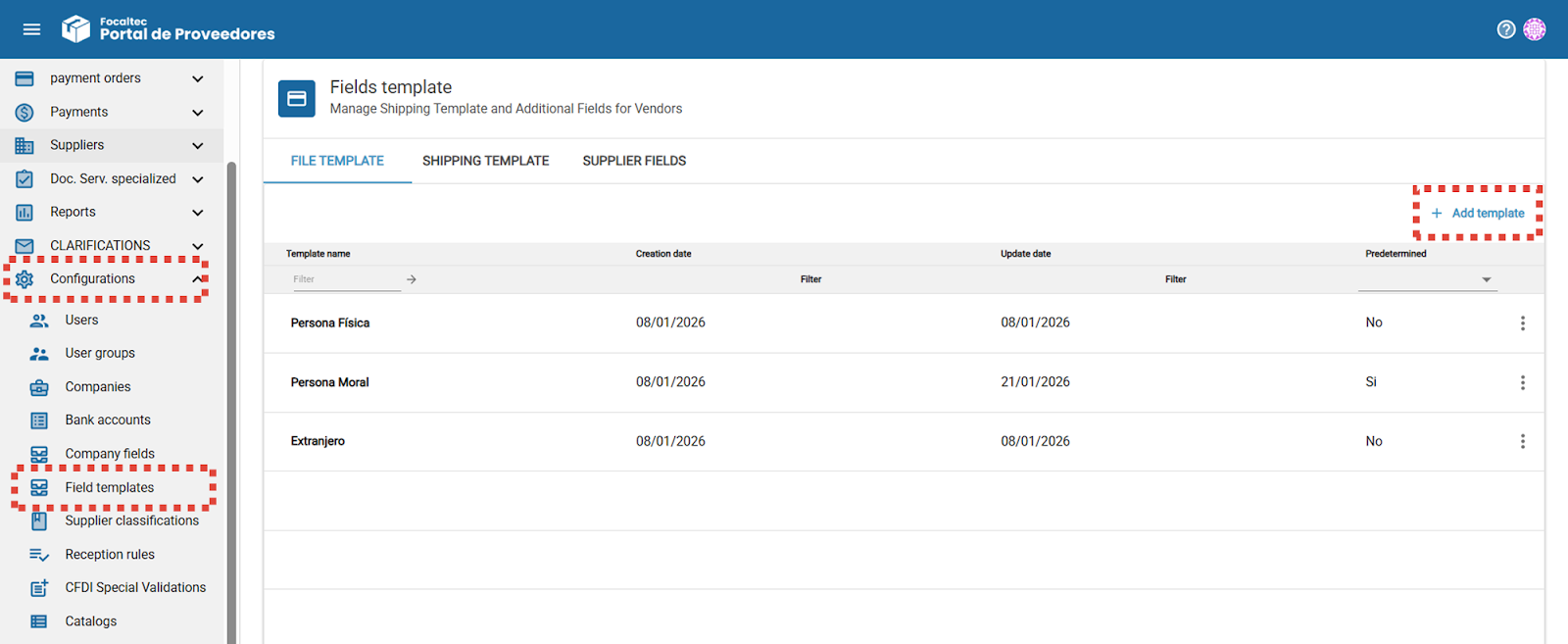
However, if the company's operations require the creation of a new template, click on the menu “Settings > Field Templates > +Add Template”.
The following fields are displayed to add or specify information:
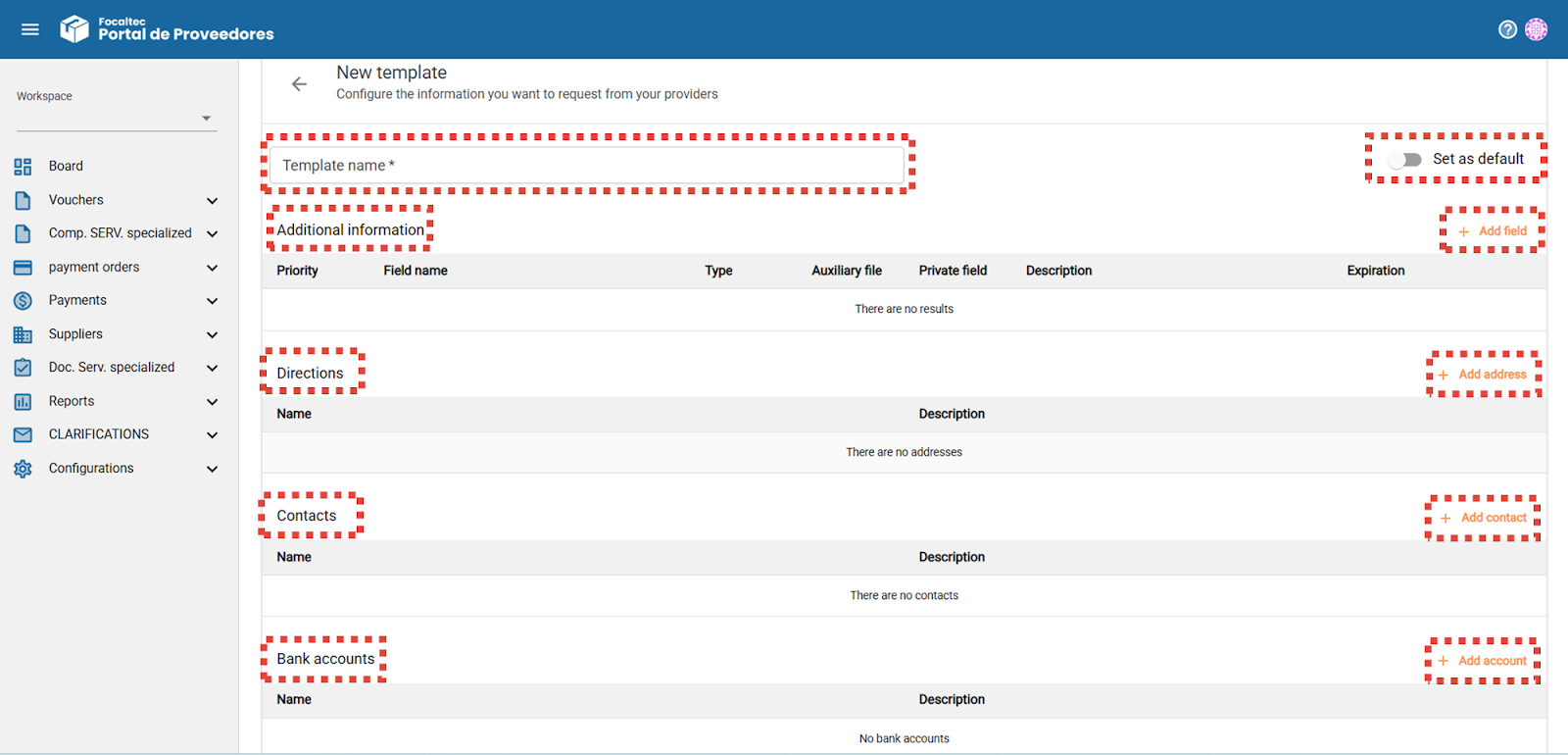
Template name. Register the name by which the “File Template” will be identified.
Set as default. Option that allows you to set this template as the default so that it is automatically assigned when registering a new Supplier.
Additional information “+ Add field”. Allows you to select the information to be requested from the Supplier from a list of documents, click “Save”.
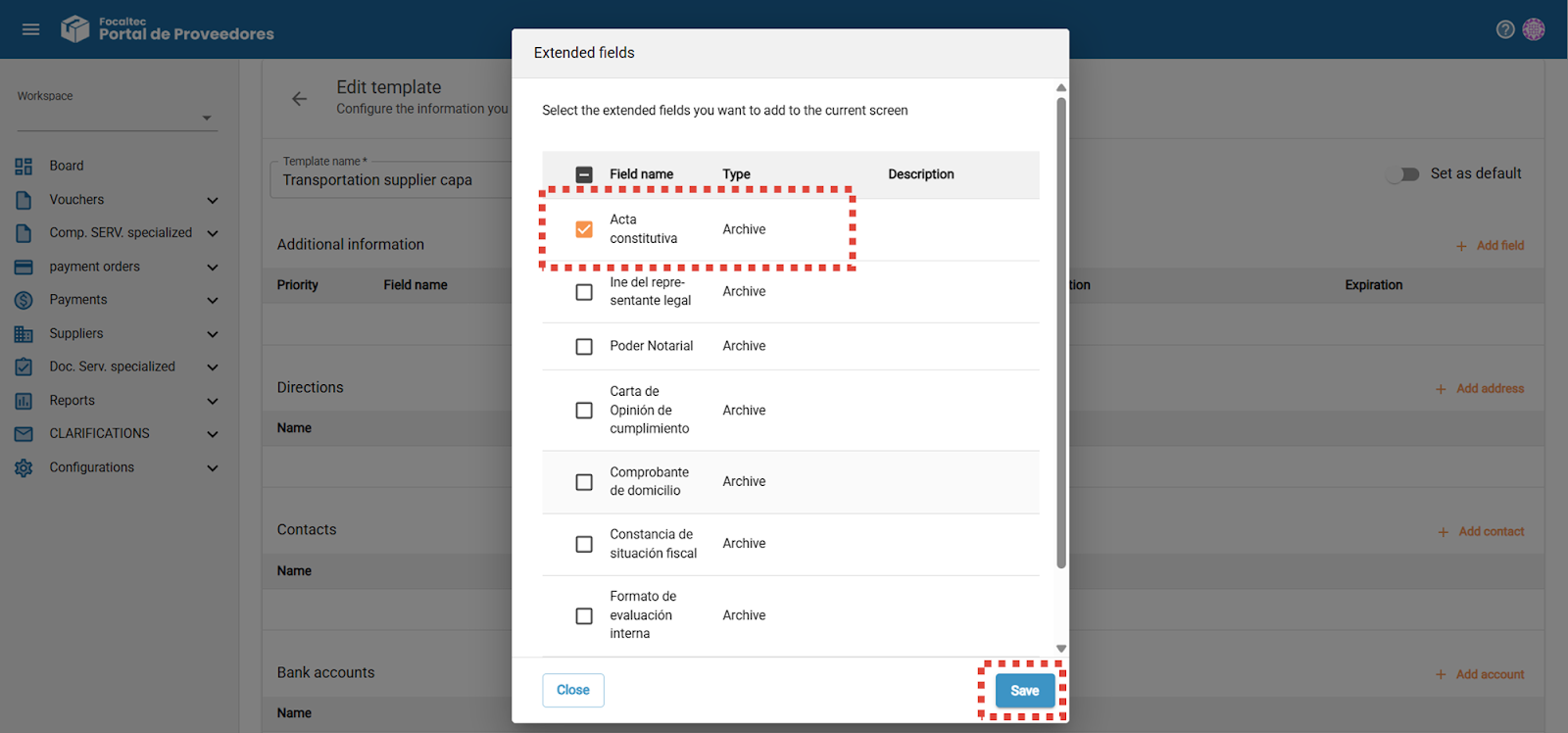
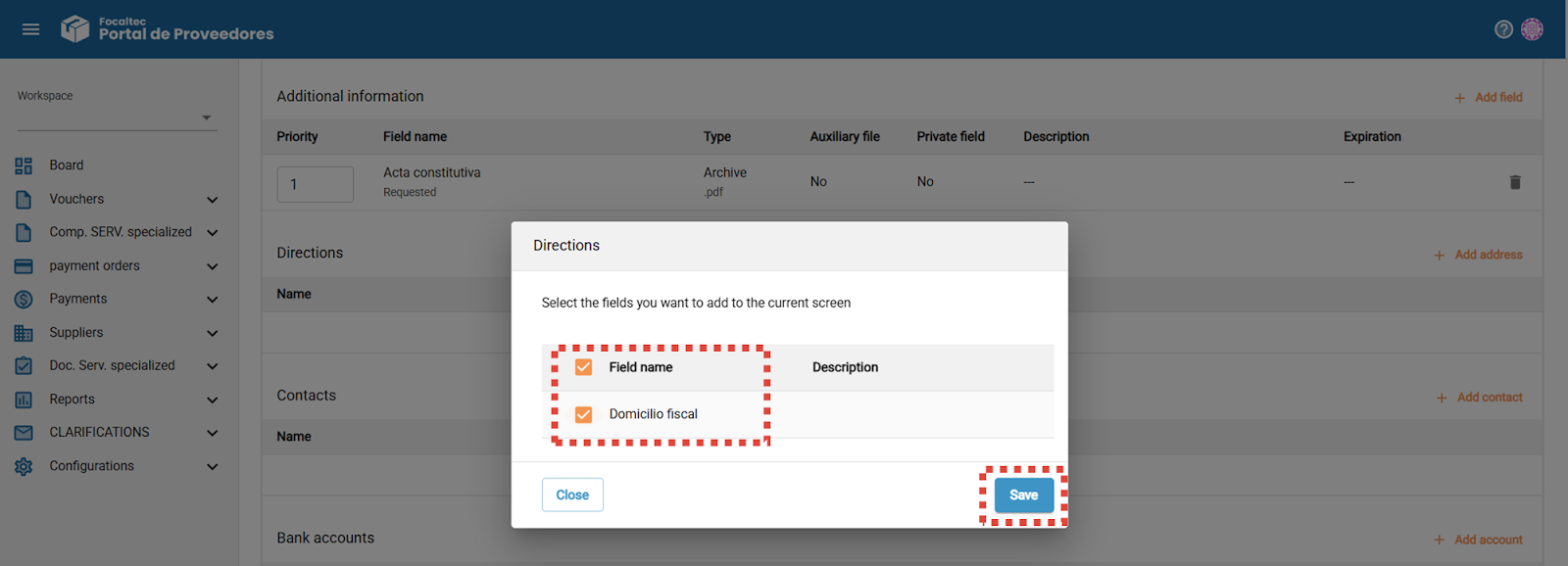
Addresses “+ Add address”. Select the fields or data to be requested as an address by the Supplier from a list, then click “Save”.
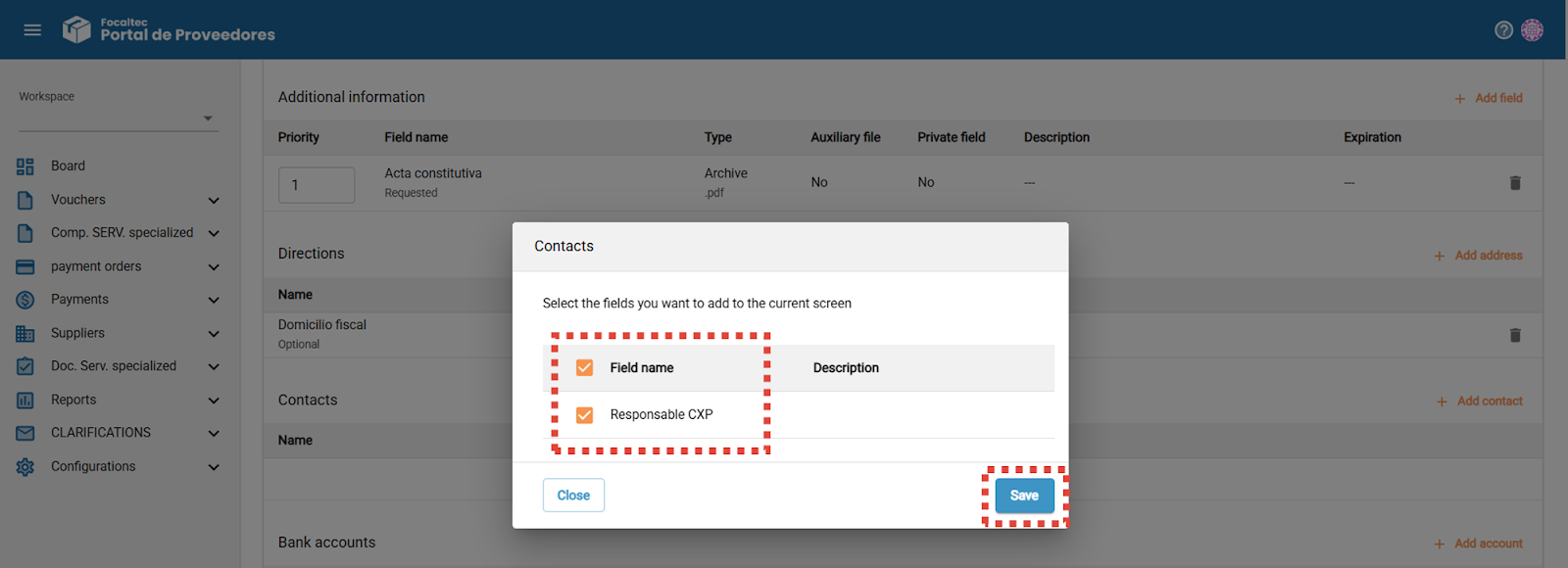
Contacts “+ Add contact”. Allows you to select from a list the fields or data to be requested from the contact by the Supplier, click “Save”.
Bank accounts “+ Add account”. Select the fields or data to be requested about the bank account by the Supplier from a list, then click “Save”.
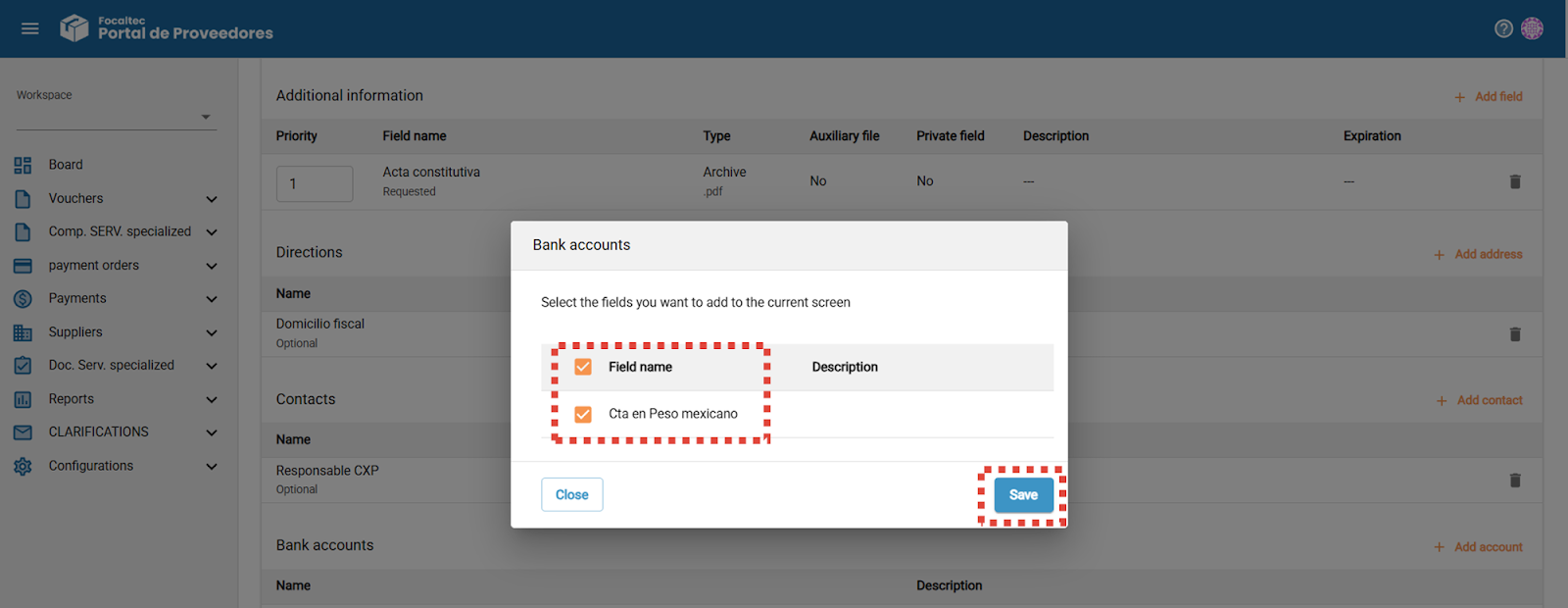
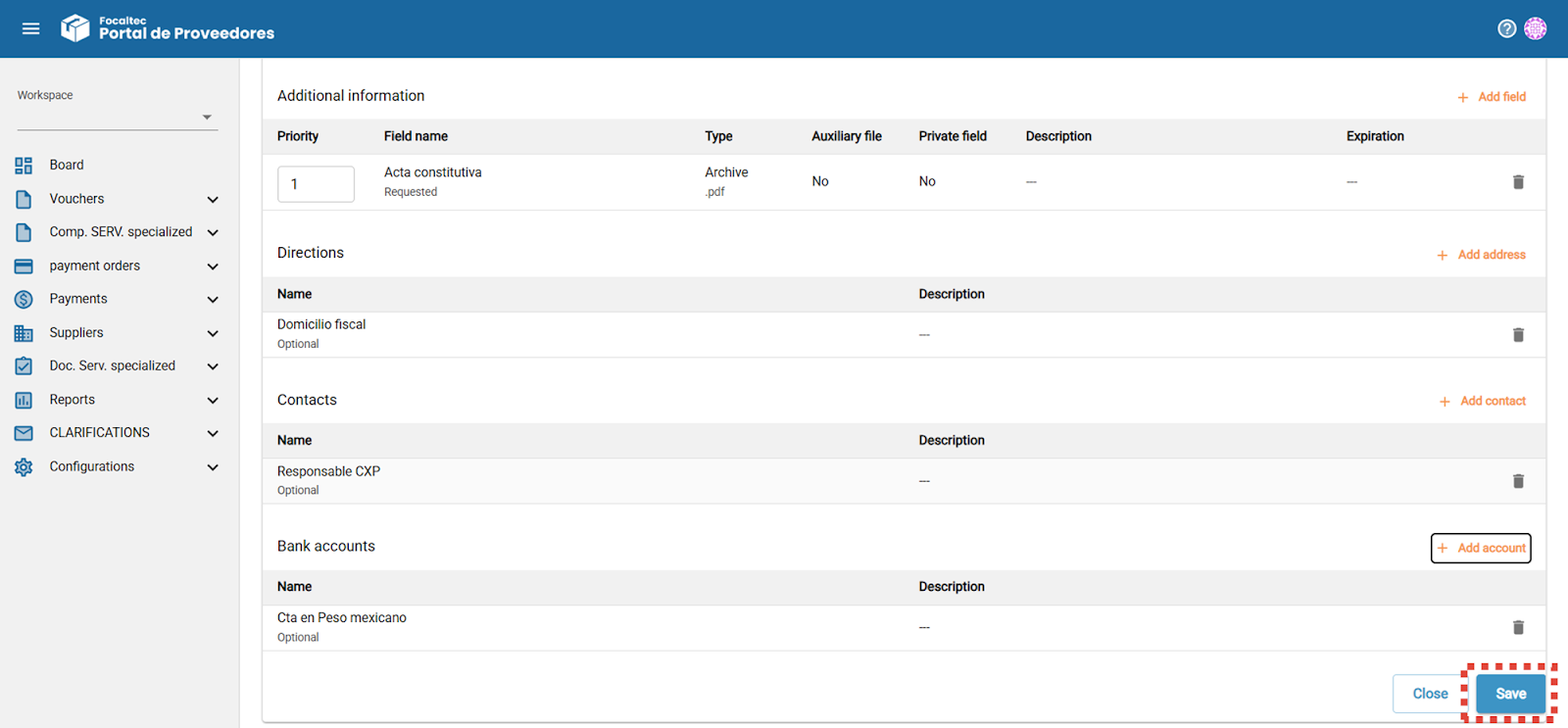
A summary of the information (data - documents) that has just been entered is displayed. If everything is correct, click “Save”.
Finally, the portal displays the template that has been created.