Currently, there are suppliers who need to upload a large number of receipts, through the Focaltec Portal de Proveedores, suppliers can do this by uploading a ZIP file.
Special considerations for ZIP files:
The folder must have only one file; there must be no subfolders in the folder.
The names of the “XML - PDF” files must be the same.
The folder should only contain files of the “XML - PDF” type.
CFDIs must be in “XML-PDF” format.
After logging into their workspace, the Supplier has two options for bulk uploading CFDI files:
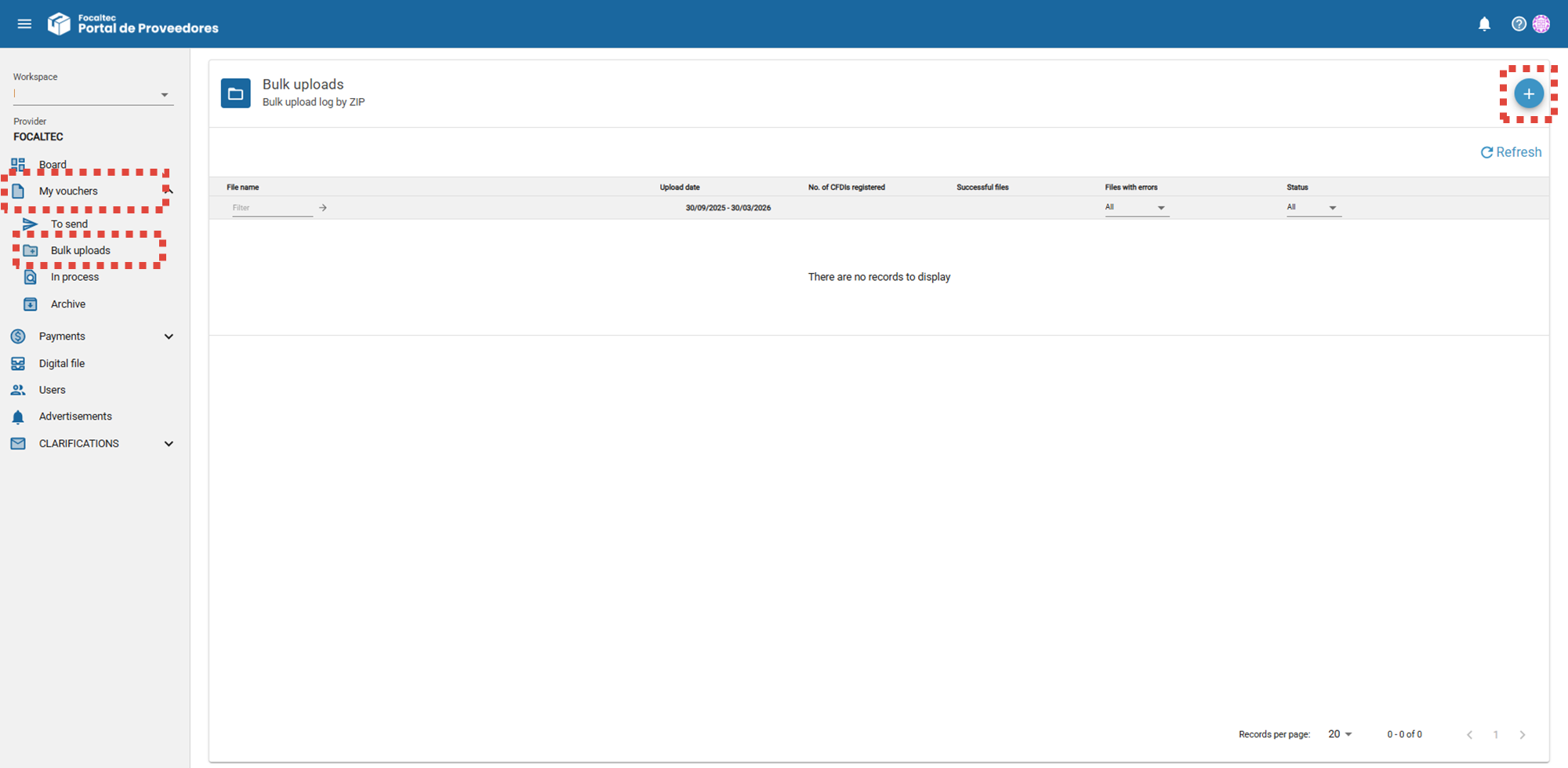
Bulk Uploads Menu.
From your workspace, click “My vouchers > Bulk uploads > Add +”.
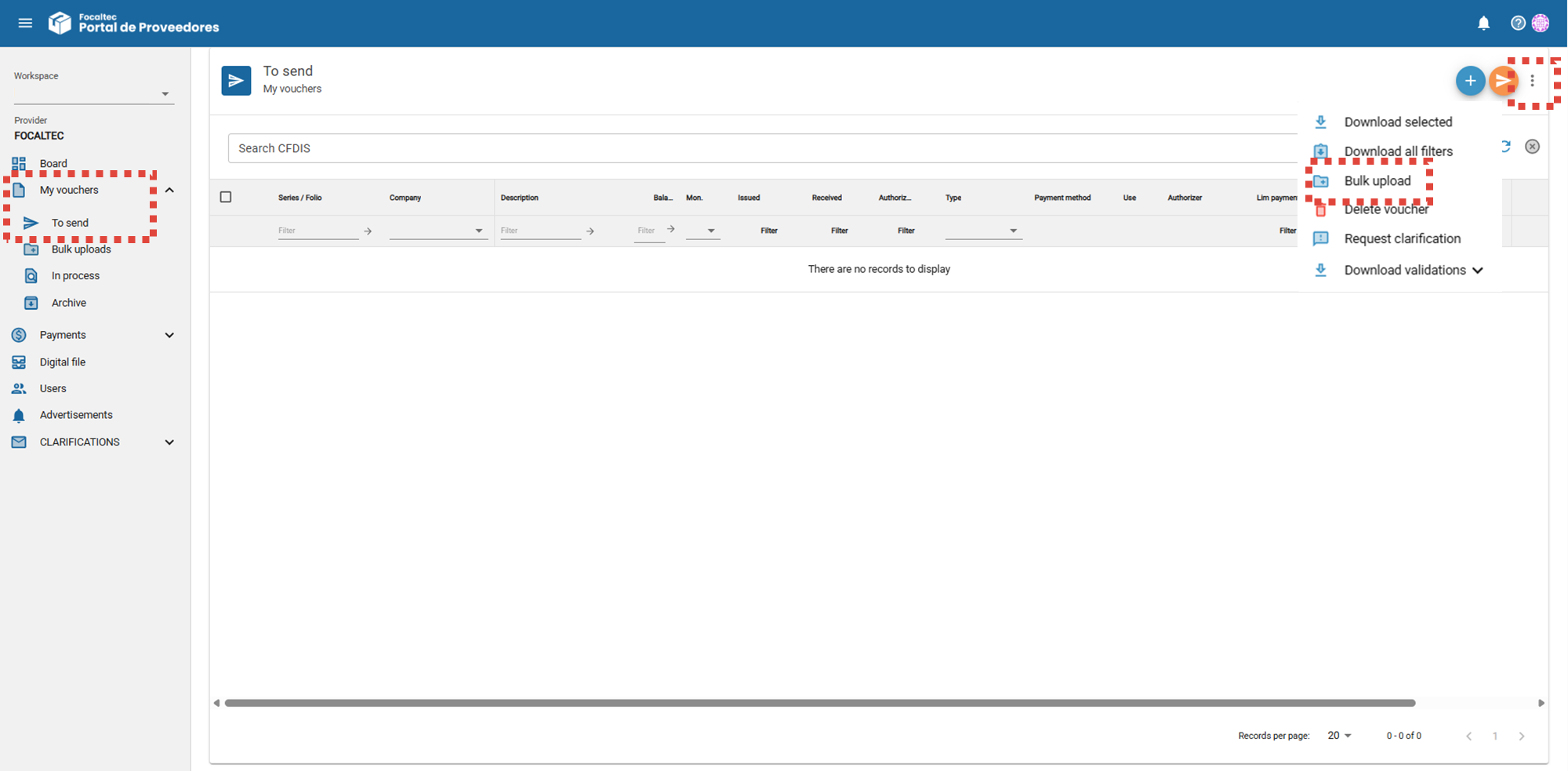
Menu: To send.
From your workspace, click “My vouchers > To send > Click Menu > Bulk upload”.
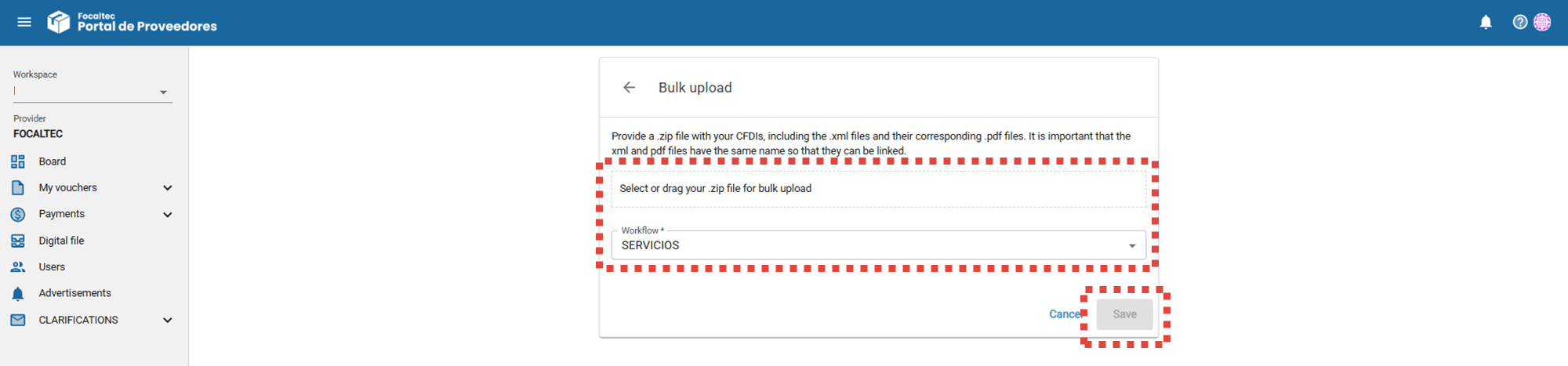
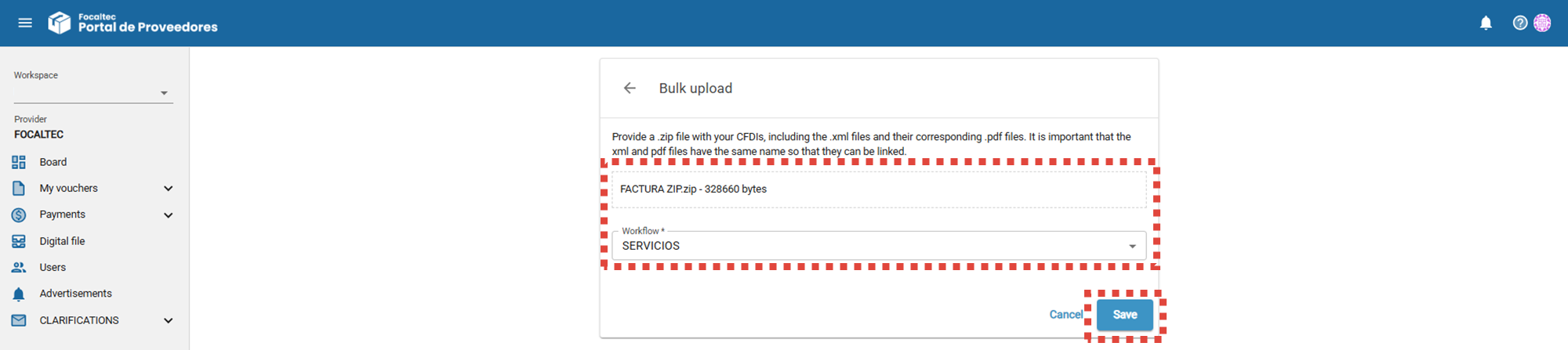
Below, you'll see a field where you can upload your ZIP file, you'll also see the name of the workflow assigned to the supplier. Upload the files and click “Save”.
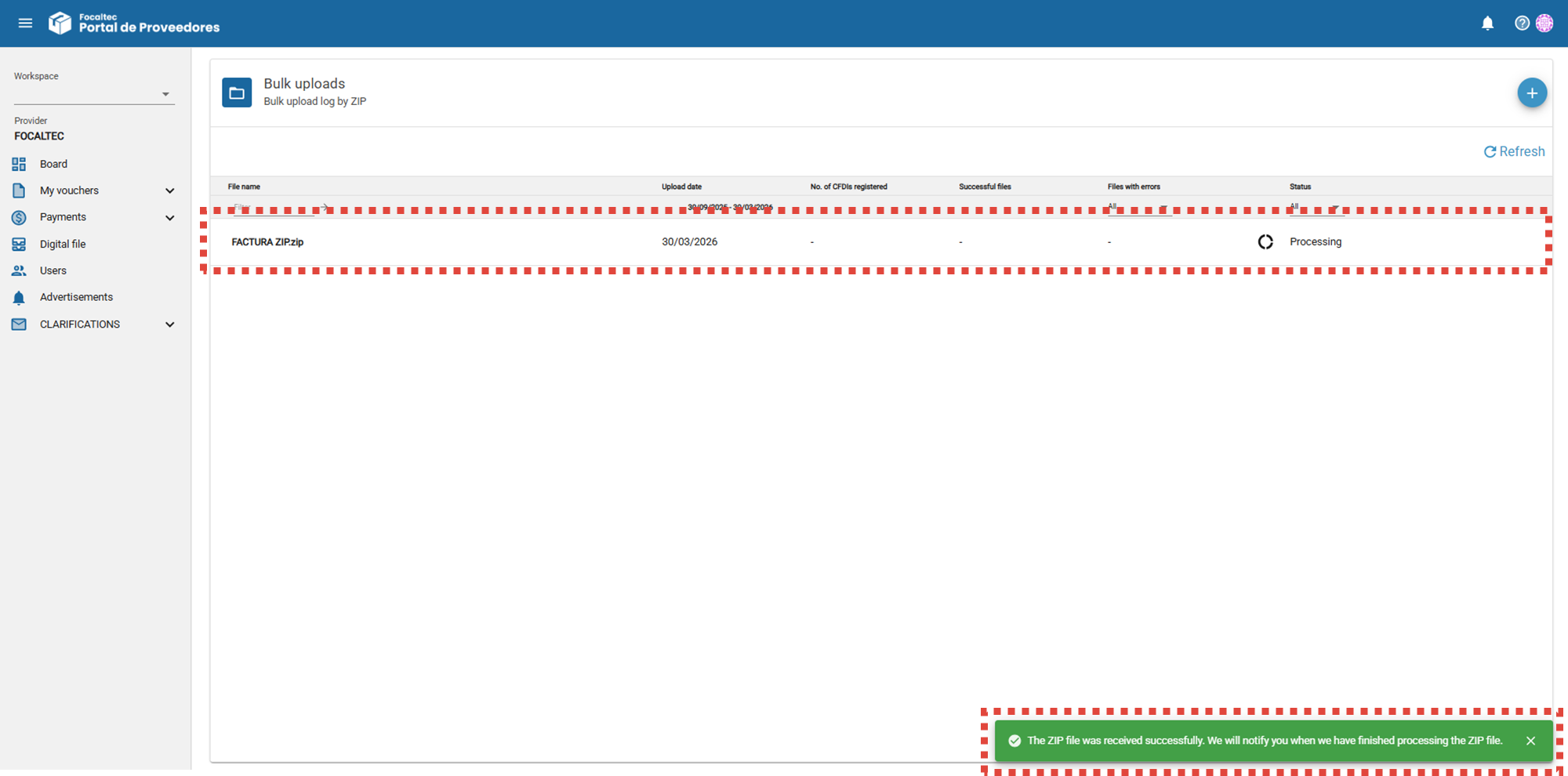
The Focaltec Portal de Proveedores performs a series of validations on the uploaded files, a message appears notifying you that the files are being processed: “The ZIP file was received successfully. We will notify you when we have finished processing the ZIP file”, you can also view the file that was uploaded to the portal.
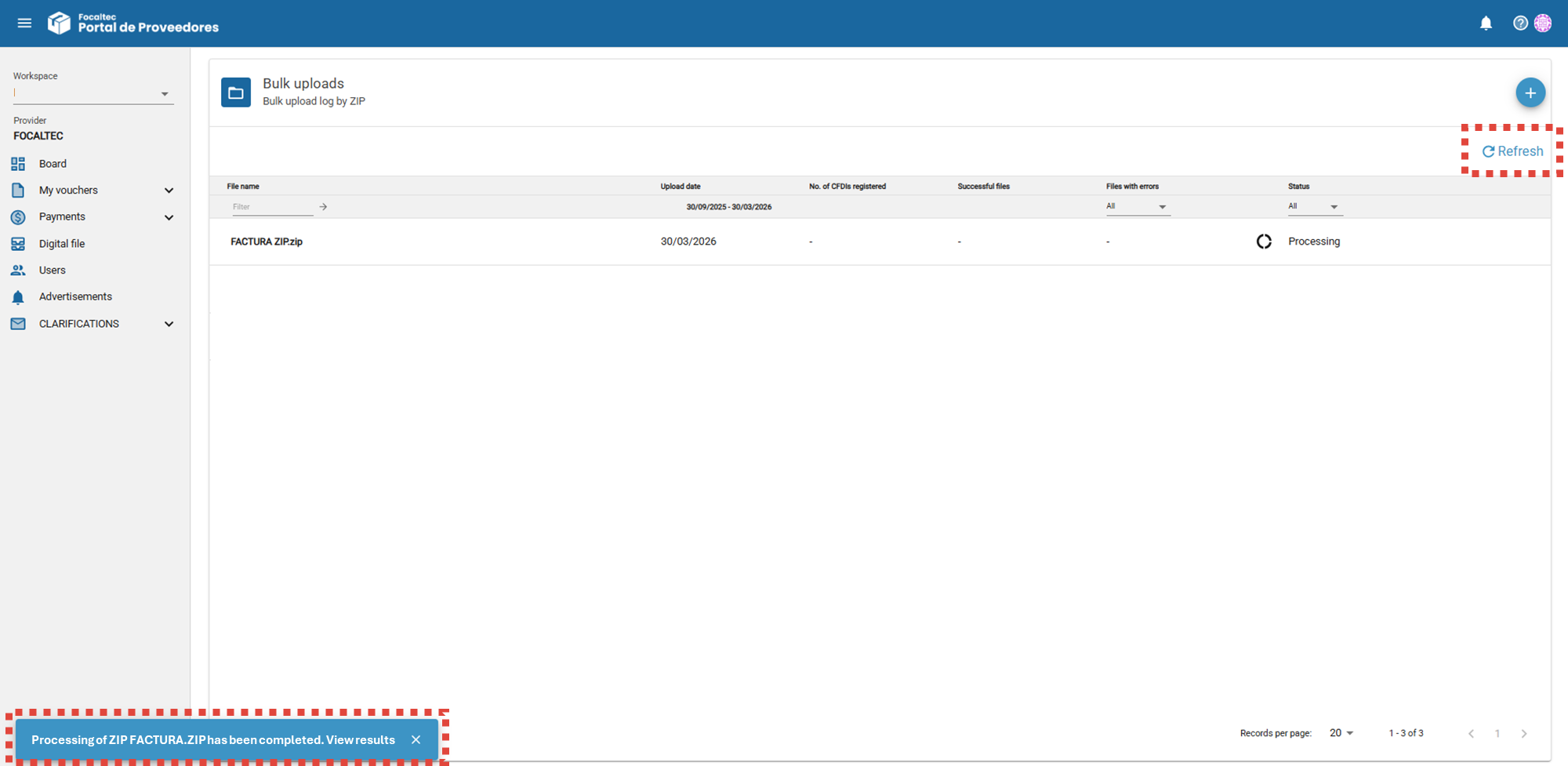
Once the validation process is complete, the following message will appear: “Processing of XXXXX ZIP has been completed View results”, Click “Refresh”.
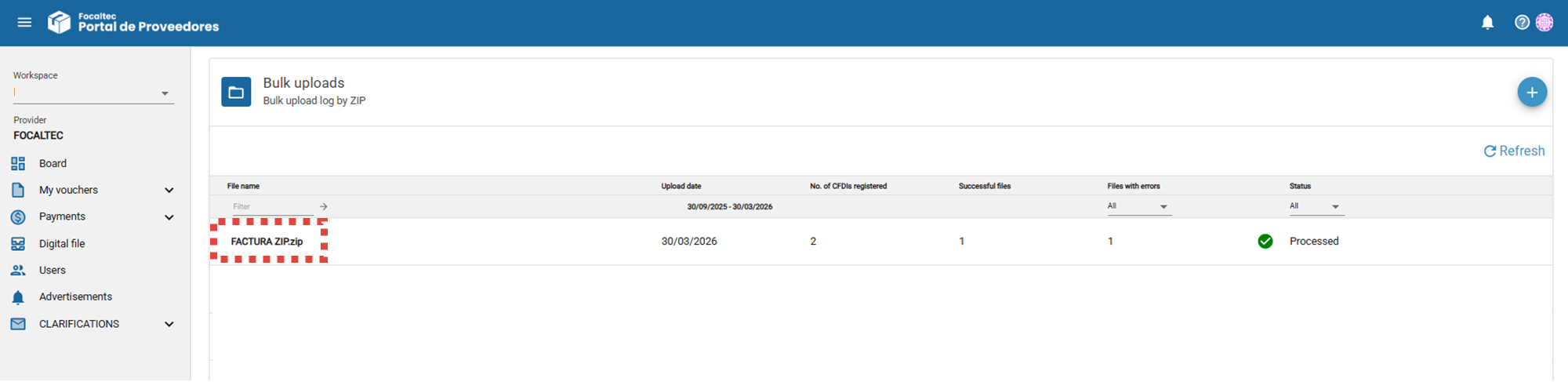
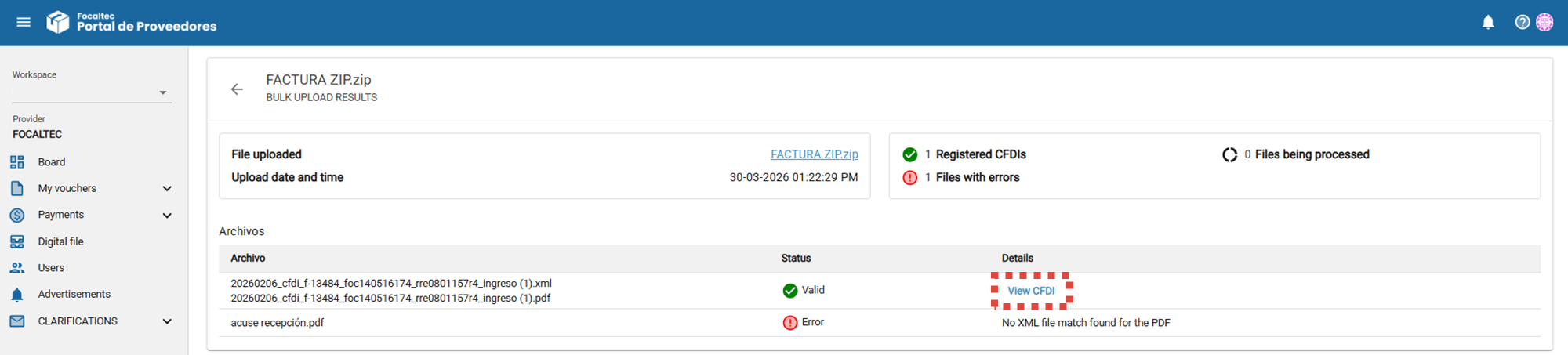
Click on the name of the ZIP folder to view the details of the validated files.
The details of the ZIP file uploaded to the portal show the following information:
File Uploaded. Displays the name of the folder that was uploaded to the portal.
Upload date and time. The date and time the ZIP file was uploaded to the portal.
Registered CFDIs. The number of CFDIs successfully registered on the portal.
Files with errors. Number of files with errors on the portal (for example, errors may be due to the files not being XML-PDF files).
Files being processed. Number of files still being processed on the portal because validations are still running.
Files. Lists the files that were in the ZIP file.
Status. Displays the status of the uploaded files.
Valid. File accepted by the portal.
Error. The file could not be registered on the portal.
Processing. The portal is still running validations.
Details. Confirmation message or context regarding the file’s status.
To review the content of the uploaded CFDI, click “View CFDI”.
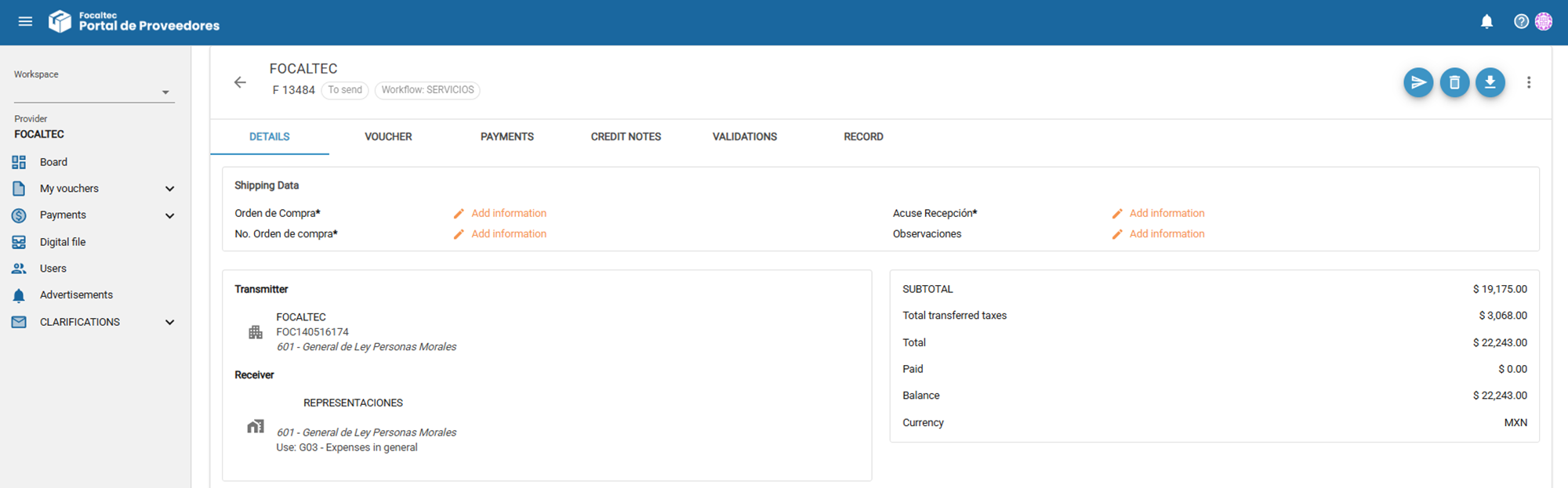
Another way to access the contents of files that have been uploaded to the portal in bulk is through the “My vouchers > To Send > Click on the serial number or reference number” menu.
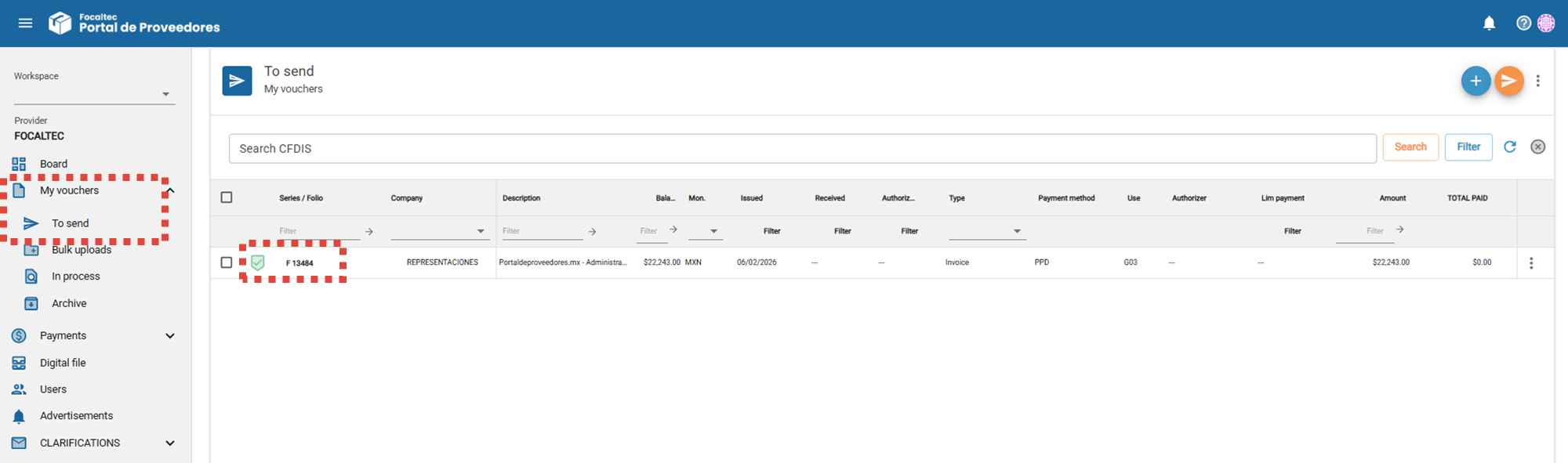
After uploading the CFDI files in bulk and once the portal has completed its validation checks, you can view the receipt’s contents, proceed with your tasks, and finally submit the receipt for review.