Context.
Some companies, due to internal processes or local regulations, do not require certain documents (such as a Vale Azul, CFDI, or Foreign receipt) to verify an expense incurred by the user.
Steps to enable the upload of receipts without attachments in Focaltec Control de gastos.
Please contact support to request a configuration by submitting a ticket or sending an email to soporte@focaltec.com or ayuda@focaltec.com, with the subject line:
“Allow adding an invoice without a PDF file”
“Allow adding a Blue Voucher receipt without a file”
“Allow adding a foreign receipt without a file”
Focaltec Support, you must activate and confirm the requested settings
To upload a receipt from their Focaltec Control de gastos workspace, the user must do the following:
Uploading a CFDI receipt without a PDF.
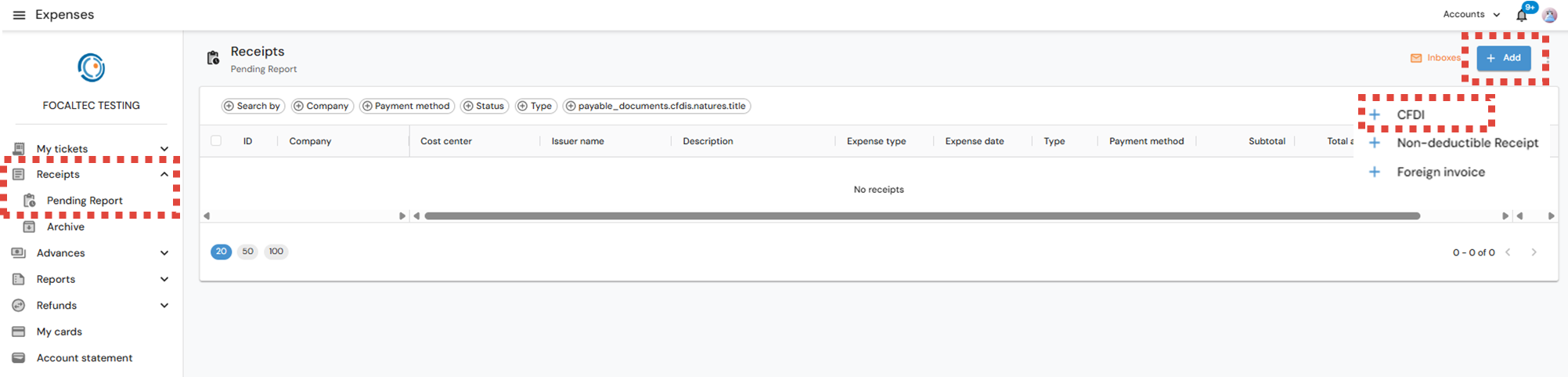
After logging in to Focaltec Control de gastos, the User must click on the Menu “Receipts > Pending Report”; the list of receipts already registered will be in view, now click on “+ Add > CFDI”.
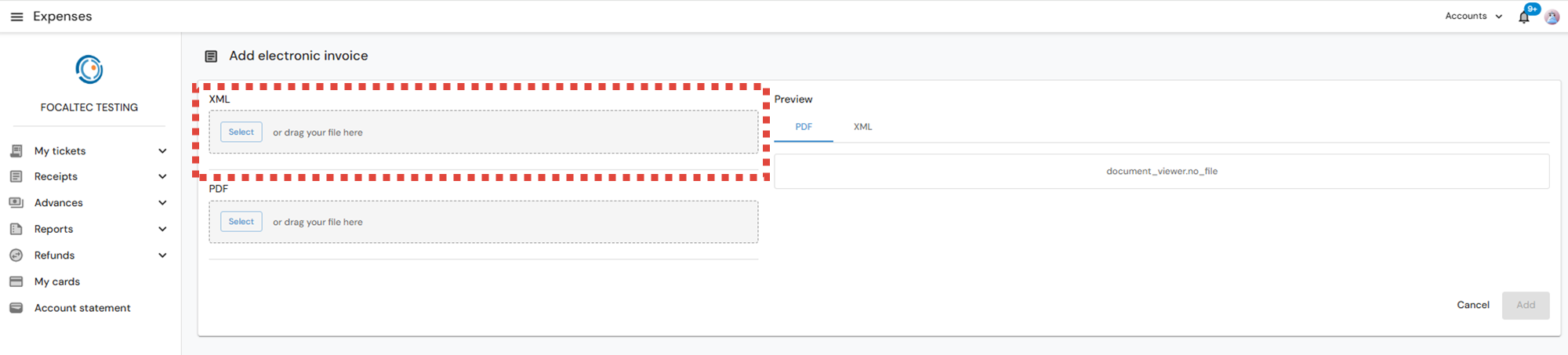
Upload your XML by clicking the "Select" button (Once the portal validations are met, you can consult the XML information in the Preview space).
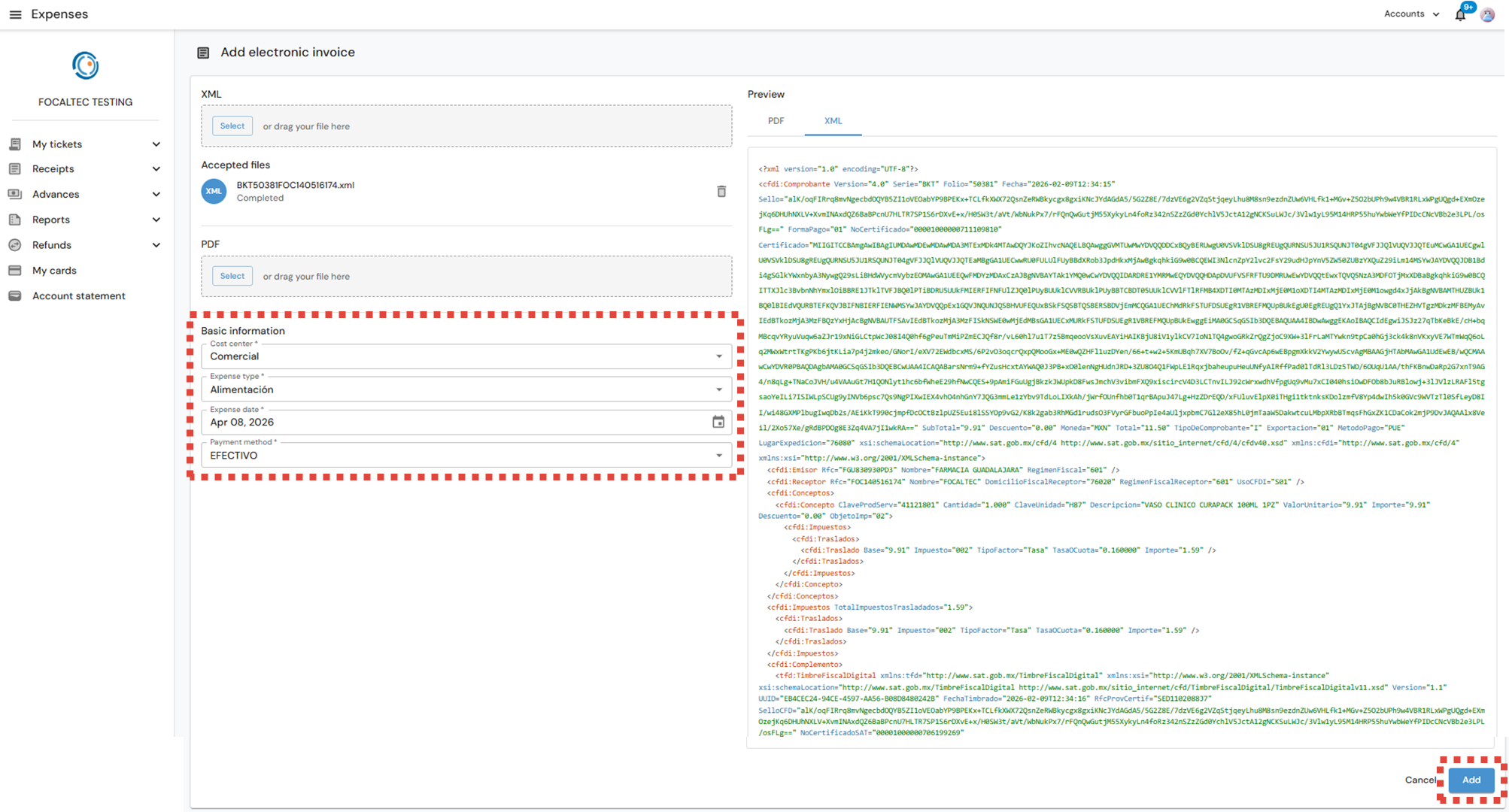
Add the data shown in the “Basic information” section, click on “Add”.
NOTE. If the company requests additional information from you, the portal issues a sub-window with the details of the data to be captured; after adding the information, click on “Continue”.
Once the capture of the additional information is concluded, the portal issues an alert “The additional information has been updated” and in the upper part of the receipt you will be able to see the new status “Eligible”.
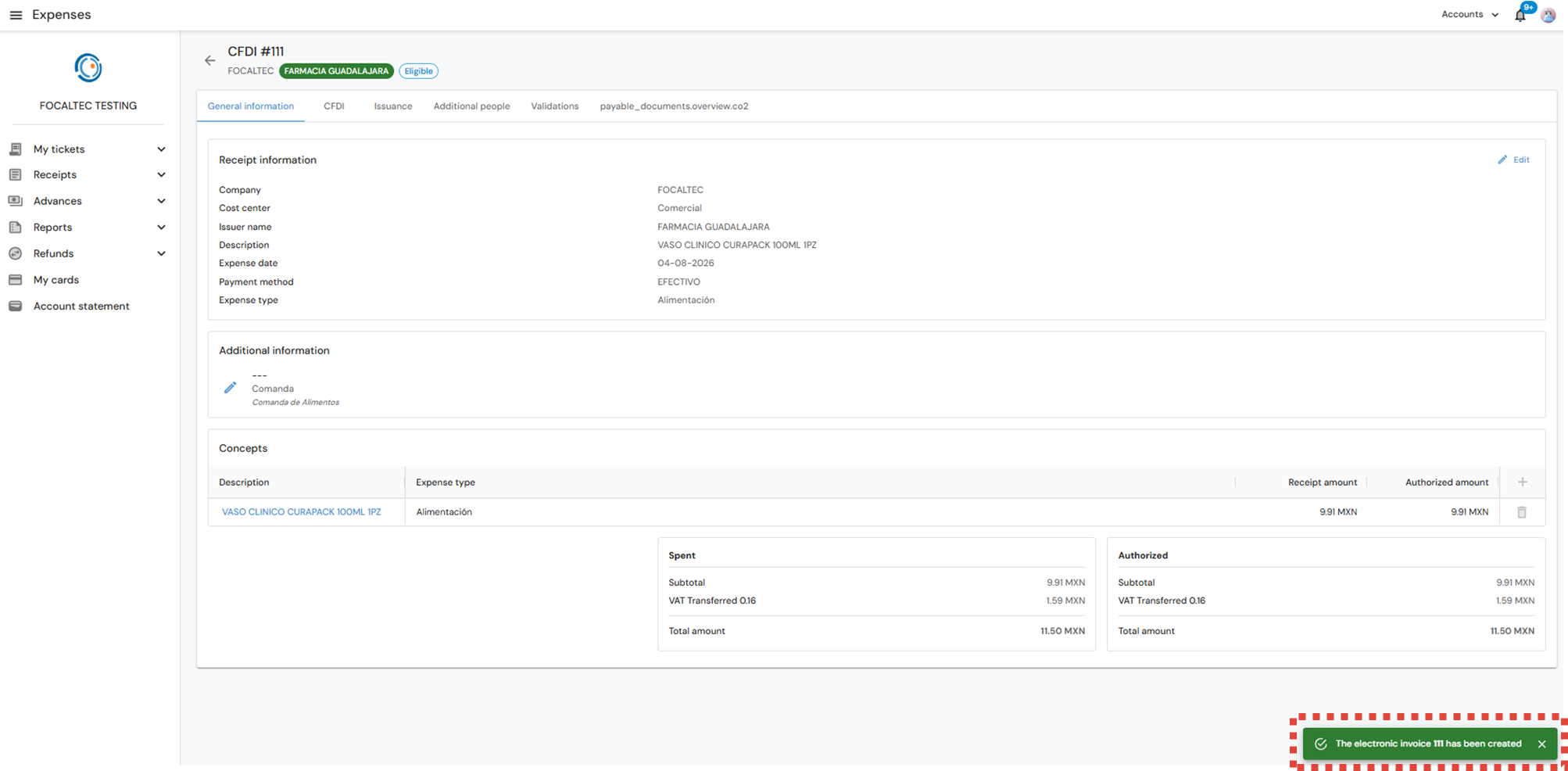
NOTE. If the company requests additional information from you, the status of the receipt will be “Draft”; to change that status to “Eligible”, segregate the requested information.
Loading a Non-deductible receipt.
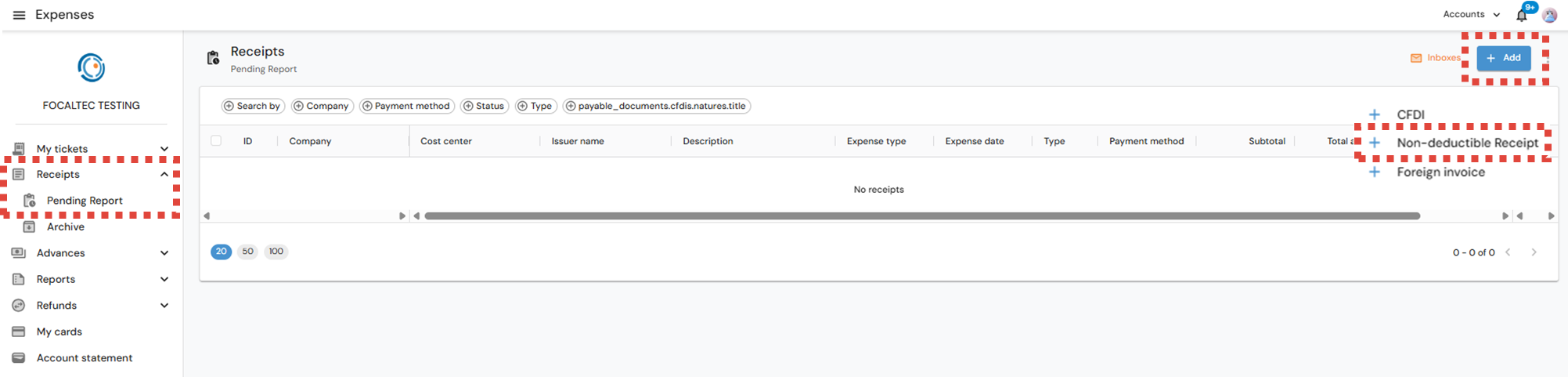
After logging in to Focaltec Control de gastos, the User must click on the Menu “Receipts > Pending Report”; the list of receipts already registered will be in view, now click on “+ Add > Non-deductible receipt”.
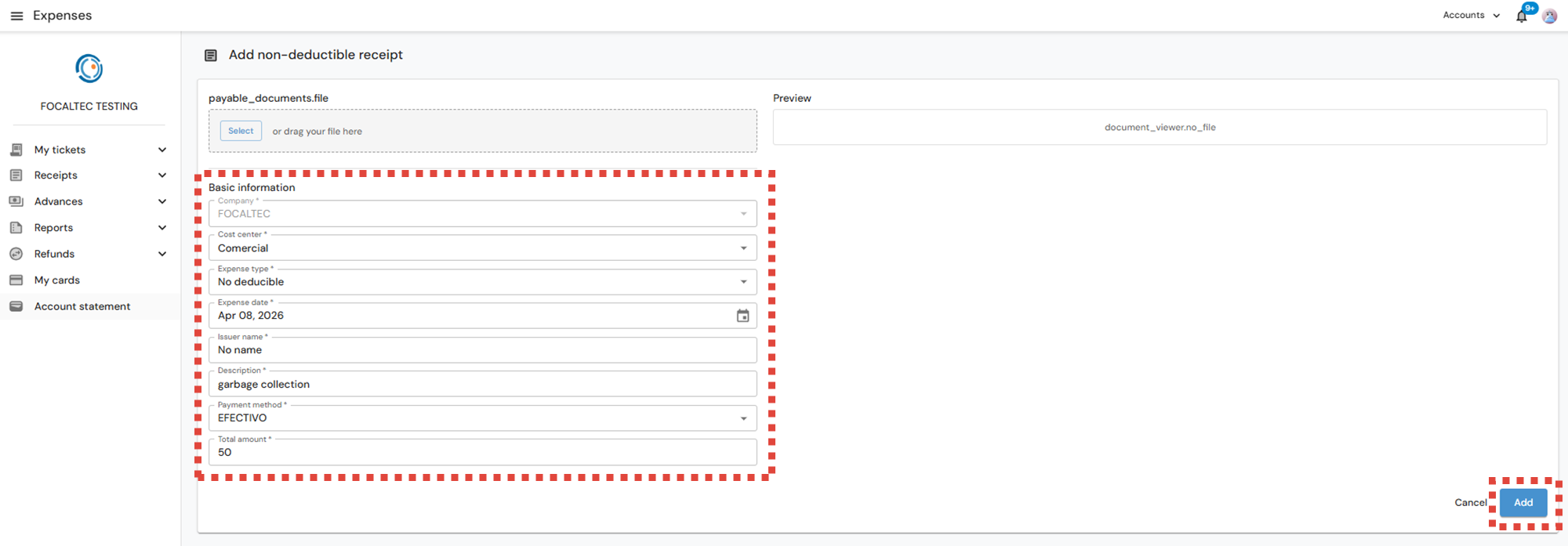
Add the data shown in the “Basic information” section, click on “Add”.
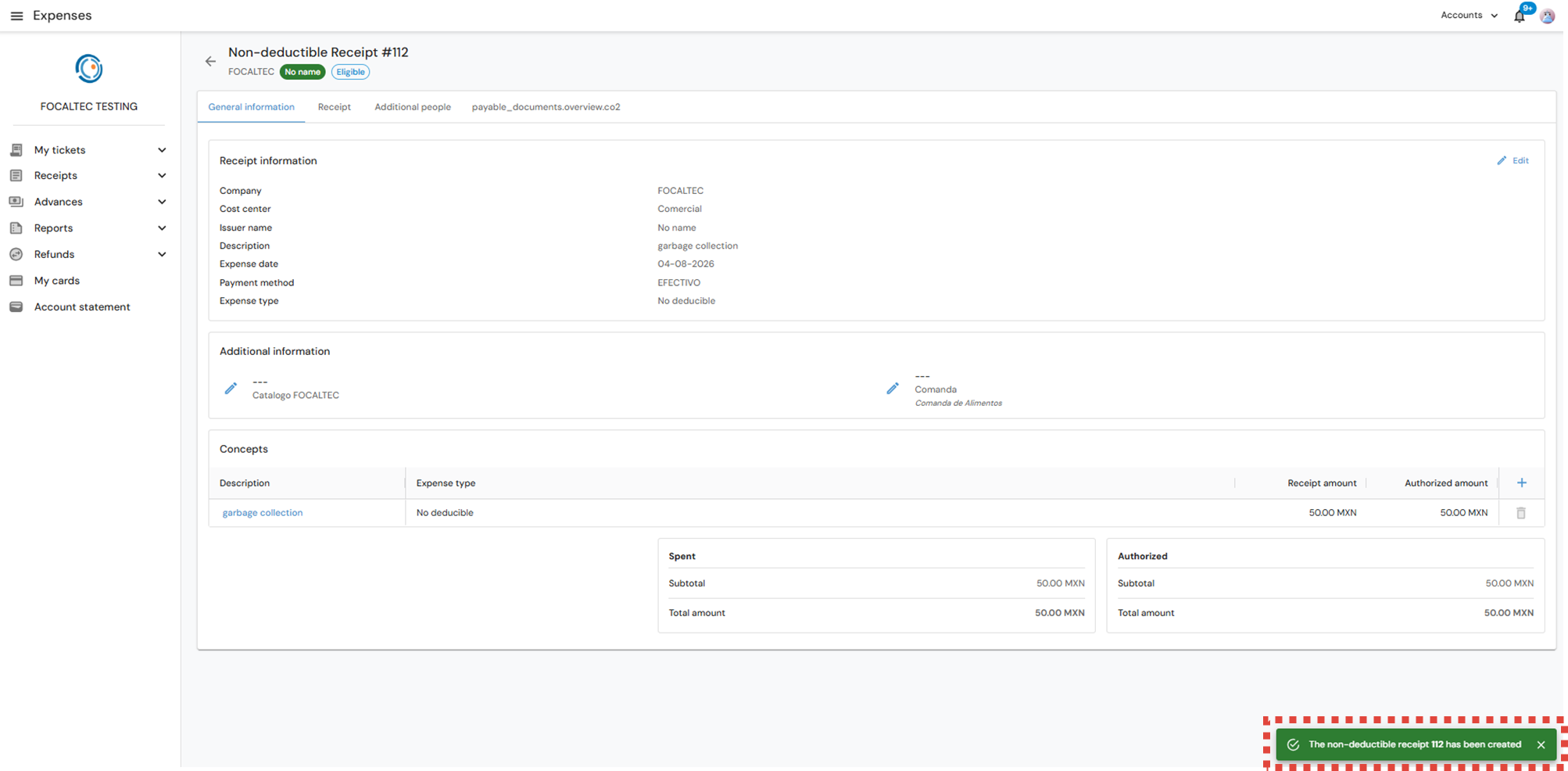
The portal issues an alert notifying “The non - deductible receipt xxx has been created”, you can also observe in the upper part the receipt status “Eligible to Draft”. If the status is “Draft”, you must add the additional information requested by the company.
Loading a foreign receipt.
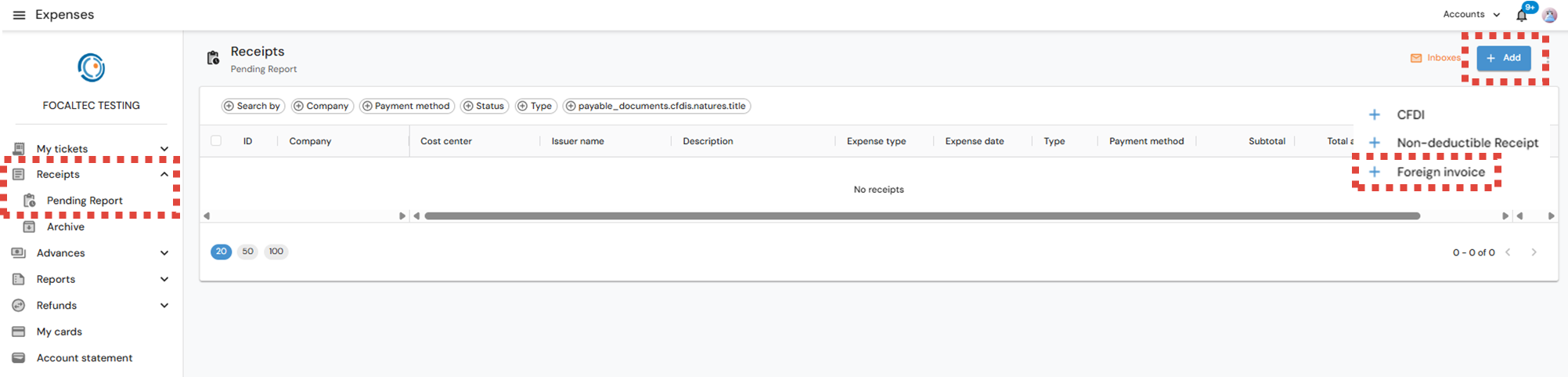
After logging in to Focaltec Control de gastos, the User must click on the Menu “Receipts > Pending Report”; the list of receipts already registered will be in view, now click on “+ Add > Foreign invoice”.
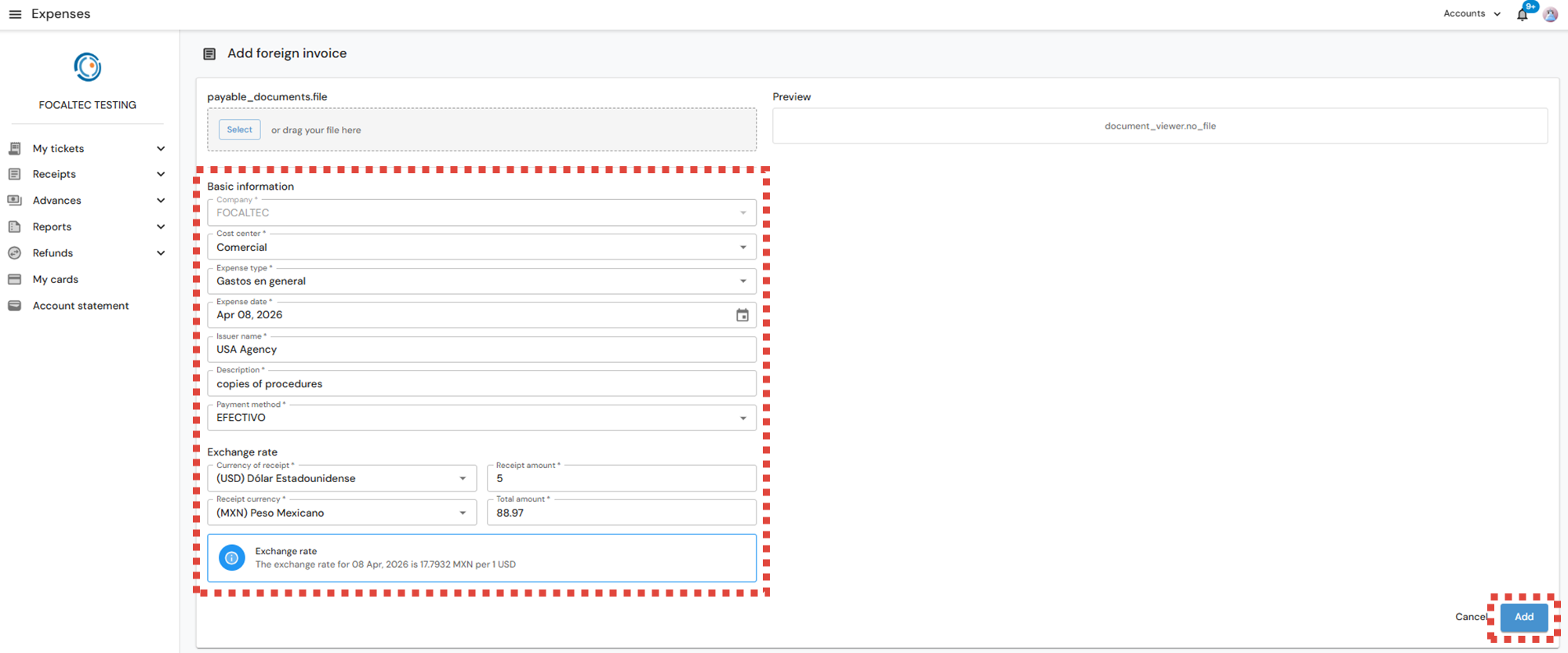
Add the data shown in the “Basic information” section, click on “Add”.
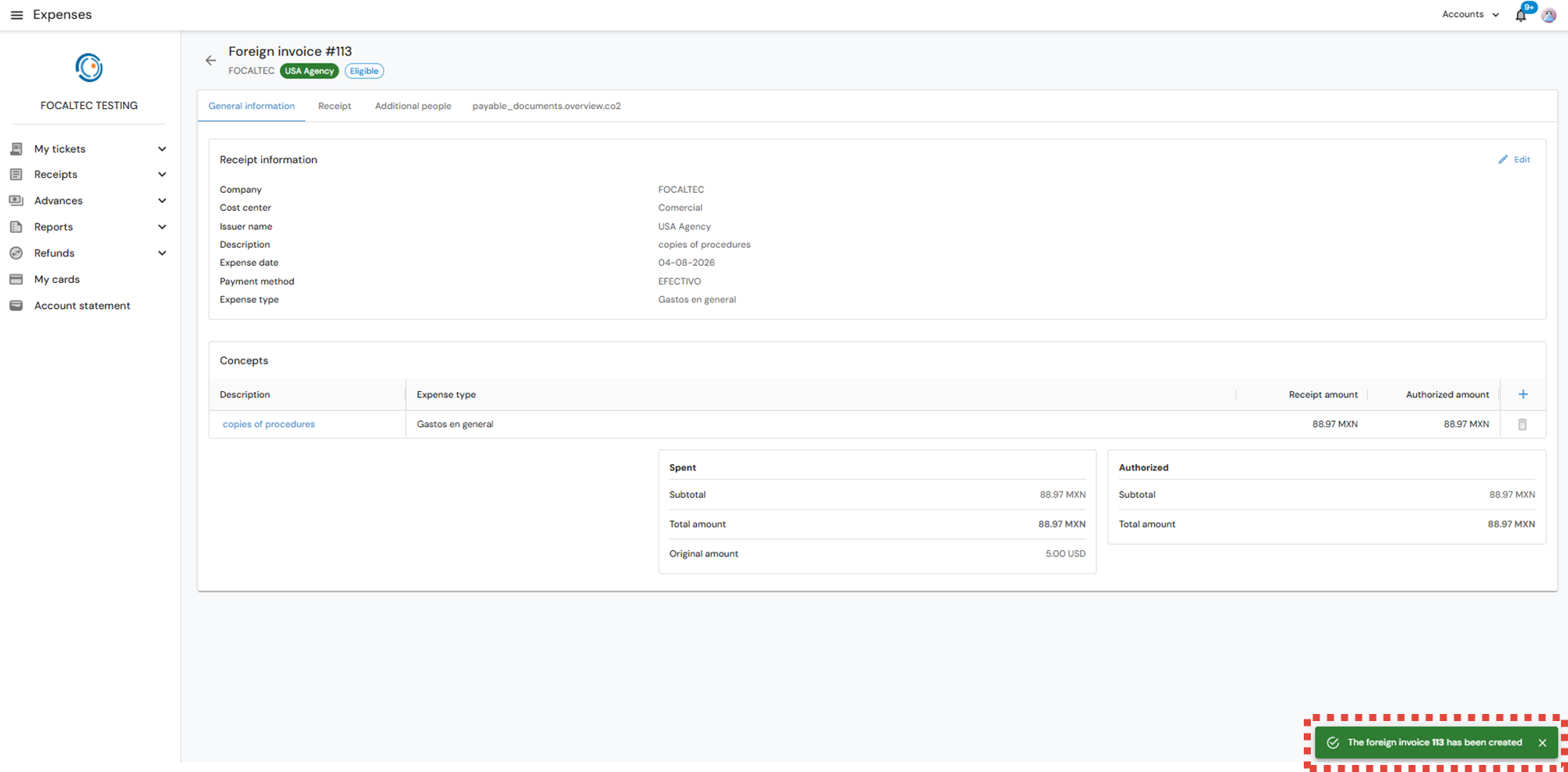
The portal issues an alert notifying “The foreign invoice xxx has been created”, you can also observe in the upper part the receipt status “Eligible to Draft”.
If the status is “Draft”, you must add the additional information requested by the company.