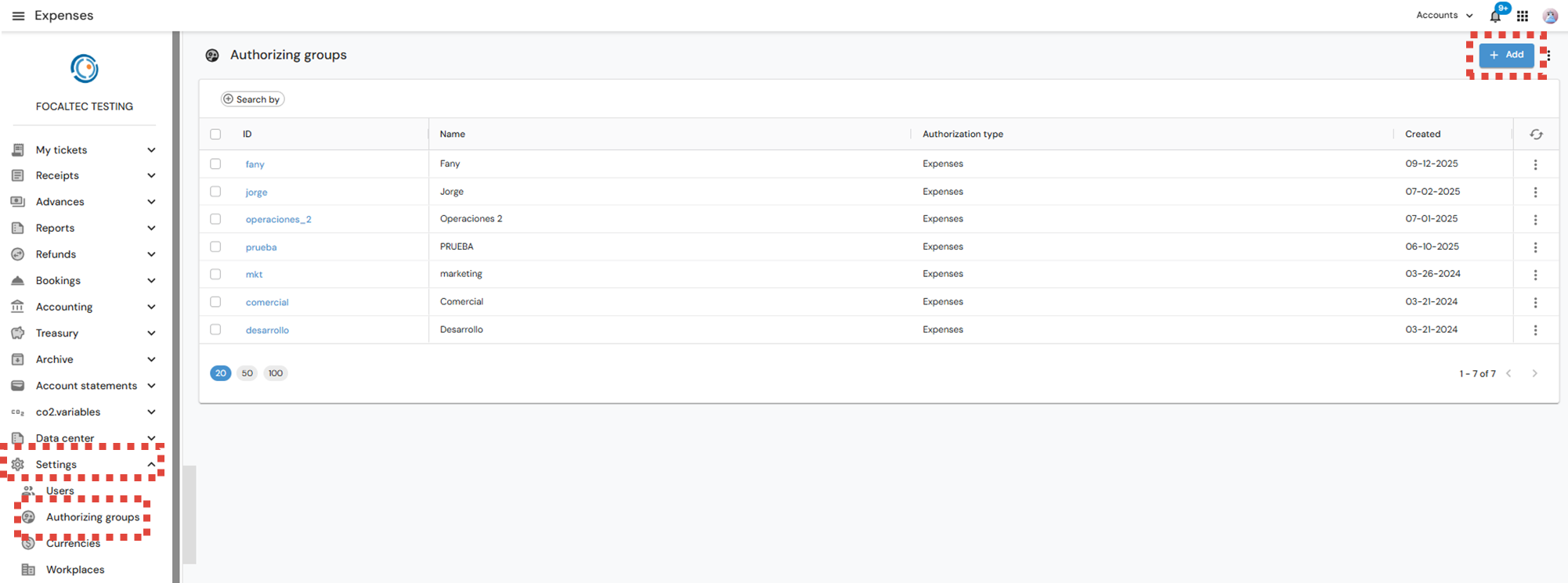
To create a new Authorizer Group, you must perform the following steps:
Log in to the Focaltec Control de gastos portal and go to “Settings > Authorizer Groups”, the portal will list the authorizer groups that have already been added, click “+ Add”.
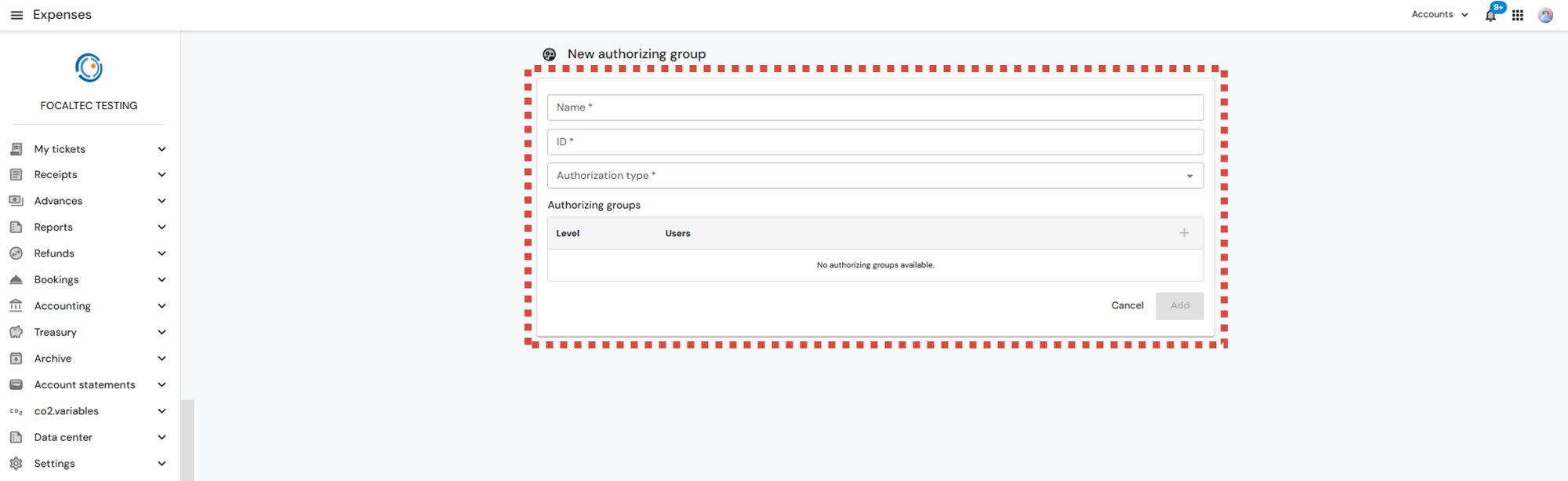
You will then need to enter the following information:
Name: Assign a descriptive name to the group (for example: Project Reservations, Regional Reservations, etc.).
ID: You will notice that the same information entered in the Name field is displayed here, although you can enter a different identifier.
Approval Type: Click the drop-down menu and select “Reservations” as the Approval Type.
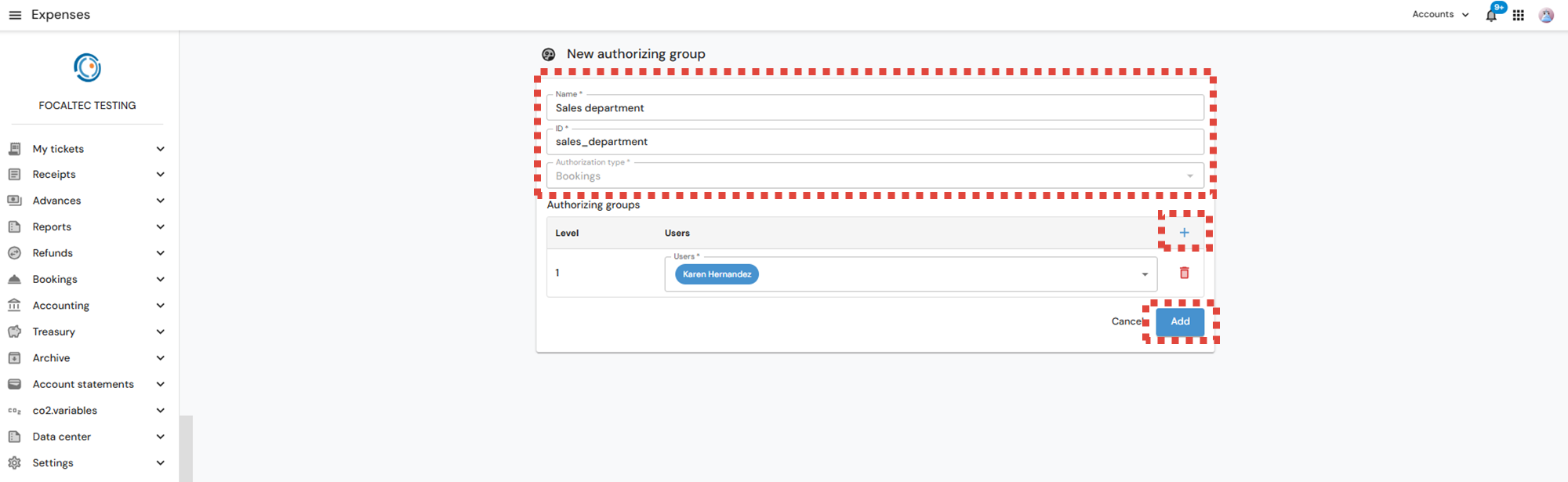
Approvers Group: Add levels and users by clicking the “+” (Add) icon located to the right of the table to add a new approval level and select the corresponding users who will have the authority to approve at that level.
Review the information you entered, and if everything is correct, click “Add”.
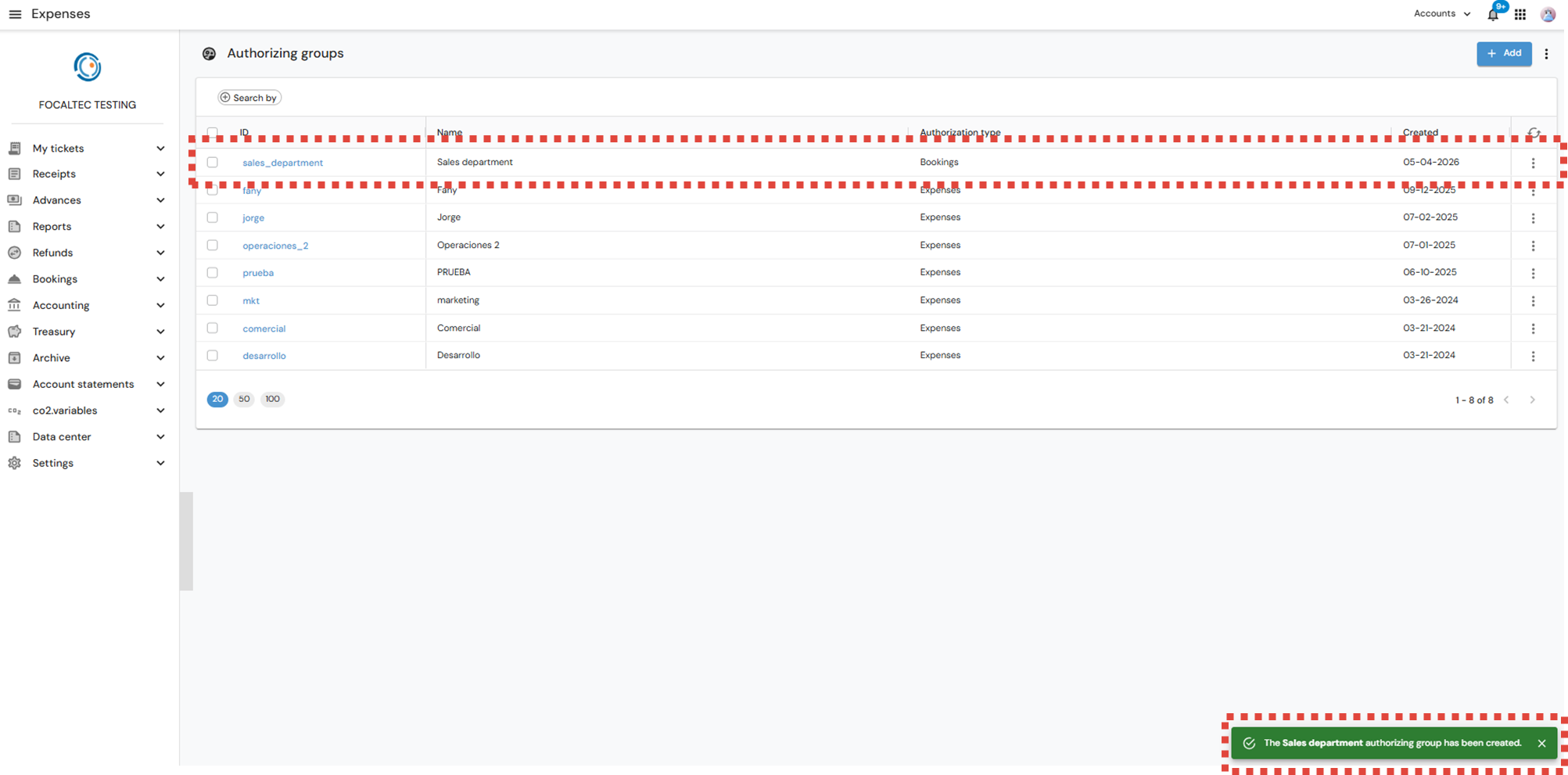
Finally, the list of approvers is displayed, along with a message confirming that “The XXXXX authorizing group has been created”.