
Context.
Some companies need to assign the “Logistics” role to users whose activities are limited solely to those related to user reservations.
There are two scenarios that may arise when assigning the “Logistics” role to a user:
Scenario 1. When the user has already been registered in Focaltec Control de gastos.
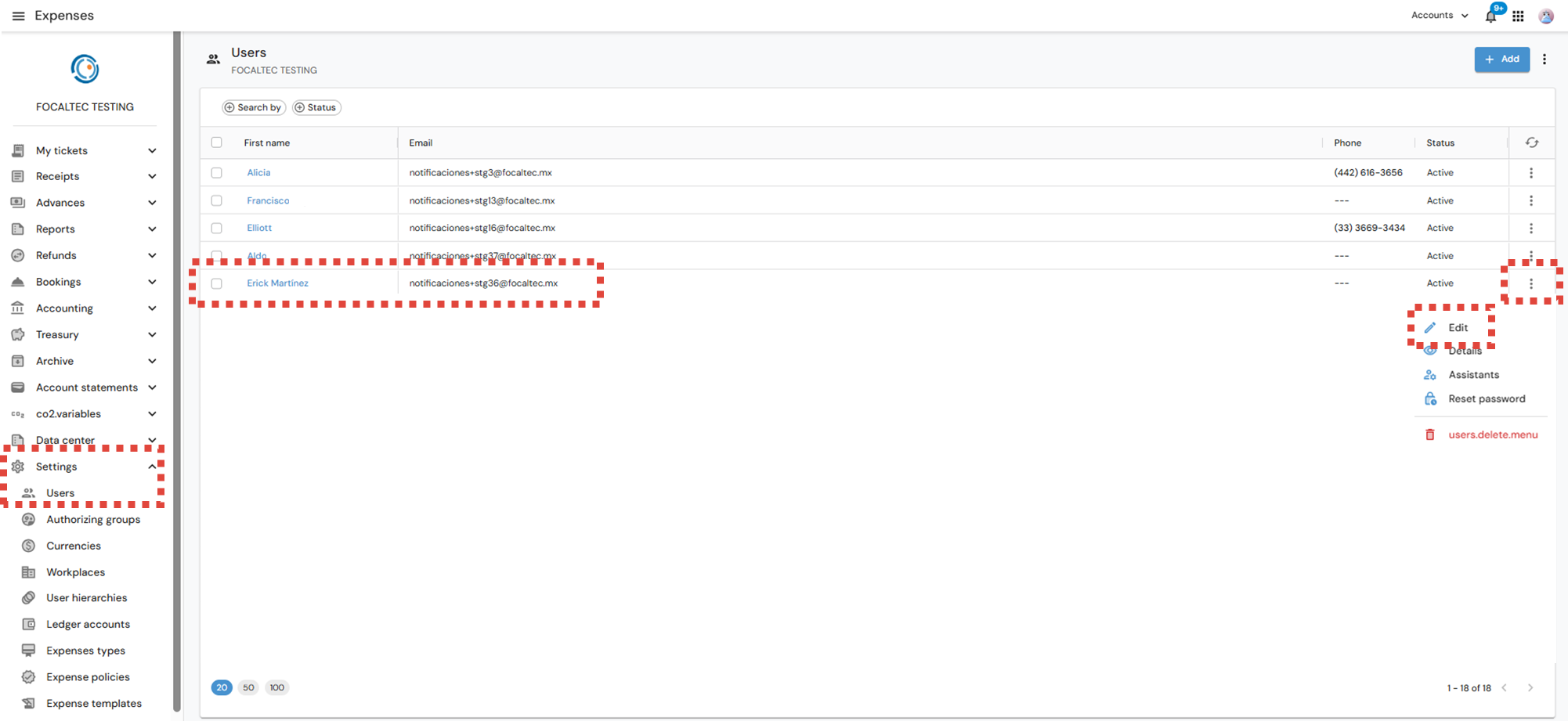
Log in to the Focaltec Control de gastos portal, go to “Settings > Users > Search for User > click the menu icon three vertical dots (⋮) > edit”.
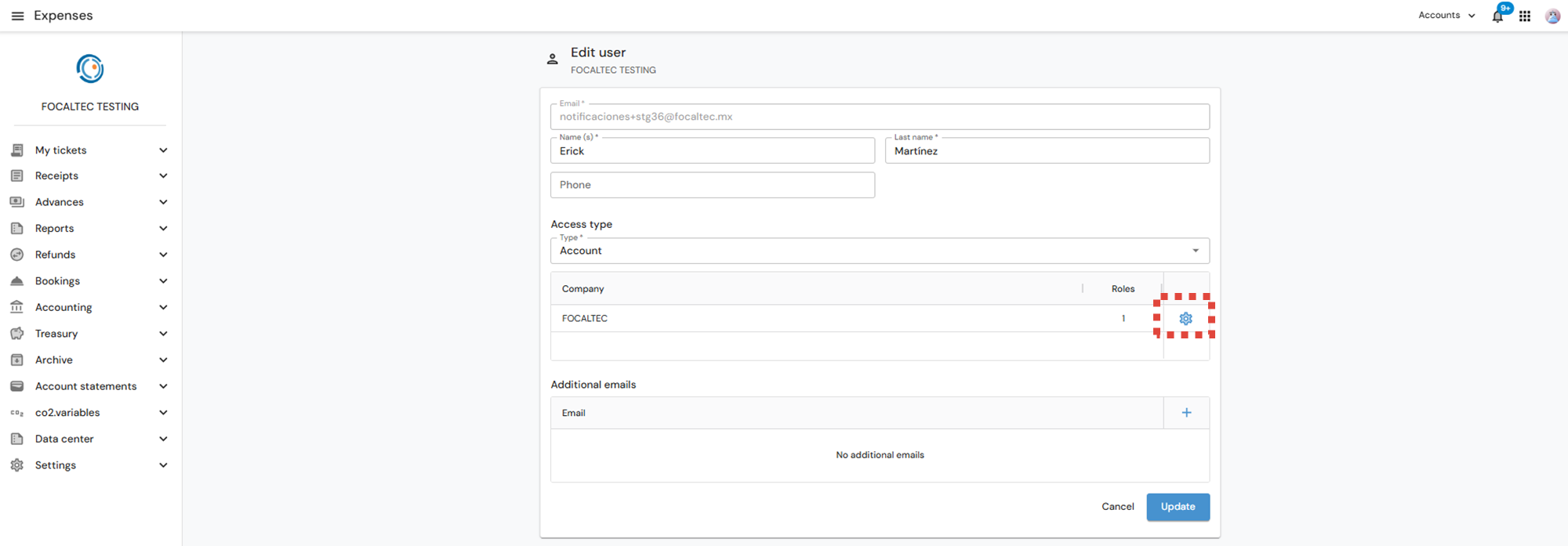
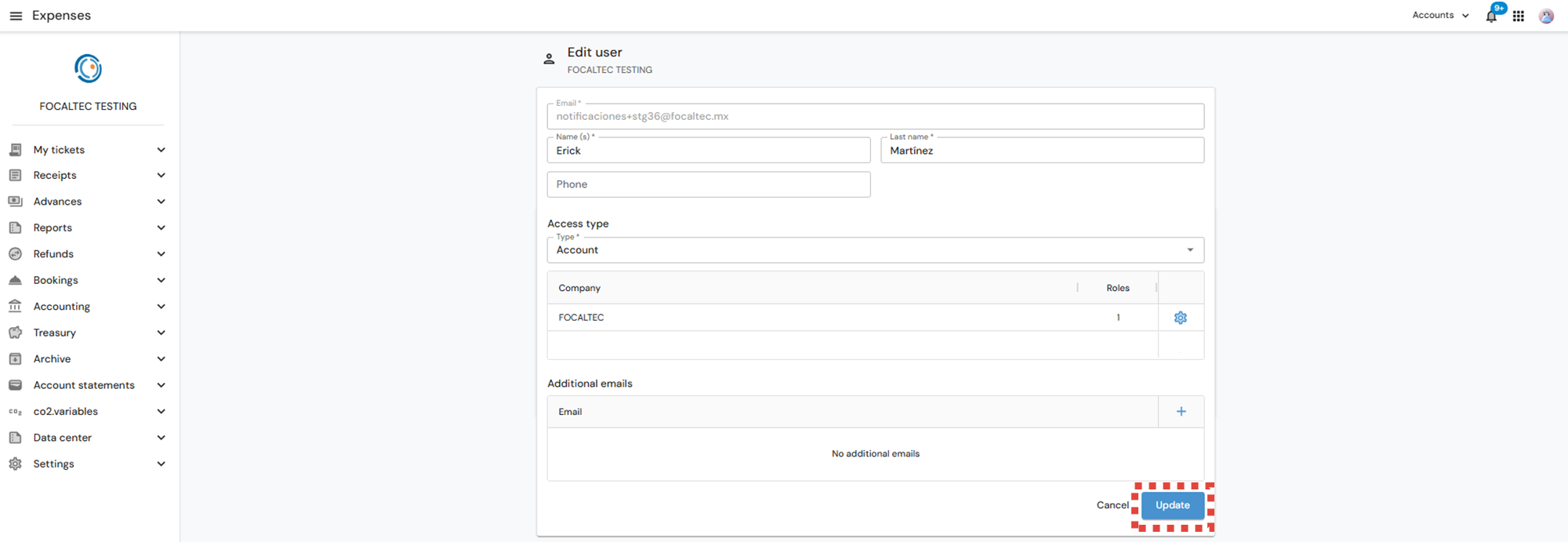
You can view the information used to register the user, in the “Companies” section, click the gear icon (⚙️).
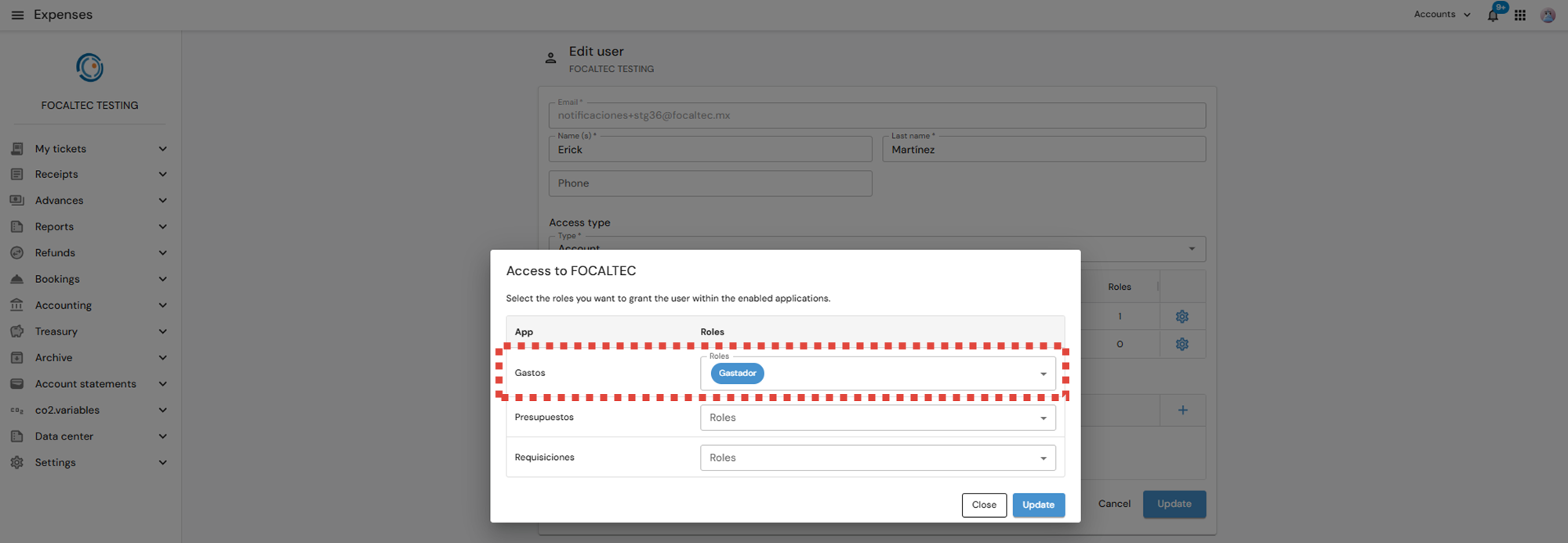
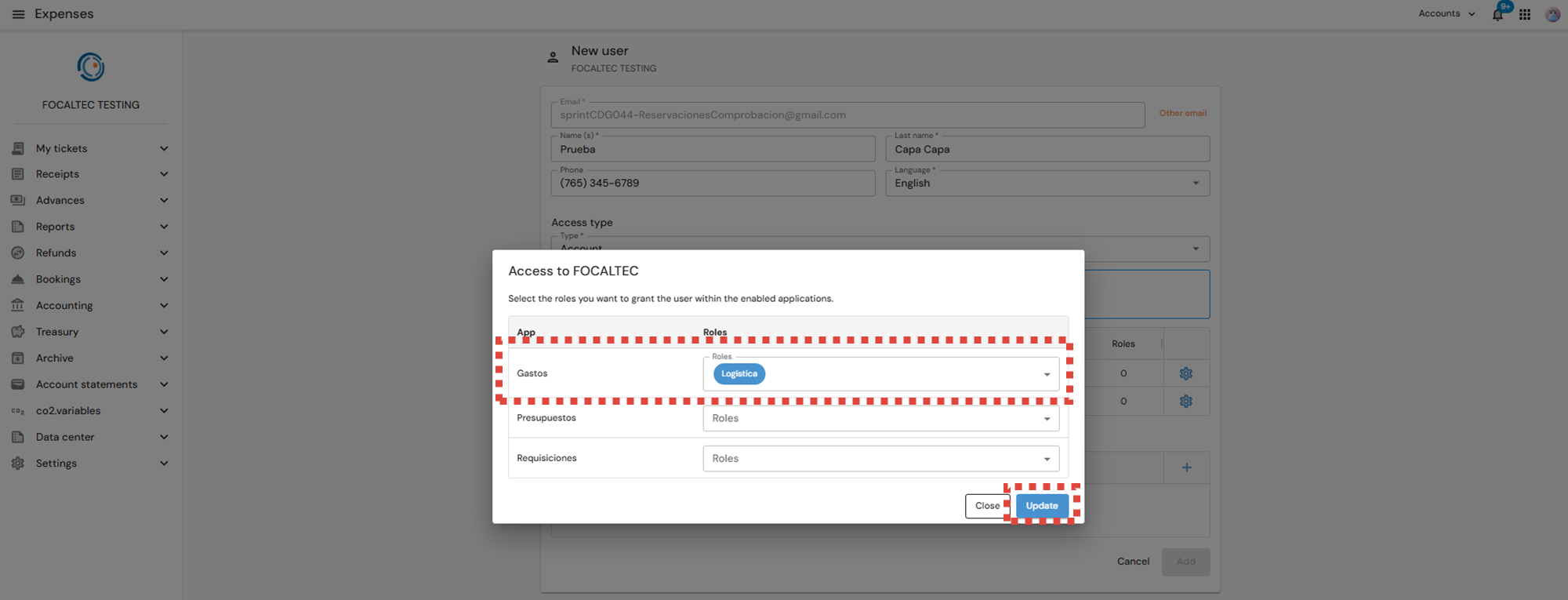
You can now view the role currently assigned to the user, click the drop-down list to select the role you want to assign, and check the box next to “Logistics”.
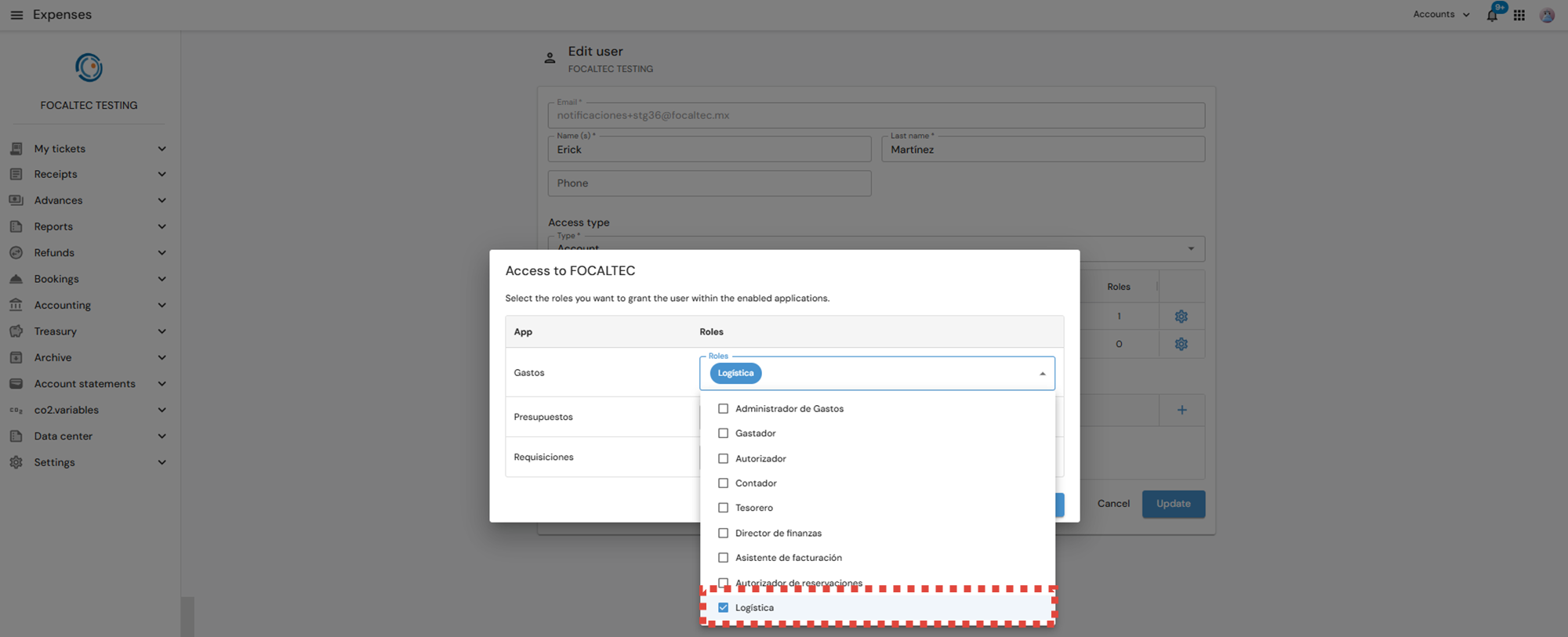
After selecting and confirming the “Logistics” role, click “Update”.
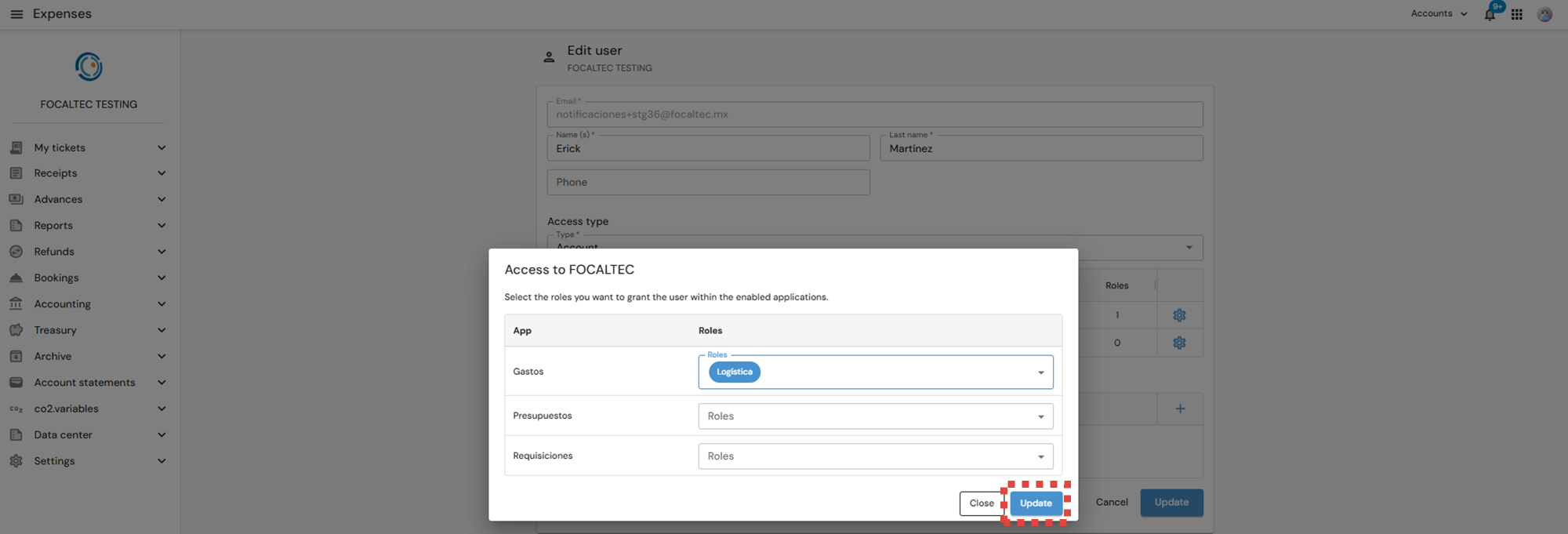
Finally, the portal displays a summary of the information entered to register the user, click “Update” to save the changes.
Scenario 2. When a user is being registered in Focaltec Control de gastos.
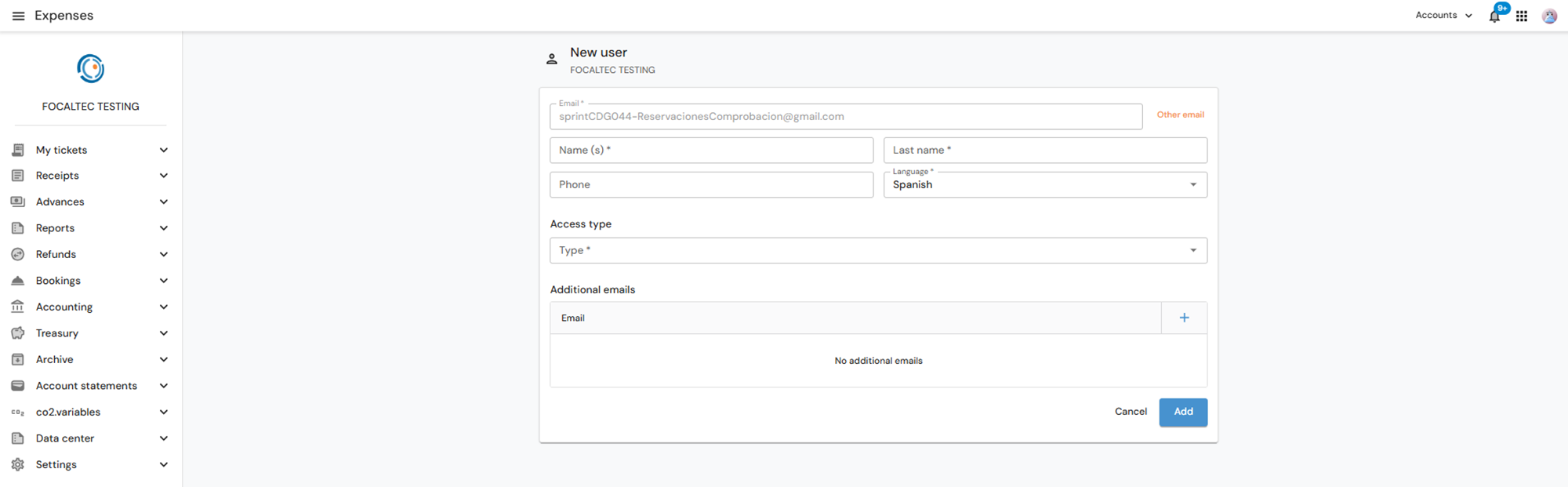
During the process of adding a new user to the Focaltec Control de gastos portal, when entering general information, a form appears for registering employees (Users), click on each field to enter the information:
Email. This field is filled in automatically; the email address previously registered should appear here.
First Name(s). Enter the User’s first name(s).
Last Name(s). Enter the User’s paternal and maternal last names.
Phone number. Enter the User’s 10-digit phone number.
Language. The language you will use to interact with the portal.
Access type. Select “Account”.
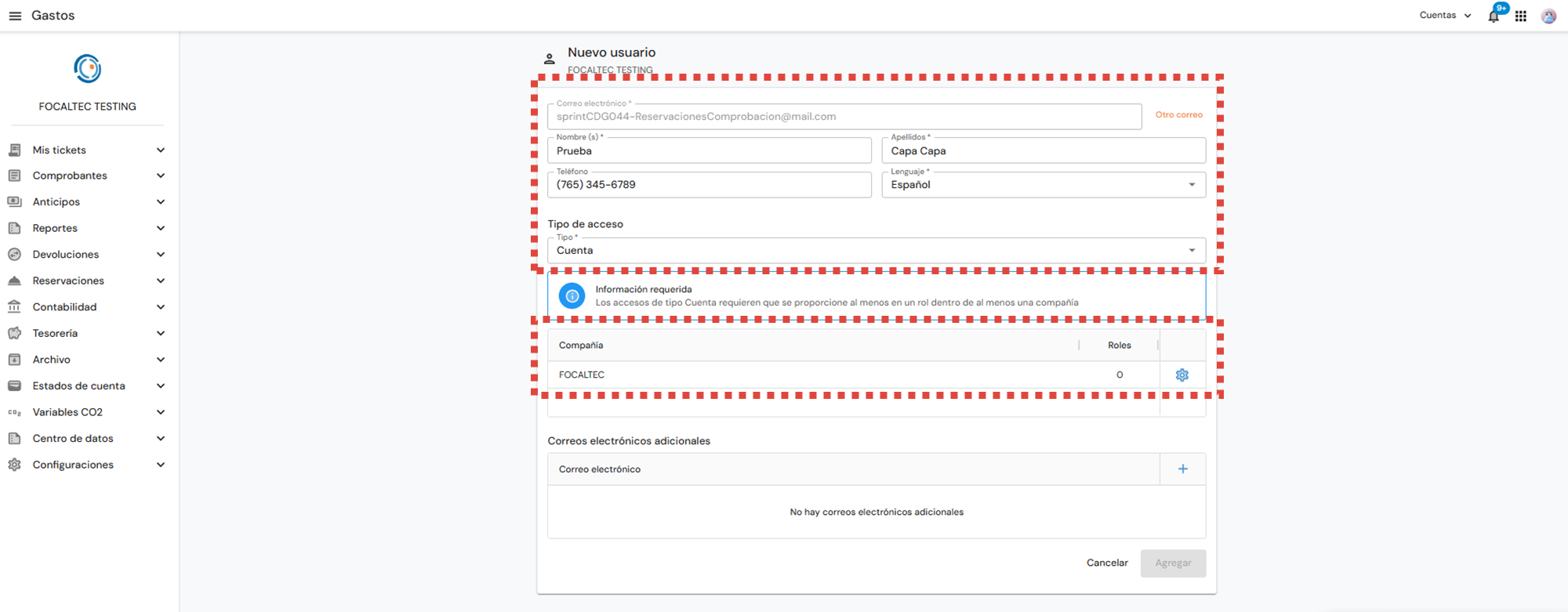
Now, in the “Companies” section, click the gear icon (⚙️) to select the “Logistics” role that will be assigned to the user.
Finally, the information used to begin registering the new user on the Focaltec Control de gastos portal is displayed; click “Add”.
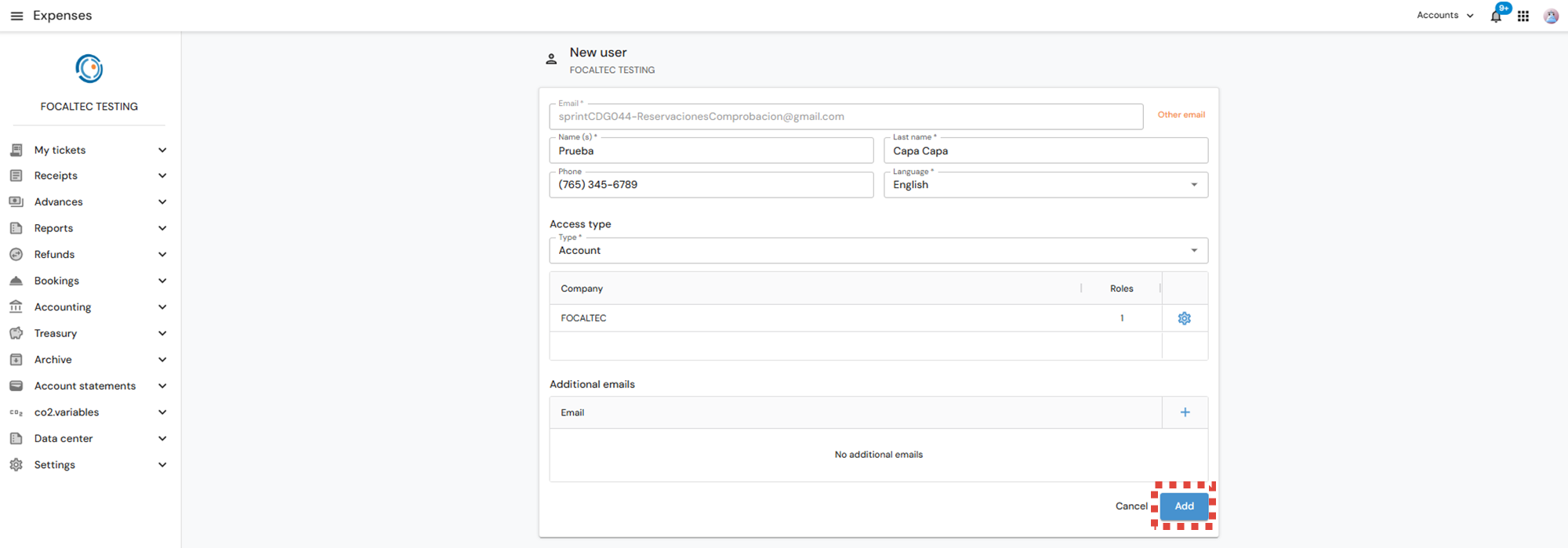
Note: This assigns the “Logistics” role to the user, you must then enter the remaining information to complete the user registration.