
Context.
Currently, CDG has a setting that allows you to enable or disable a validation check that compares the payment method selected by the user with the one specified in the CFDI XML.
With this configuration, the User receives a warning informing them when the payment method selected in Focaltec Control de gastos does not match the one specified in the CFDI XML, in order to highlight the discrepancy in a timely manner and help them review or correct it before continuing with the process.
This feature serves an informational and preventive purpose; it does not block data entry, editing, saving, or the progress of the workflow.
When the User stamps their receipt, the following payment methods and their codes are displayed:
Steps to enable the Payment Method Alert in Focaltec Control de gastos.
You must request that Support make the necessary configuration by submitting a support ticket or sending an email to soporte@focaltec.com or ayuda@focaltec.com, with the subject line “Enable Payment Method Warning in CDG”.
Support will need to verify that the option is enabled and active under: “Account > Settings > Display warning payment method”.
Support will notify the customer that the configuration has been completed.
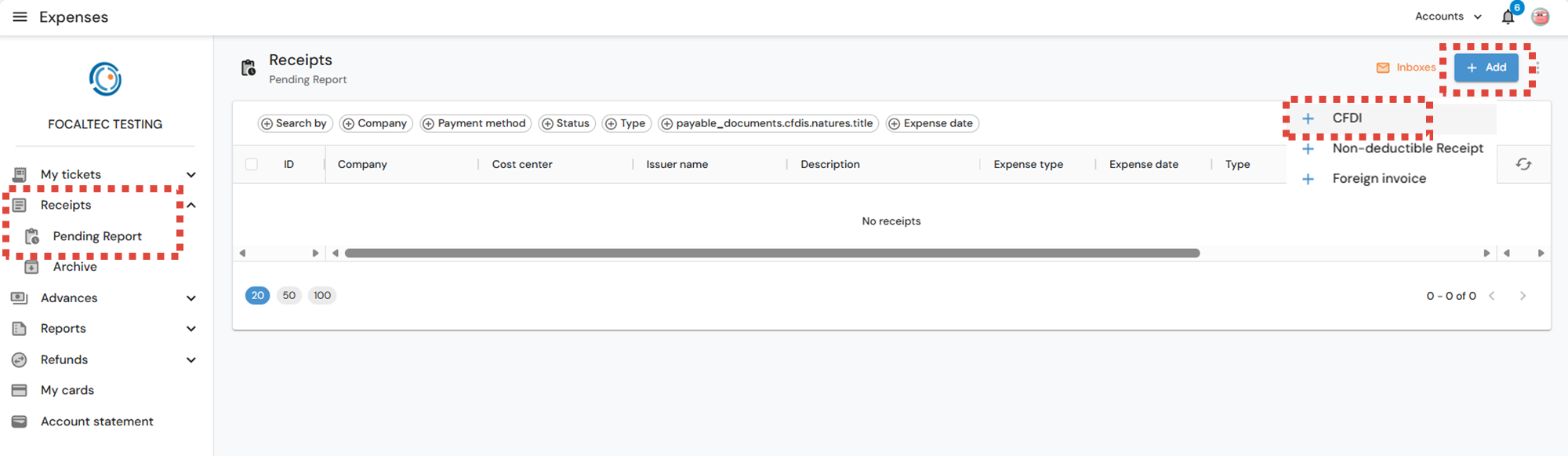
Users in Focaltec Control de gastos who follow these steps when entering a CFDI “Receipts > Pending Report > Add > CFDI > XML - PDF > Enter Data > Add”, may see an alert in the “Payment Method” column of the receipt summary indicating that (Payable documents payment method inconsistency).
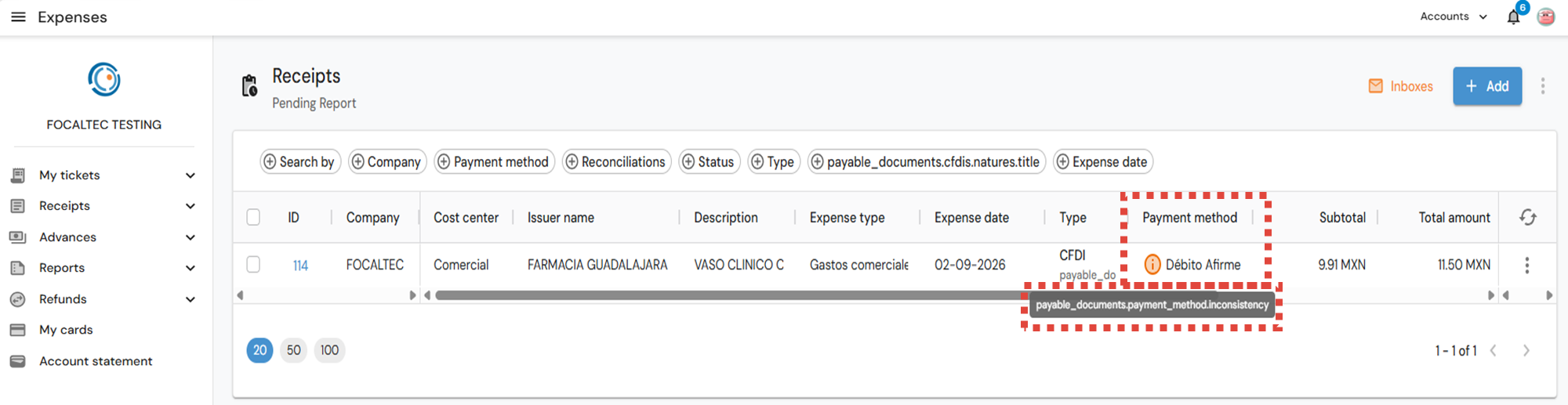
Next, the user will need to verify their CFDI, make the change, and save the correct information. The portal will then display the CFDI again, but this time the warning message will no longer appear in the “Payment Method” column.
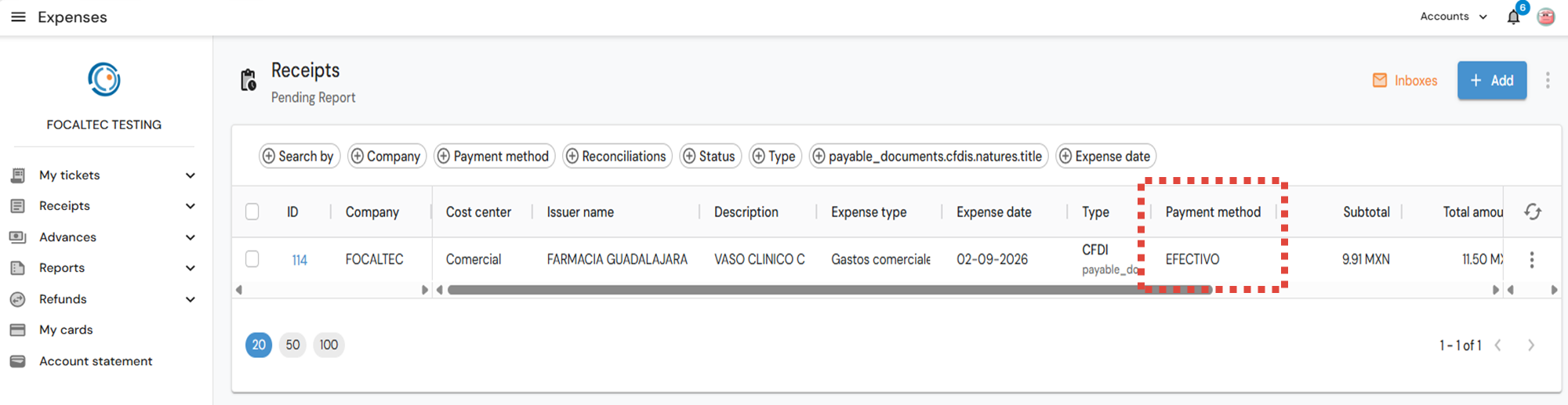
NOTE: For users, this feature serves an informational and preventive purpose; it does not block data entry, editing, saving, or workflow progression, nor does it prevent the receipt from being used in an expense report.
Support resource.
The following video provides an example of the actions performed by the user and how the “Payment Method Error” warning is displayed.